

Custom conversions
Create custom conversion events in Skro, choose how they affect reports, and map event names for each traffic source.
Custom conversions let you report separate events such as registrations, purchases, upsells, and deposits. Send the event value in the ce parameter of your Skro postback URL.
https://skrotrack.com/postback?clickId=REPLACE&ce=InitiateCheckoutYour subscription determines how many custom events you can create, up to 20. Use a single-word event value and match its spelling and capitalization across your setup.
Skro events and traffic source events
Skro custom conversions are configured independently of the custom conversion features in Meta or TikTok. A Skro custom event can map to a standard event supported by your traffic source.
Event settings
These settings determine how an event appears in reports and whether it is sent to the traffic source.
| Setting | Effect |
|---|---|
| Custom Conversion Event Name | Sets the column title in reporting views. |
| Values of the CE parameter | Defines the accepted ce values. You can add multiple values for providers that use different names. |
| Use as Approved conversion type | Includes the event in Conversions (Approved) and the CR, CV, and AP calculations. |
| Include in Conversions (All) column | Includes the event in the total conversion count. |
| Include in Revenue column | Includes the event’s payout in revenue. |
| Include in conversions Daily Cap value | Counts the event toward the offer’s configured daily conversion cap. |
| Send postback to Traffic Source | Sends the event to the traffic source through its postback or conversion API integration. |
| Include Payout value in postback | Includes the payout when sending the event to the traffic source. |
| Include in Cost column | Includes the event in cost calculations for CPA and CPS (RevShare) campaign cost models. |
Create conversion events
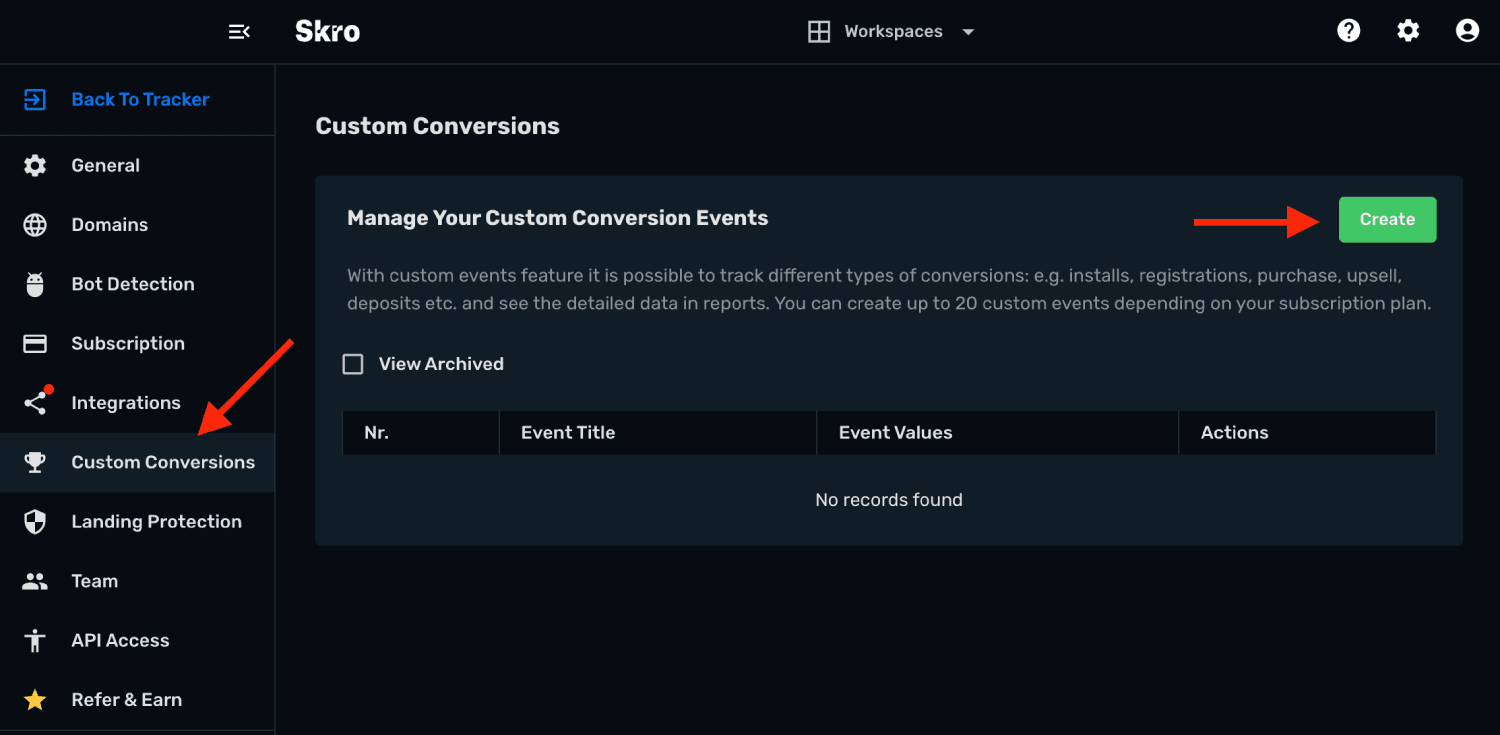
1. Open Custom Conversions
In Skro, go to Custom Conversions and select Create.
2. Create an AddToCart event
Set the event name and accepted ce value to AddToCart, then choose the reporting options you need.
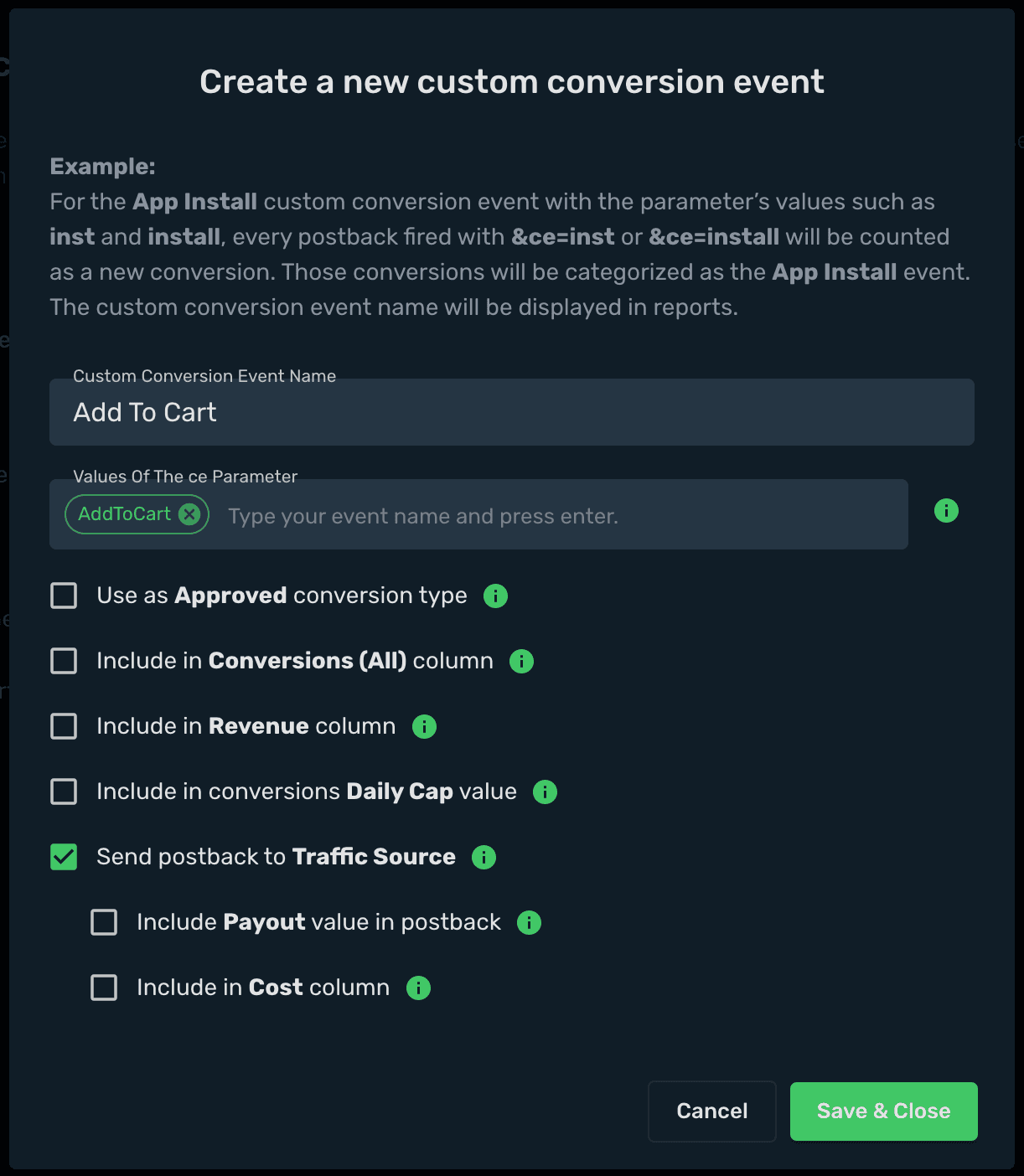
https://skrotrack.com/postback?clickId=REPLACE&ce=AddToCart3. Create an InitiateCheckout event
Create a second event with the value InitiateCheckout.
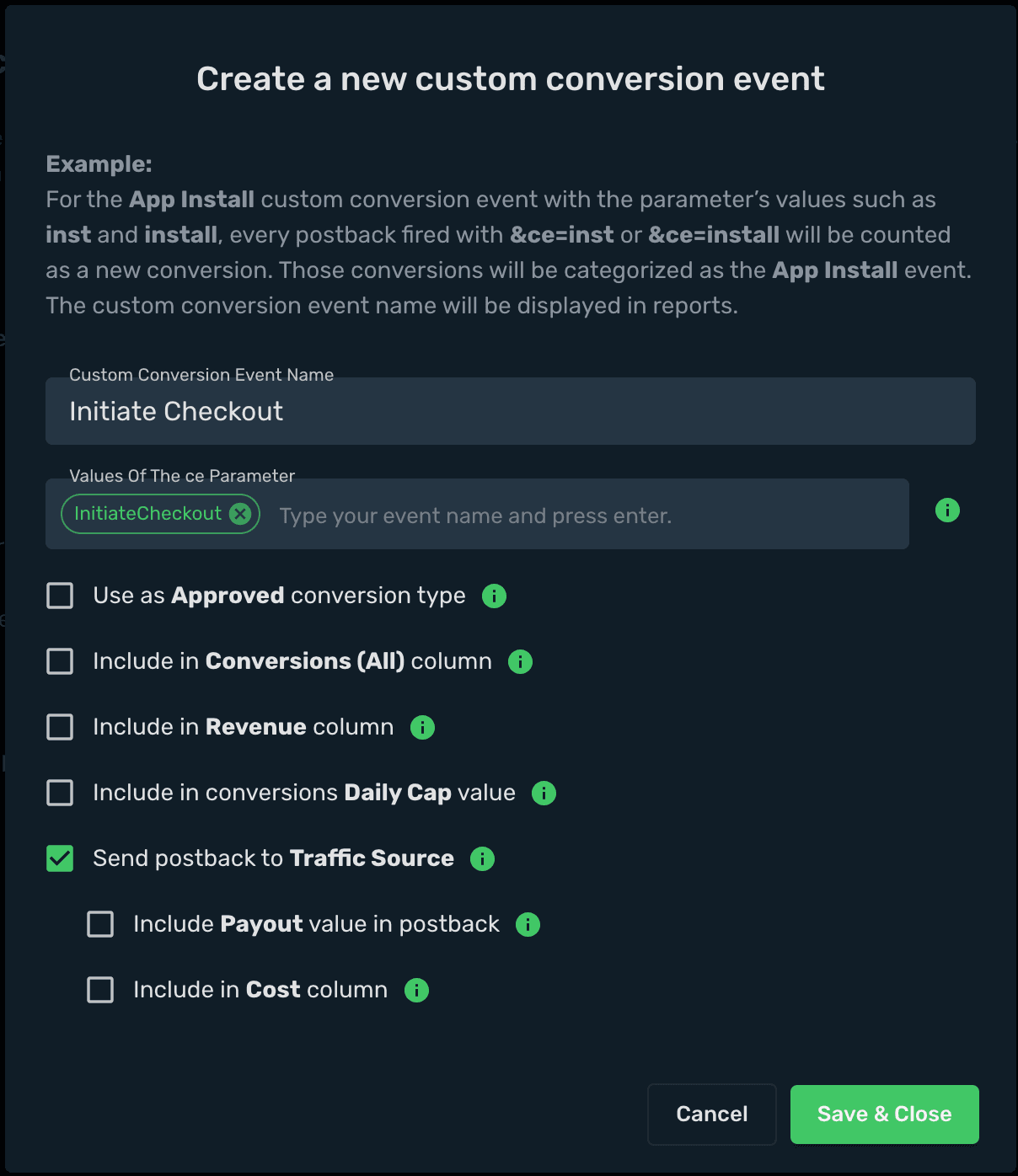
https://skrotrack.com/postback?clickId=REPLACE&ce=InitiateCheckout4. Create a Purchase event
Create an event with the value Purchase. Configure its revenue and approved-conversion settings to match your reporting needs.
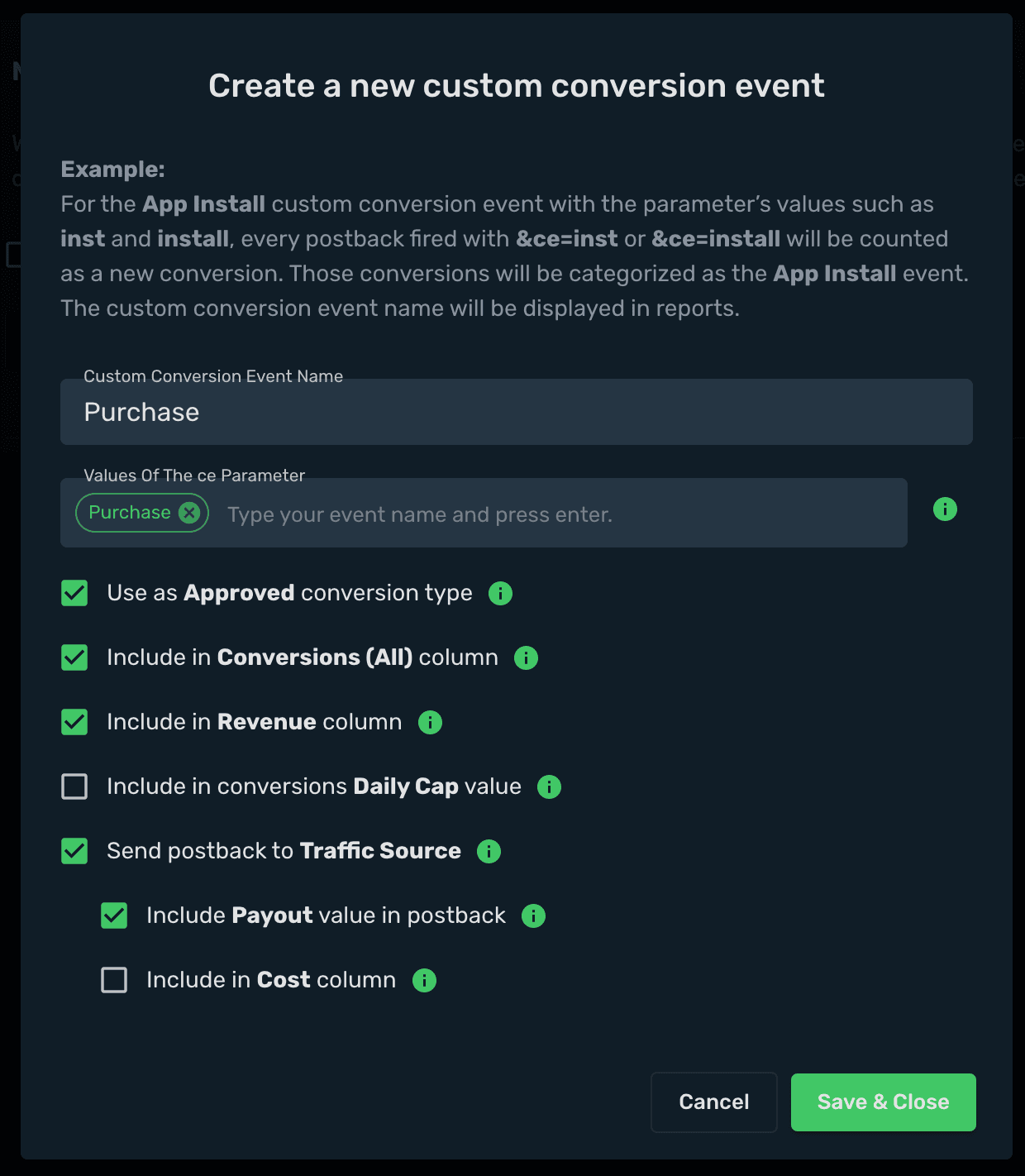
Include the revenue and transaction identifier when reporting a purchase:
https://skrotrack.com/postback?clickId=REPLACE&payout=REPLACE&transactionId=REPLACE&ce=PurchaseReplace each placeholder with the appropriate value or provider macro. See the postback parameter reference for field descriptions.
Map event names for a traffic source
Use custom conversion mappings when traffic sources expect different event names for the same internal Skro event. Your incoming postback can keep one ce value while Skro sends the mapped event name to each source.
- Go to Traffic Sources and edit the relevant source.
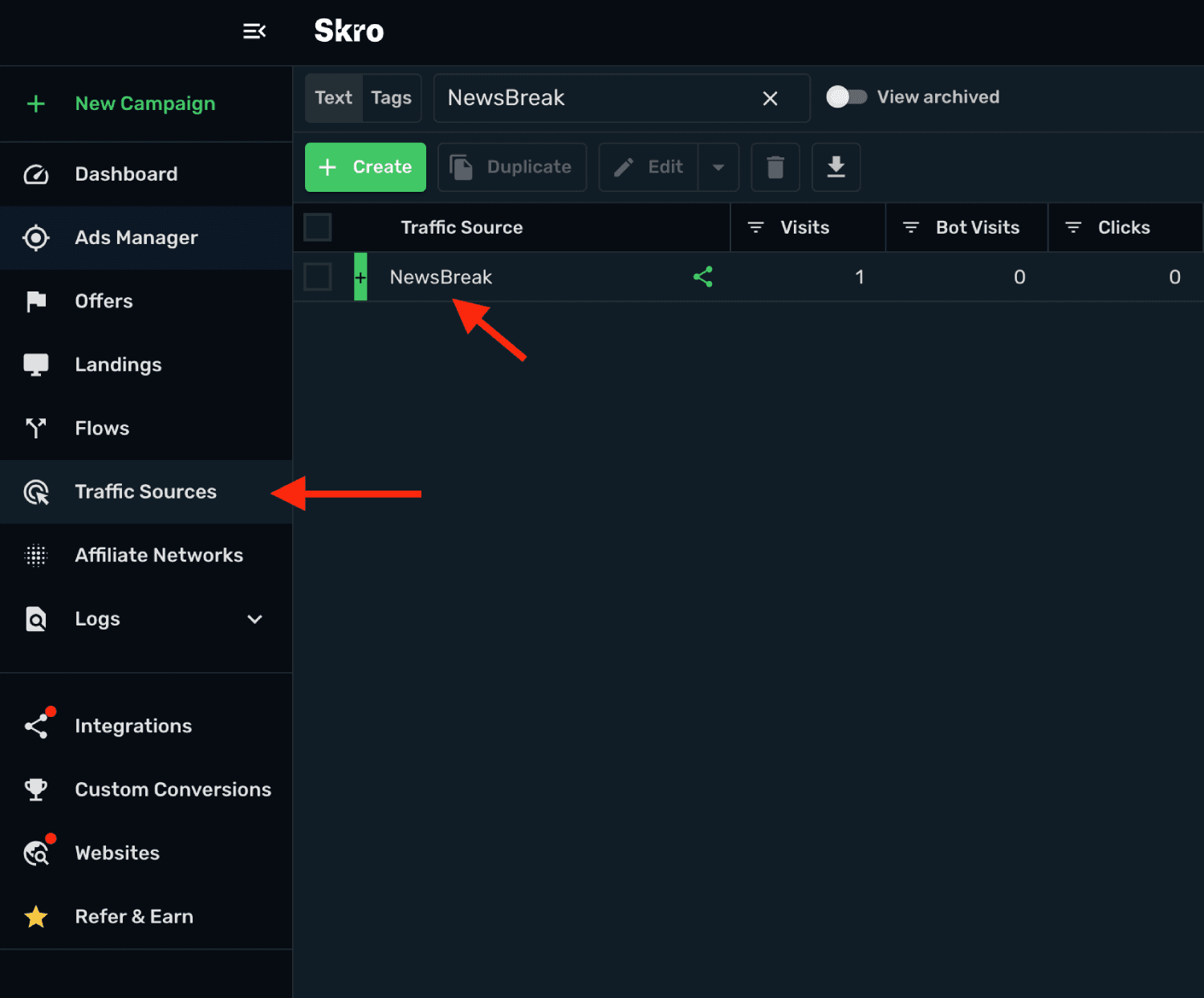
- Enable Allow custom conversion event name mappings.
- Select Add Mapping. You can configure up to 20 mappings.
- Choose the Custom Conversion and enter the New Event Name required by the traffic source.
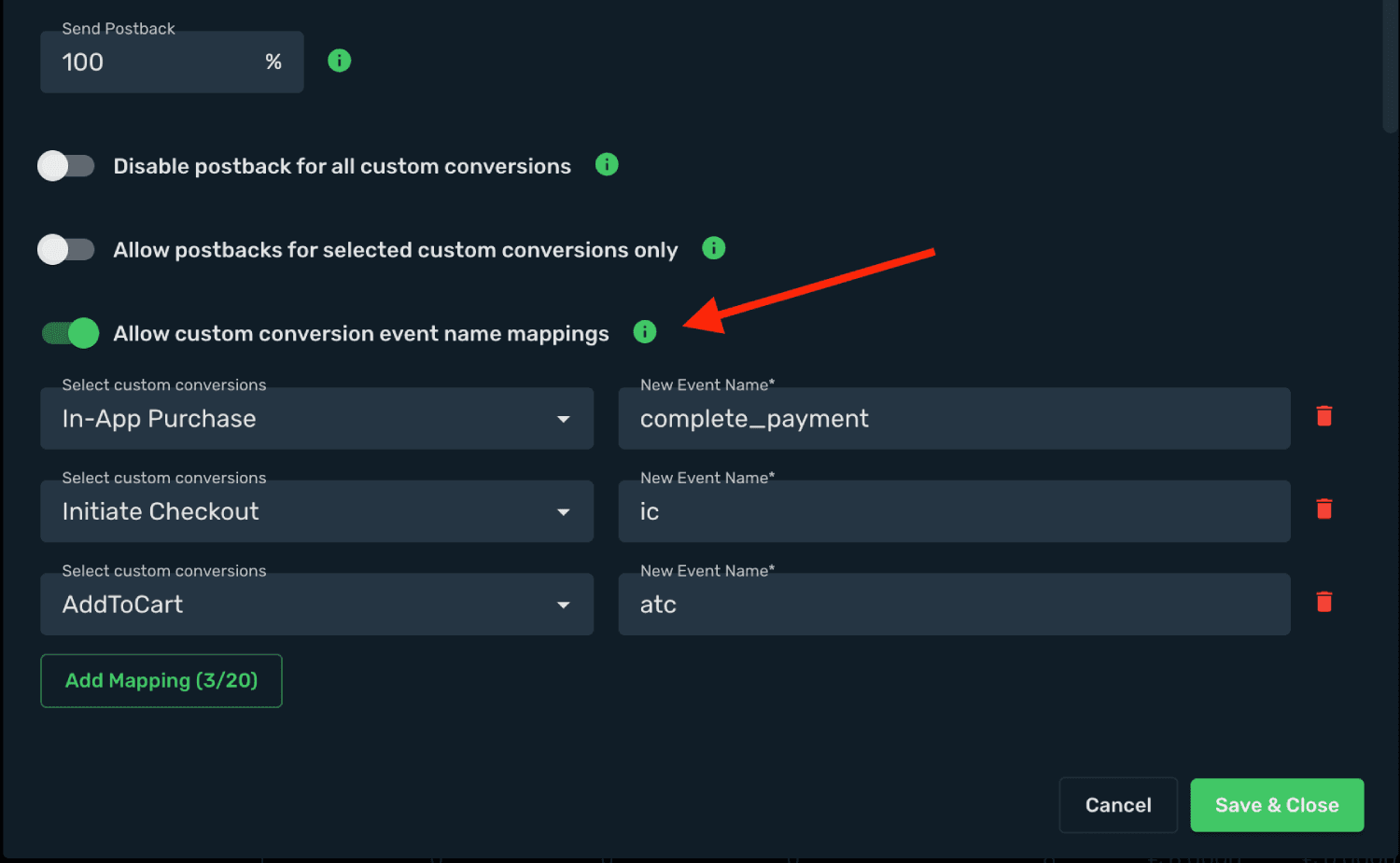
Example: Meta and NewsBreak
Suppose a conversion arrives with ce=Purchase. The same internal event can be sent as:
| Traffic source | Outgoing event name |
|---|---|
| Meta | Purchase |
| NewsBreak | complete_payment |
The incoming postback remains the same:
https://skrotrack.com/postback?clickId=REPLACE&payout=REPLACE&transactionId=REPLACE&ce=PurchaseVerify your events
Trigger a test event using a real Skro click ID. Confirm that the event appears in its reporting column, contributes to the intended totals, and uses the expected outgoing event name in the traffic source.
If the event is missing, check that the incoming ce value matches one of the event’s configured values. If it appears in Skro but not in the source, check Send postback to Traffic Source, the selected integration, and any event-name mapping.
Related guides
Need help with this guide? Contact Skro support.
Postback URL parameters
Reference for Skro postback parameters: click IDs, revenue, transaction IDs, conversion status, currencies, custom events, and platform-specific data.
Automated bot detection
Understand how Skro identifies suspicious traffic and choose whether to mark, block, or redirect detected bot visits.