

Connect AWS
Connect an AWS account to Skro for static website deployment using Amazon S3, CloudFront, and Certificate Manager.
The AWS integration lets Skro deploy static websites to your AWS account. Before connecting it, review the website deployment overview and prepare credentials for the integration.
Before you begin
You need an AWS account and an administrator who can configure programmatic access. Skro’s integration form requires an access key ID and secret access key.
Use a dedicated IAM user with permissions limited to the deployment operations you require. AWS recommends avoiding root-user access keys and applying least-privilege permissions. See AWS access key guidance and IAM best practices.
Step 1. Prepare AWS access
- Sign in to the AWS Management Console.
- Have your administrator configure a dedicated IAM user for the Skro integration, with access to the resources used for website deployment.
- In IAM → Users, select that user and open Security credentials.
- Create an access key and securely save the access key ID and secret access key.
Follow AWS’s instructions for managing an IAM user’s access keys. The secret access key is available when the key is created.
Step 2. Add the integration in Skro
- In Skro, open Settings → Integrations.
- Find the Servers - Deploy Websites section and select Add.
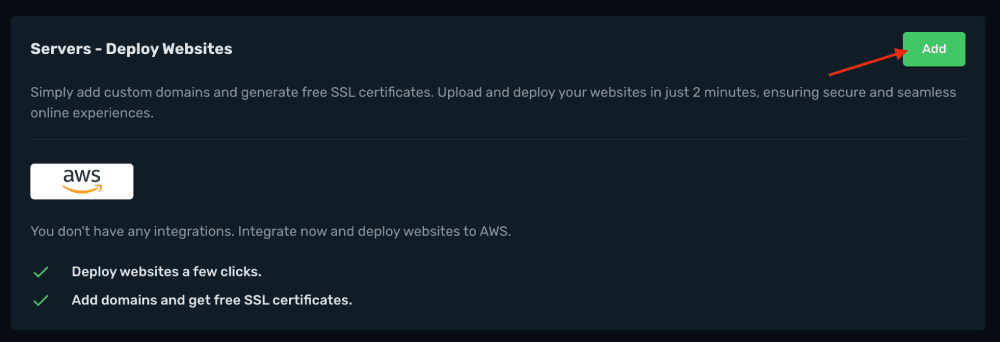
- Select AWS.
- Enter the AWS access key ID and secret access key prepared for the integration.
- Select Save & Close.
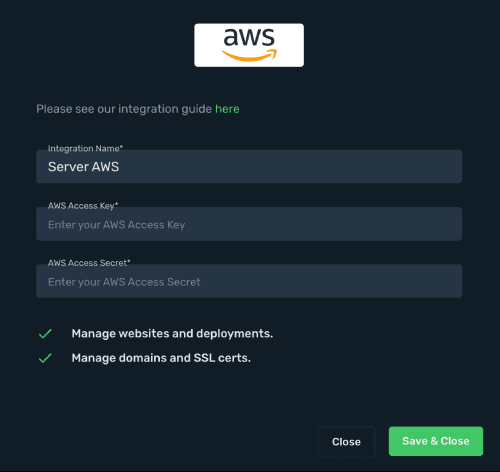
Step 3. Configure a website domain
After saving the integration, add the domain you want to use and complete the SSL certificate setup.
Troubleshooting
If AWS rejects an operation, check the IAM permissions for the deployment resources and confirm that the key is active. If the required policy is unclear, contact Skro support with the failed operation and error message. Keep the secret access key out of support messages and screenshots.
Need help with this guide? Contact Skro support.