

Deploy a website
Prepare your static website files, choose a domain, and deploy your website to AWS through Skro.
Step 1. Create bucket and upload website
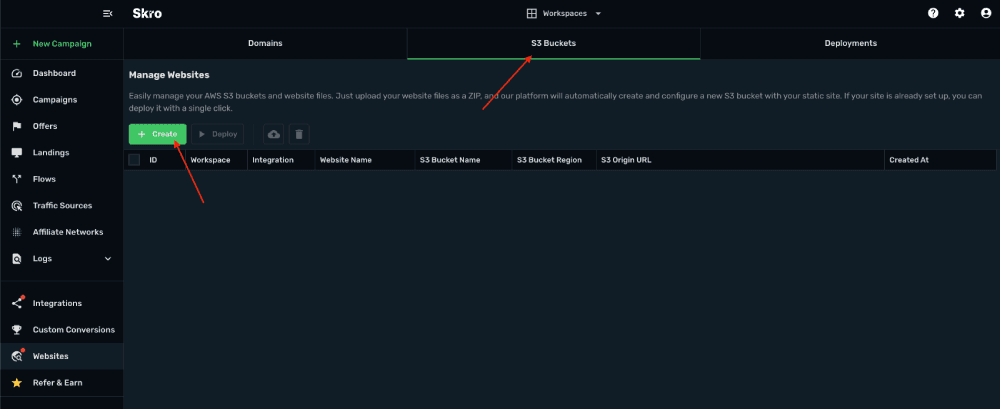
- Go to the Websites → S3 Buckets and click Create.
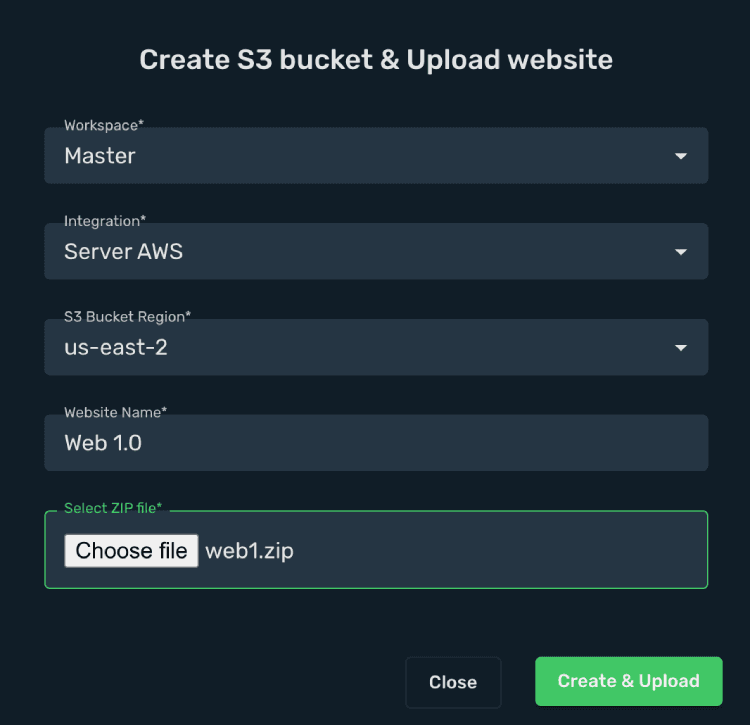
- Complete the form.
-
Workspace - Select your workspace.
-
Integration - Select your AWS integration.
-
S3 Bucket Region - Select the location where you want to upload your website. It does not affect your website distribution.
-
Website Name - Type your website name.
-
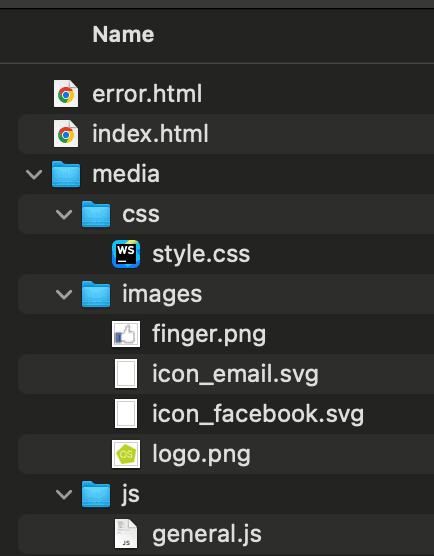
Select ZIP File - Your website must be compressed into ZIP file to upload it to Skro. ZIP file can contain the following files.
-
index.html - Mandatory file
-
error.html - (Optional)
-
Image files can be .jpg .jpeg .png .ico
-
Javascript files .js
This is an example of website file structure:
-
Click Create & Upload.
-
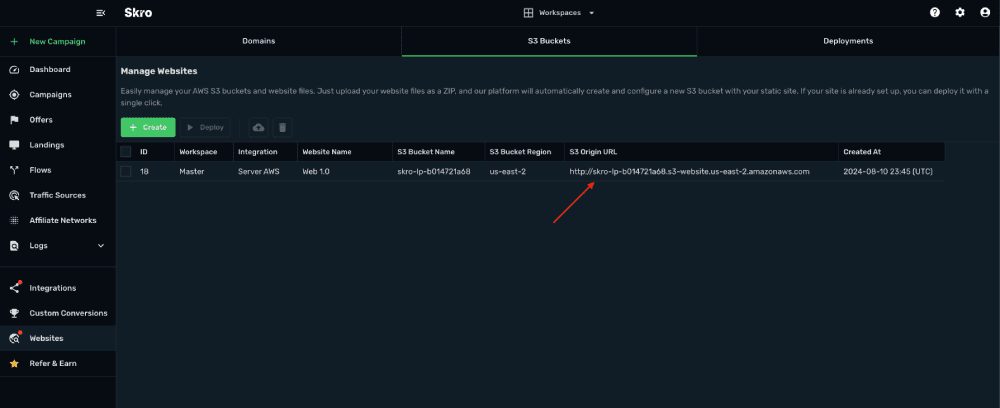
Copy the S3 Origin URL to test, if you can see your website.
Step 2. Deploy website
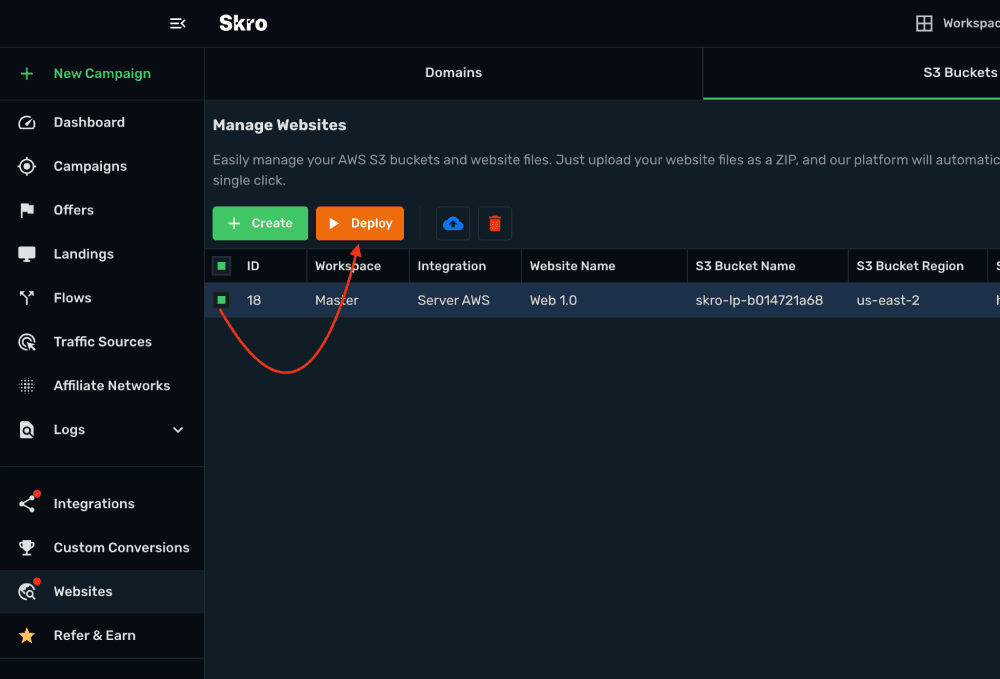
- Select your website and click Deploy.
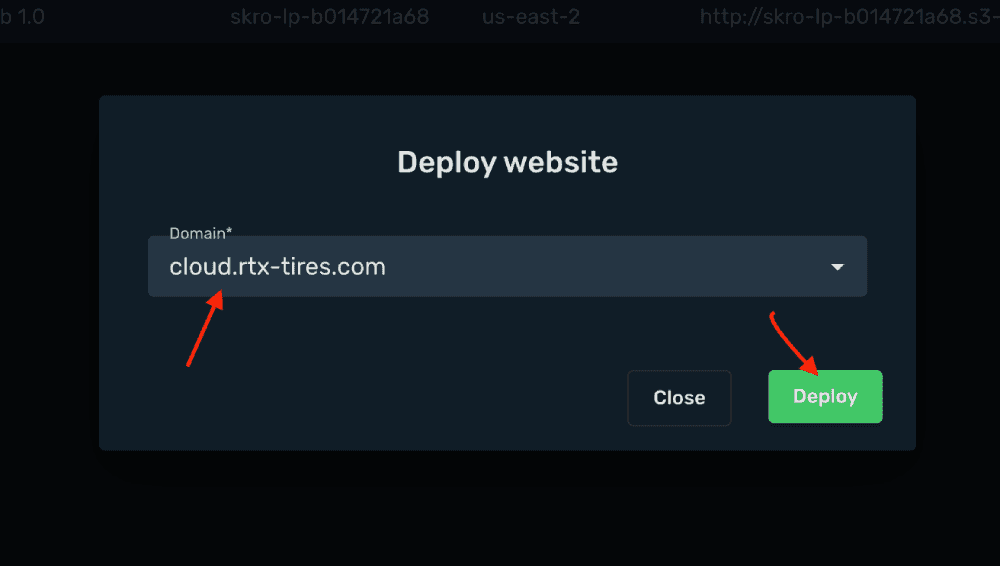
- Select your domain and click Deploy. Then we will deploy your website to all available regions through AWS Cloudfront.
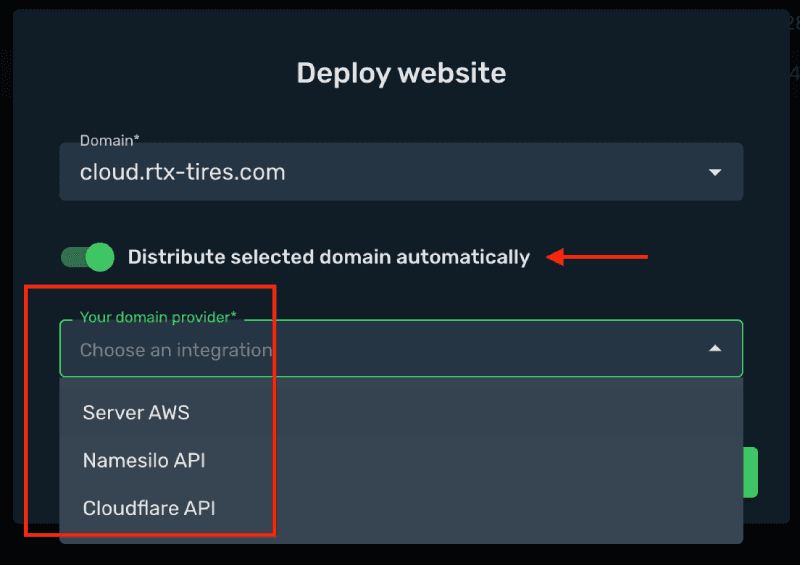
2.1. To automatically distribute your website on your chosen domain, you'll need to select your domain provider integration. This will enable Skro to create a CNAME record for you, simplifying the process.
Automated verification are supported with AWS (Route53), Cloudflare and Namesilo.
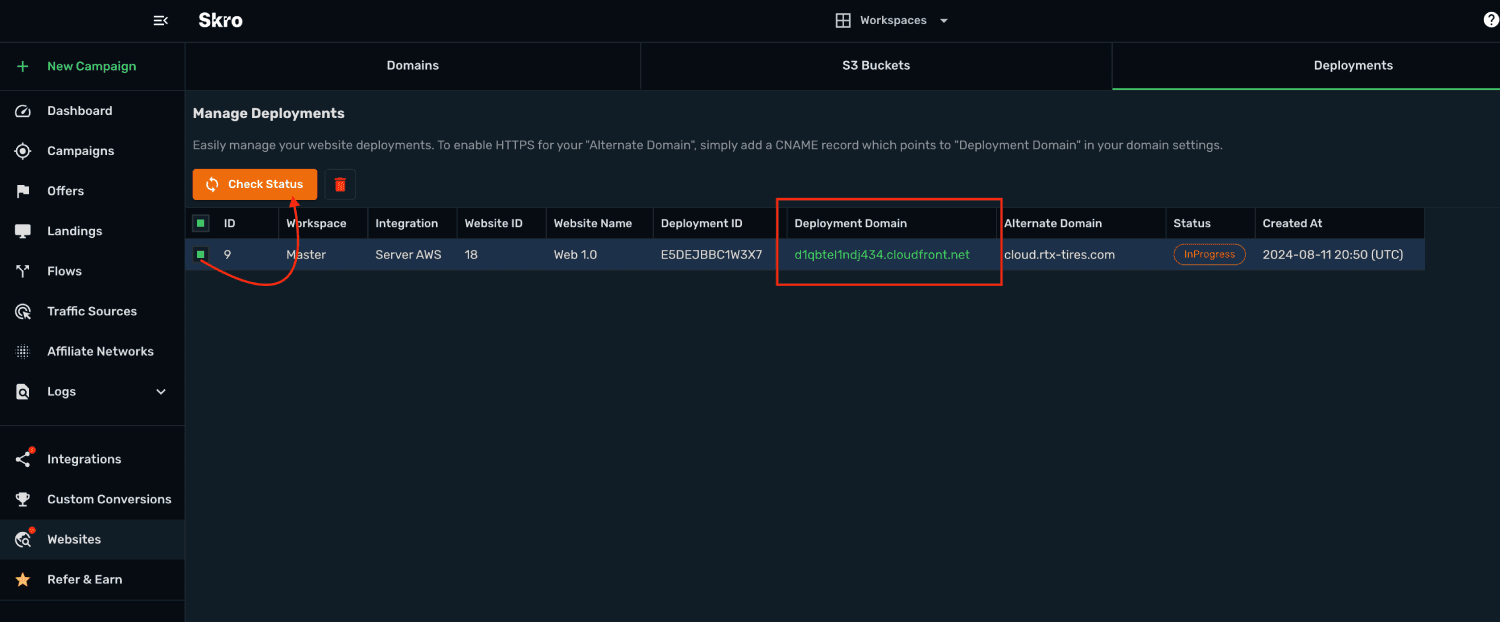
- Skro opens the Deployments view and you will see the deployment info.
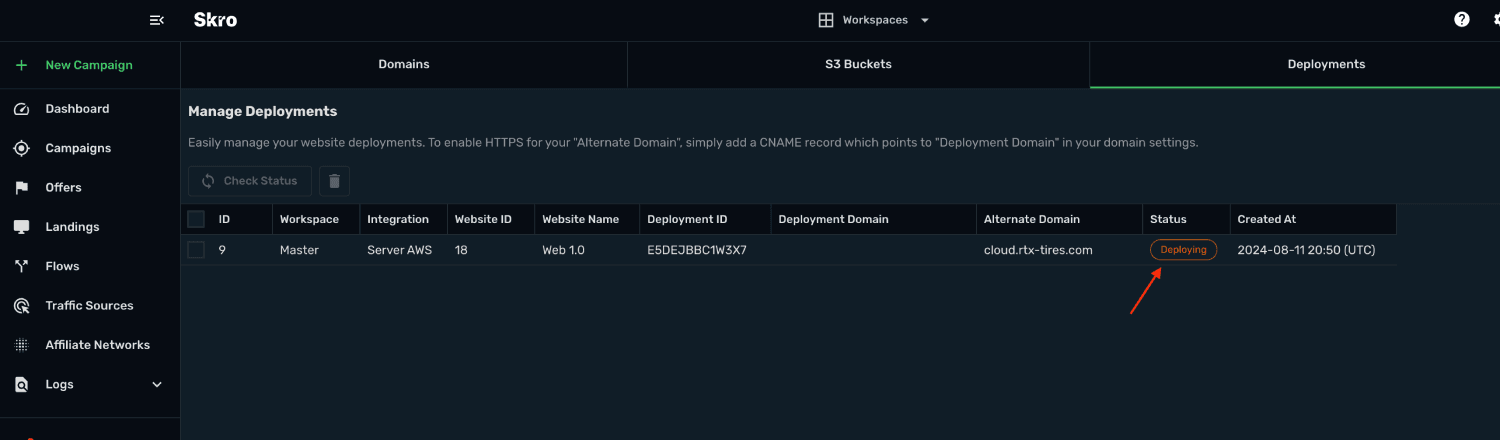
- Select your Deployment and click Check Status to get your distributed website domain.
Step 3. Set CNAME record to your domain
-
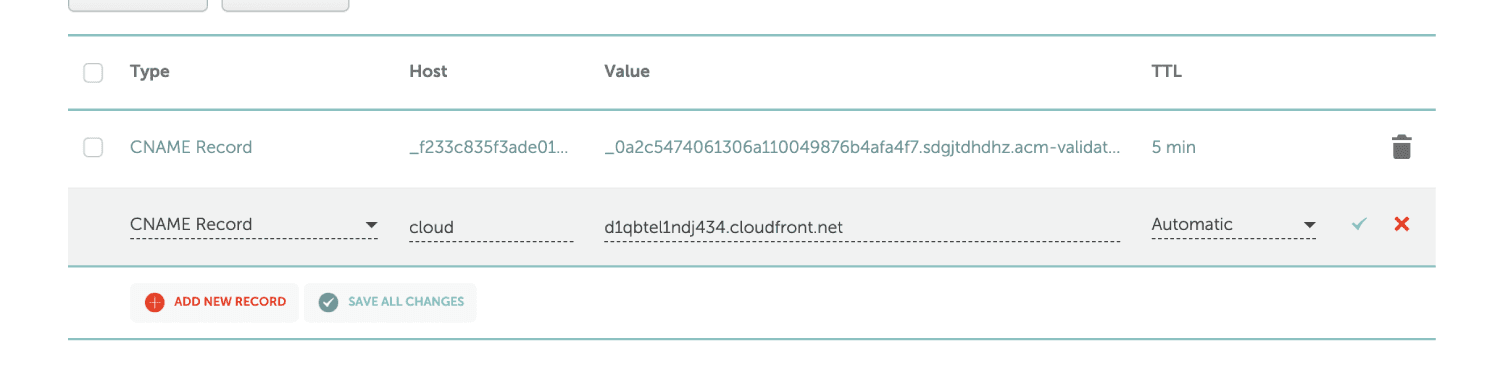
Go back to Namecheap
-
Create a new CNAME record to your domain which points to the Deployments Domain, which in our example is d1qbtel1ndj434.cloudfront.net
- Host: cloud
- Value: d1qbtel1ndj434.cloudfront.net
Typically, DNS changes take 5-15 minutes to propagate, but in some cases, they may take up to 48 hours.
- Your site is now accessible via HTTPS using your custom domain.
How to update my website?
-
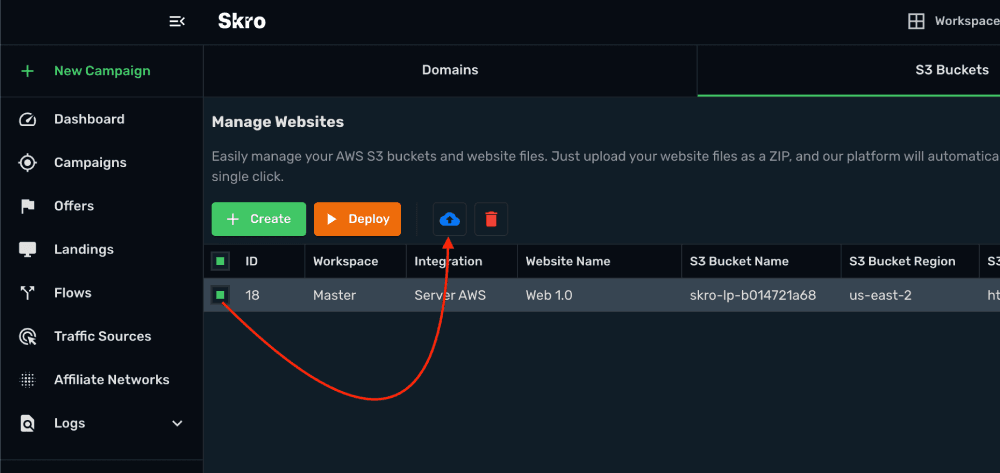
If you want to upload a new version of your website, then simply go to Websites → S3 Buckets and select your website and click Upload icon.
-
Select a new version of your website (ZIP file) and click Upload.
How to delete my website?
If you want to delete your website, then first you will need to delete Deployments for your website and after that you will be able to delete a website.
Related guides
Need help with this guide? Contact Skro support.