

Optimize Meta ads in Skro
Manage Meta campaign, ad set, and ad status and budgets from Skro reporting views.
Optimize Facebook (Meta) Campaigns, AdSets and Ads
Requirements: Facebook (Meta) Ad Account Integration.
Get started with Facebook integration
-
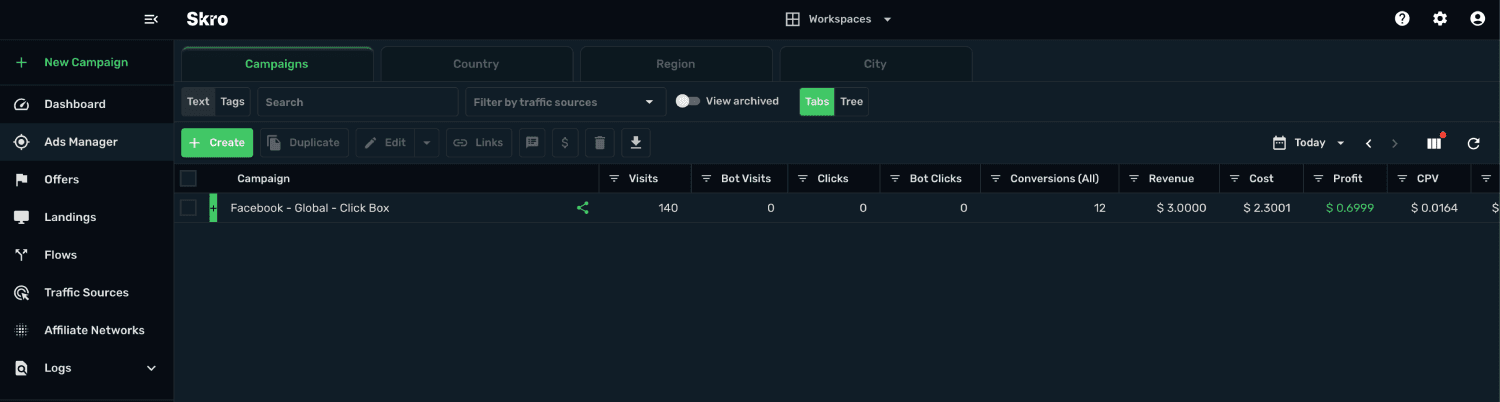
Go to Ads Manager.
-
Double-click your campaign name.
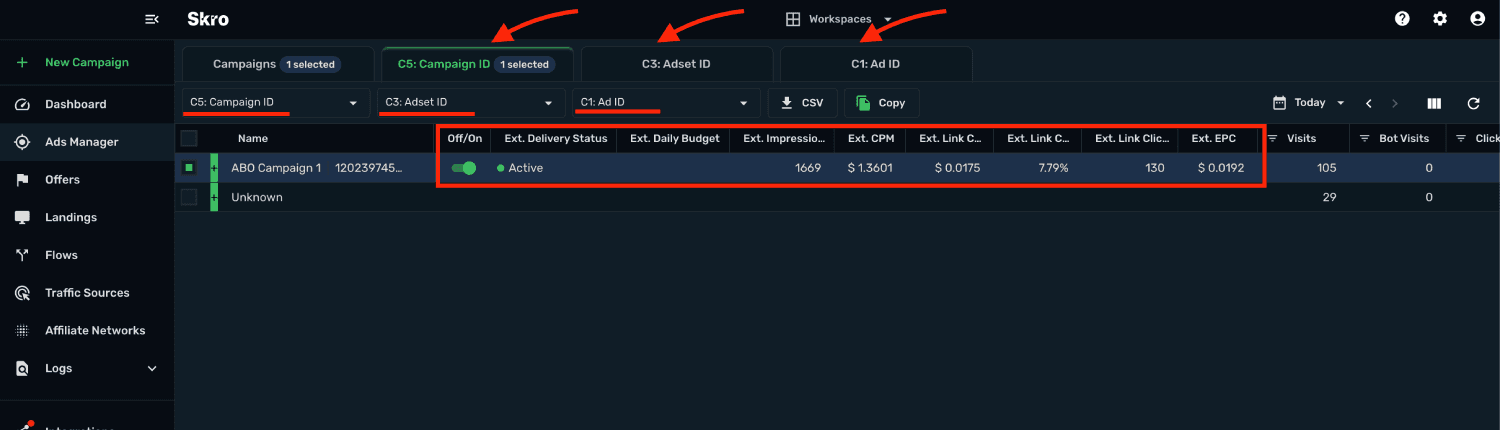
- Use Group By select boxes and select the following values:
- Group By 1: C5: Campaign ID
- Group By 2: C3: AdSet ID
- Group By 3: C1: Ad ID
- In the current view you can now optimize your Facebook campaigns directly from Skro UI. It means that you can turn ON/OFF Facebook campaigns, change campaign budget and see dynamic columns from Facebook in real-time.
-
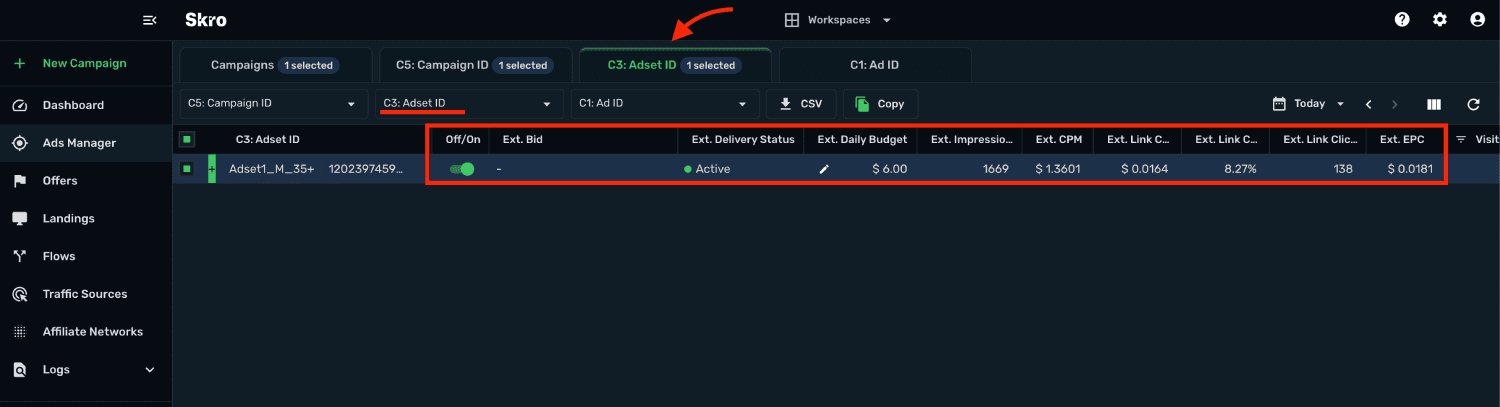
Double-click your campaign name or use tab above the table to move into the Adset view.
-
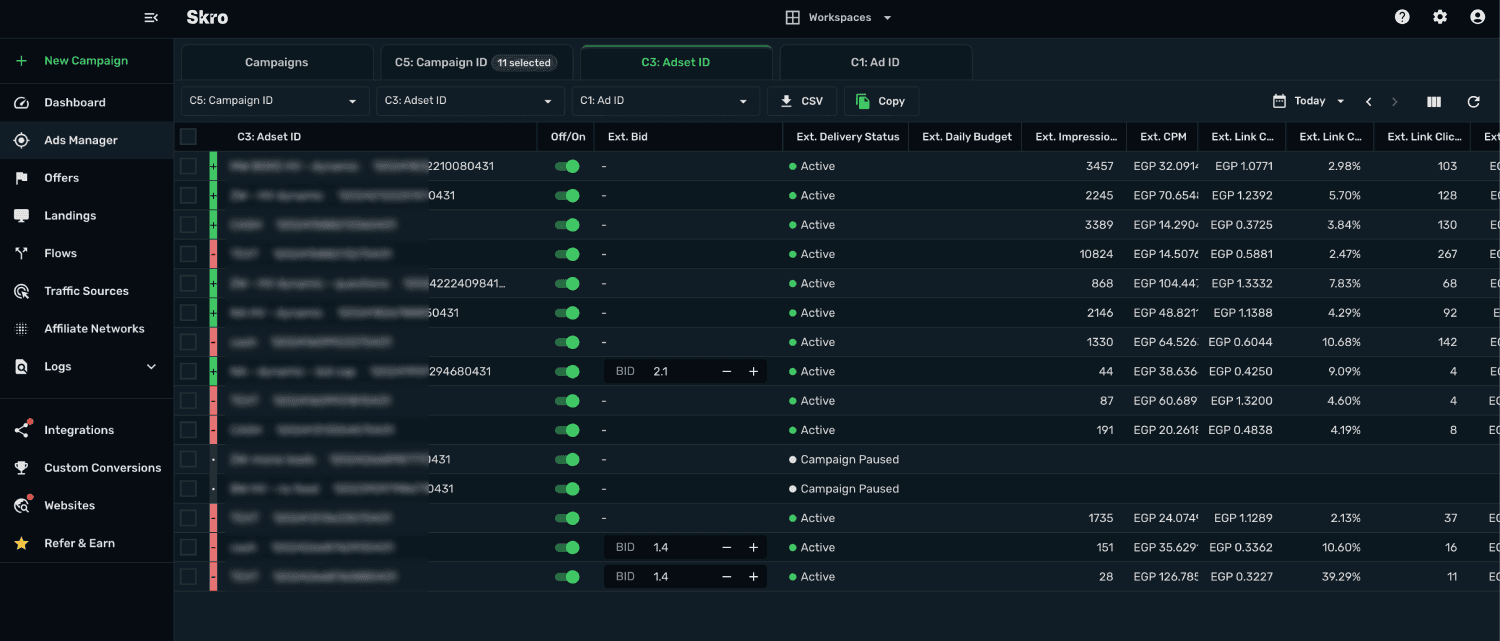
Now you can manage your Facebook AdSets, so that you can turn ON/OFF adset, change budget and see dynamic columns from Facebook in real-time.
-
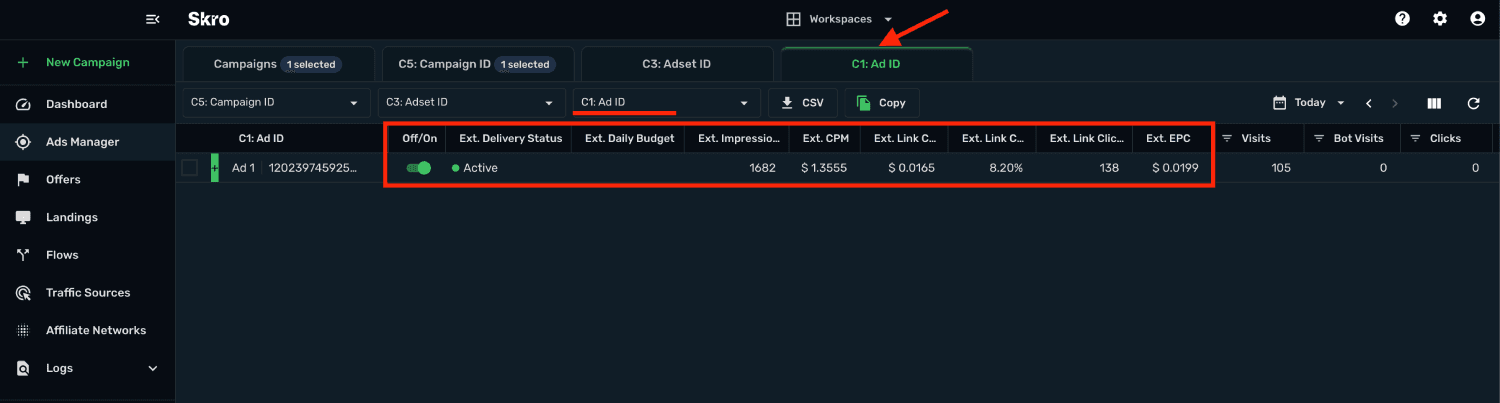
Double-click your adset name or use tabs above to table to move to the Ads view. Also multi-select is supported.
-
Now you can manage your Facebook Ads, so that that you can turn ON/OFF ads and see dynamic columns from Facebook in real-time.
Manage multiple campaigns
-
For example, if you have multiple ad accounts and running like 50 campaigns on each. Then you can optimize all campaigns in 1 single view, if you select 1 traffic source from toolbar.
-
Do not select any campaign from Ads Manager view. Just click the C5: Campaign ID tab (or any other tab) above the table to move into that view.

- Optimize all your AdSets in one view.
Tree view optimization
-
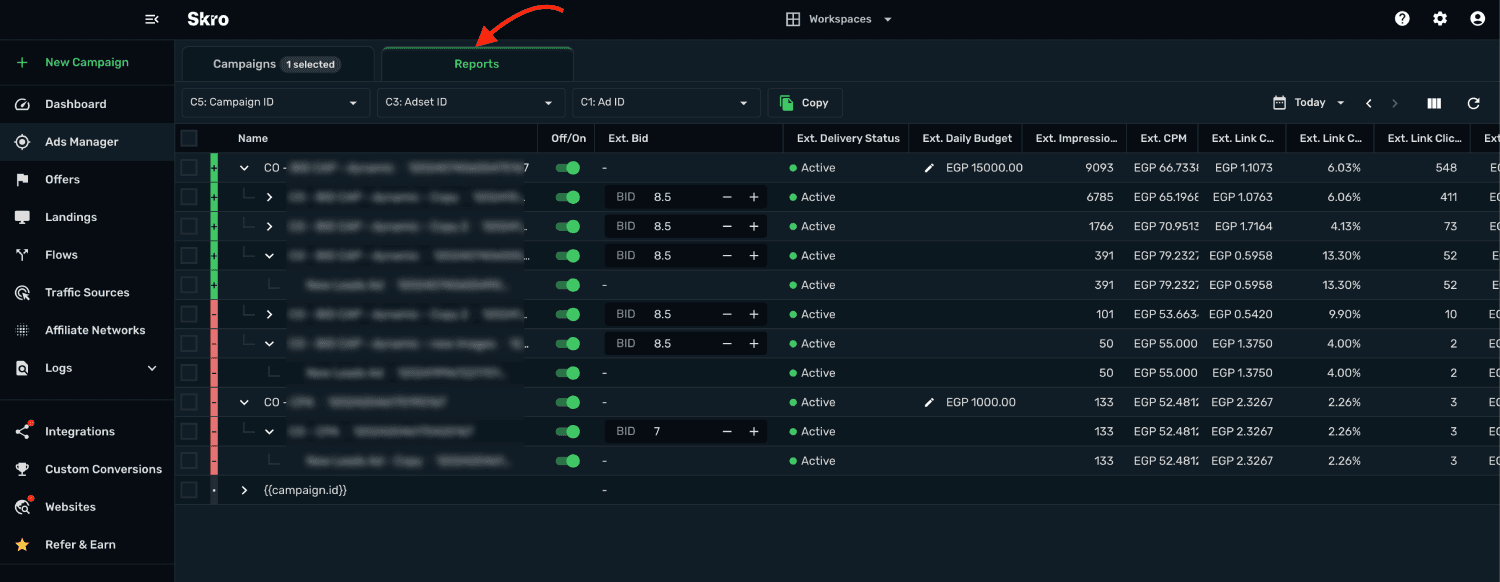
Go to Ads Manager and select Tree on toolbar.
-
Double-click your campaign and you will be redirected to Reports view.
-
Use Group By select boxes and select the following values:
- Group By 1: C5: Campaign ID
- Group By 2: C3: AdSet ID
- Group By 3: C1: Ad ID
- Just drill-down your campaigns and adsets and start optimizing.
Related guides
Need help with this guide? Contact Skro support.