

Cartpanda integration
Connect Cartpanda with Skro to track store events, attribute purchases, and report campaign revenue.
Cartpanda is an e-commerce platform for merchants based in Brazil. It enables smaller sellers, including creators and entrepreneurs, to sell and promote their digital goods, services, events, and physical items with an online store solution, checkout, and payment gateway.
Use this guide to connect your Cartpanda with Skro and attribute store events to your advertising campaigns.
- See the true ROI of every ad
- Track every initiate checkout, purchase and upsell event
- Compare advertising costs with attributed revenue
- Send supported conversion events to Facebook and TikTok
This guide will teach you how to set up Custom Conversions, set up Cartpanda postbacks, and track campaigns for paid ads. Please note: this guide does not cover every option available in Skro or your traffic source. You should already have basic knowledge of creating campaigns in both Skro and your traffic source.
Step 1. Set up custom conversion events
Let’s create three custom conversion events that are compatible with both Facebook and TikTok ads. (Note: Skro’s custom conversions are not the same as Facebook’s Custom Conversions. You can use standard events as custom conversions in Skro.)
- In Skro, go to Custom Conversions → Create.
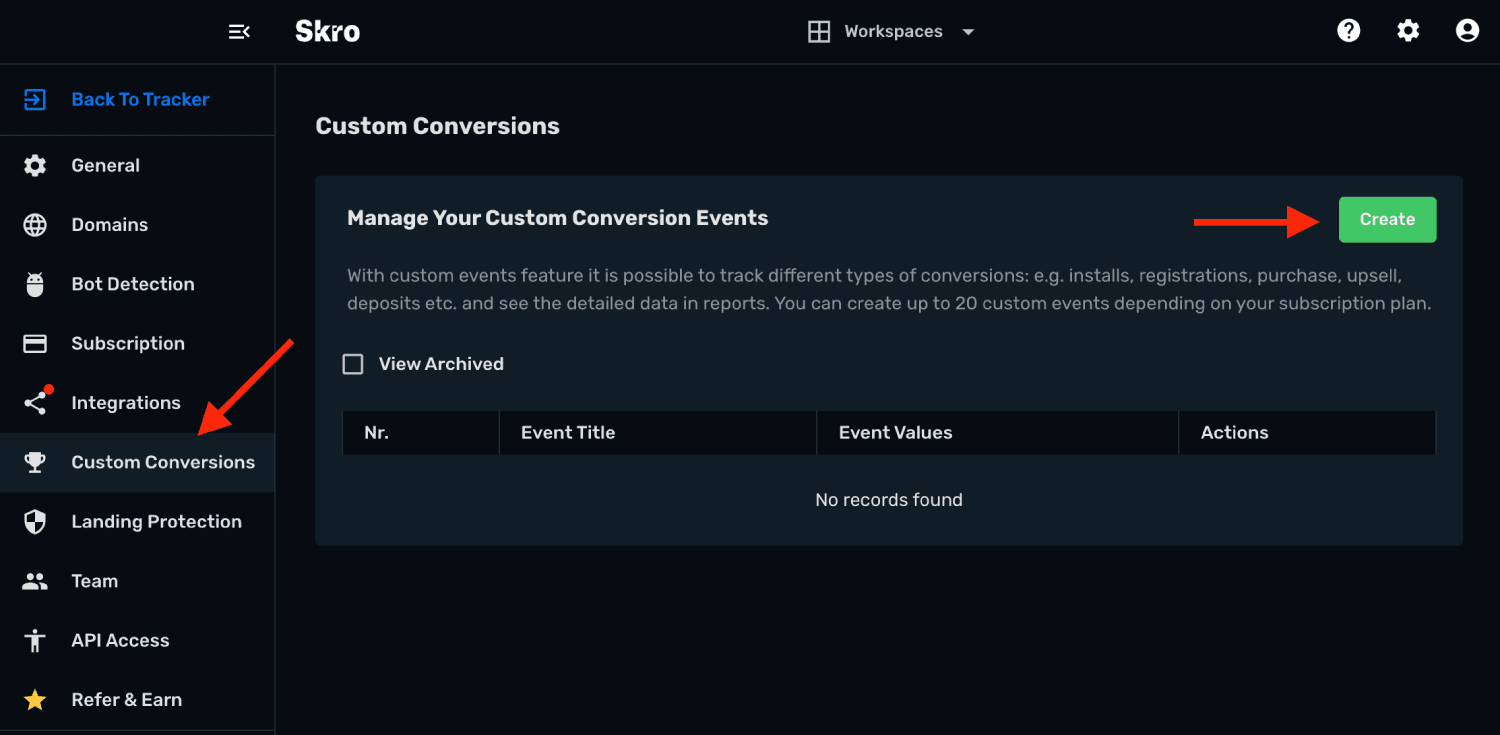
- Create first event InitiateCheckout
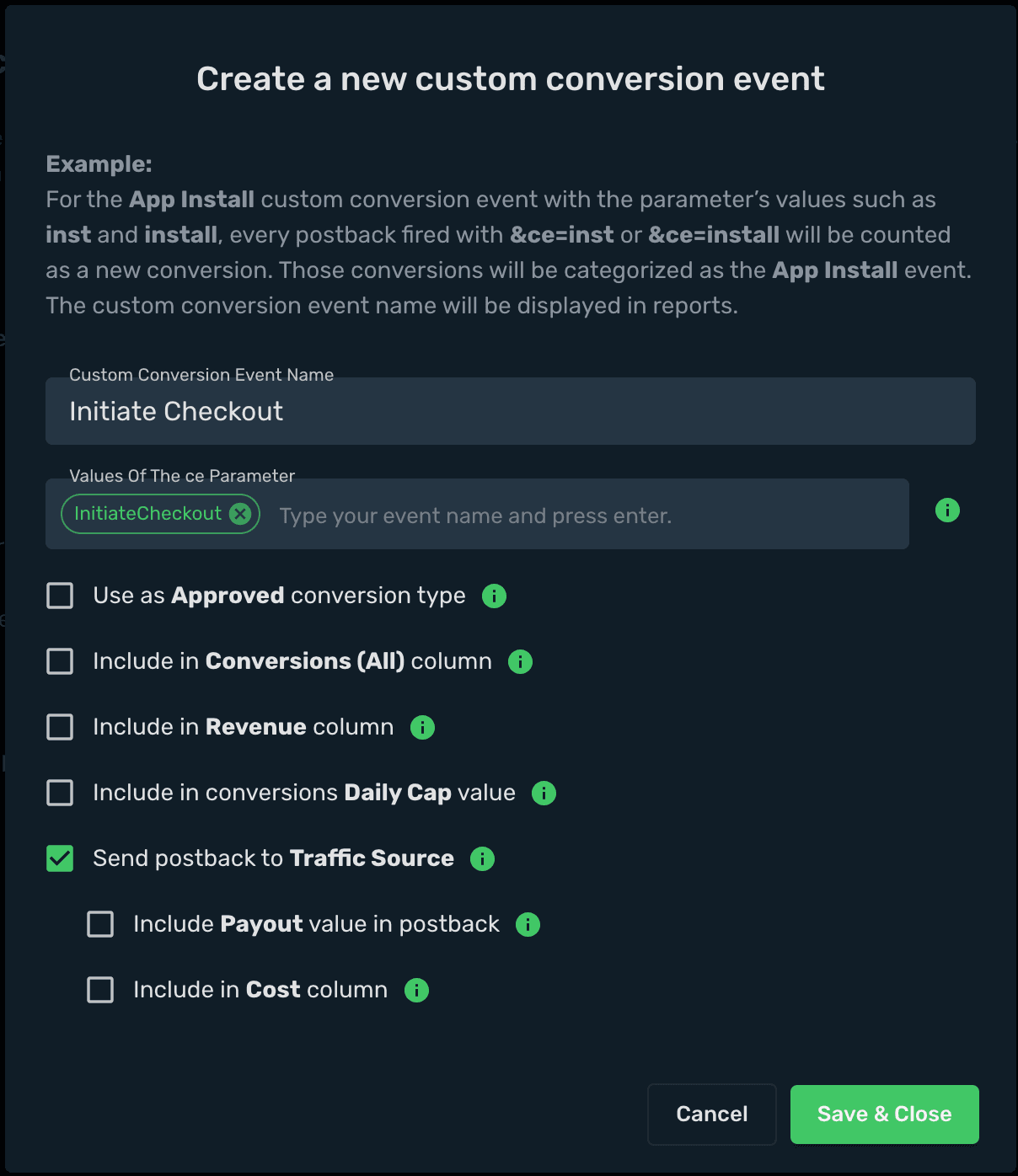
- Create second event Purchase
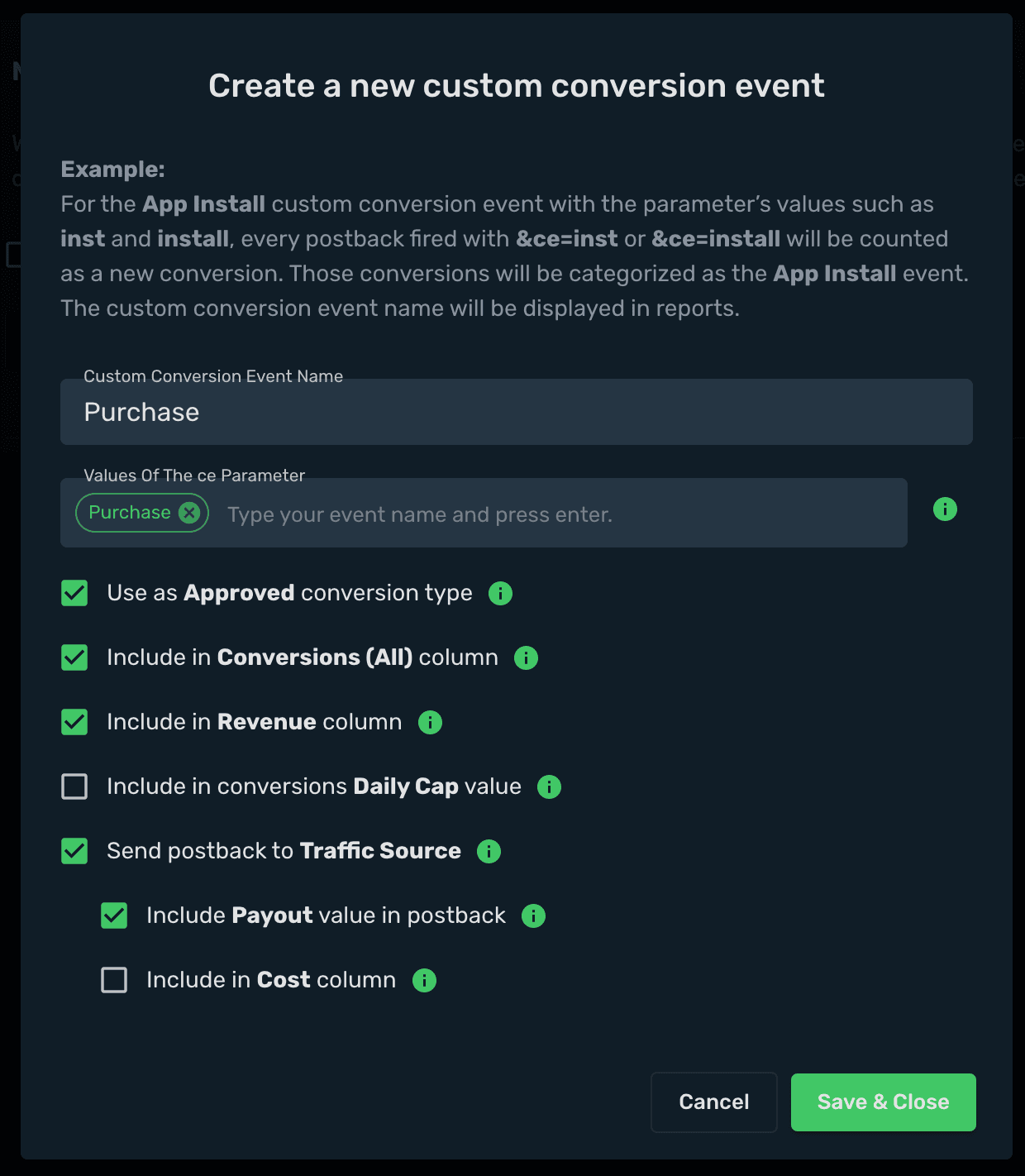
- Create third event Upsell
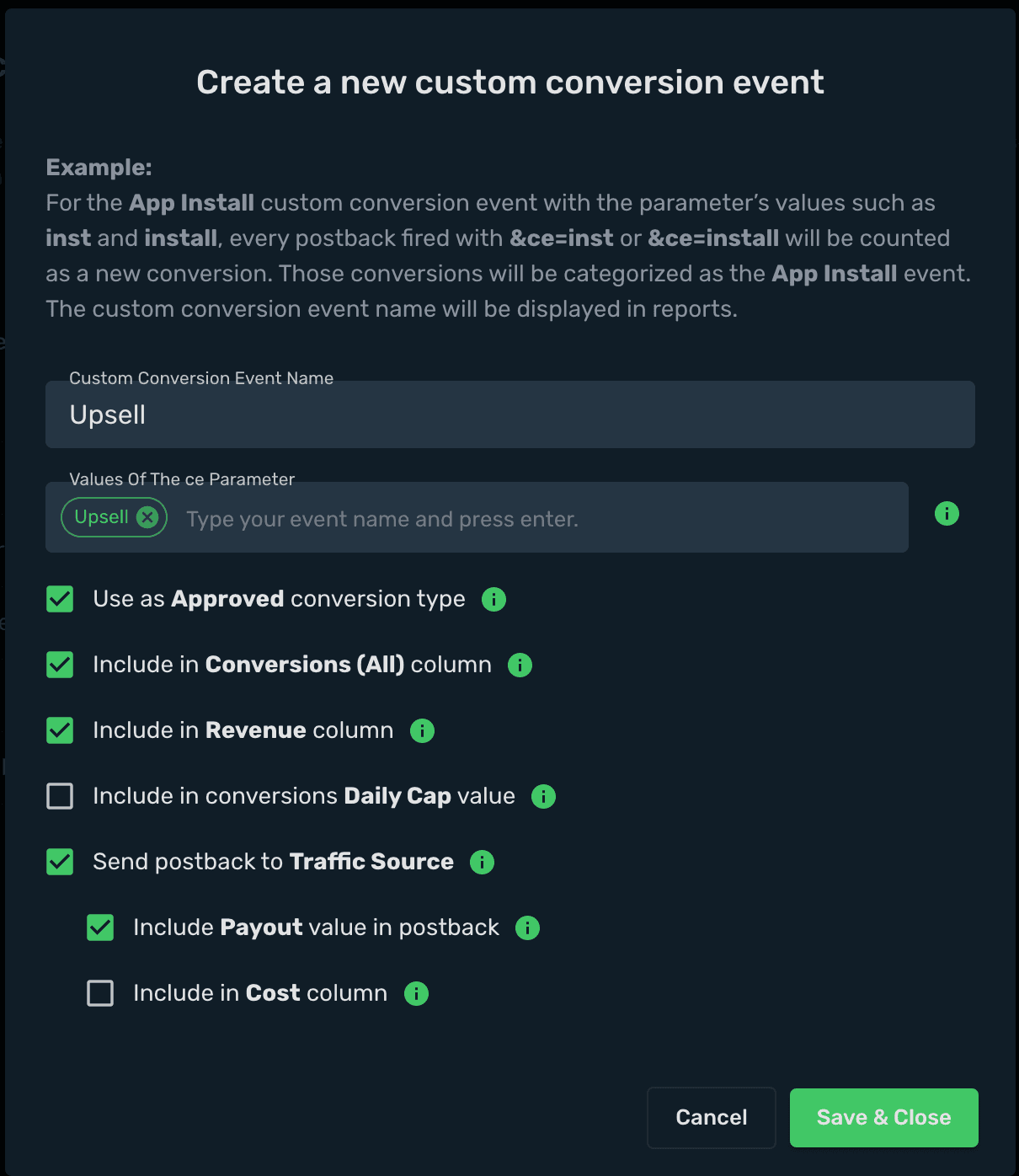
You can use different event names if your traffic source requires them. For example, instead of Purchase you might use PaymentCompleted. Keep in mind that event names are case-sensitive and must match in Skro and your traffic source.
Step 2. Set up Cartpanda S2S postbacks
- Go to your Cartpanda → Admin → Settings → Tracking and Scripting → S2S Tracking and click New Integration.
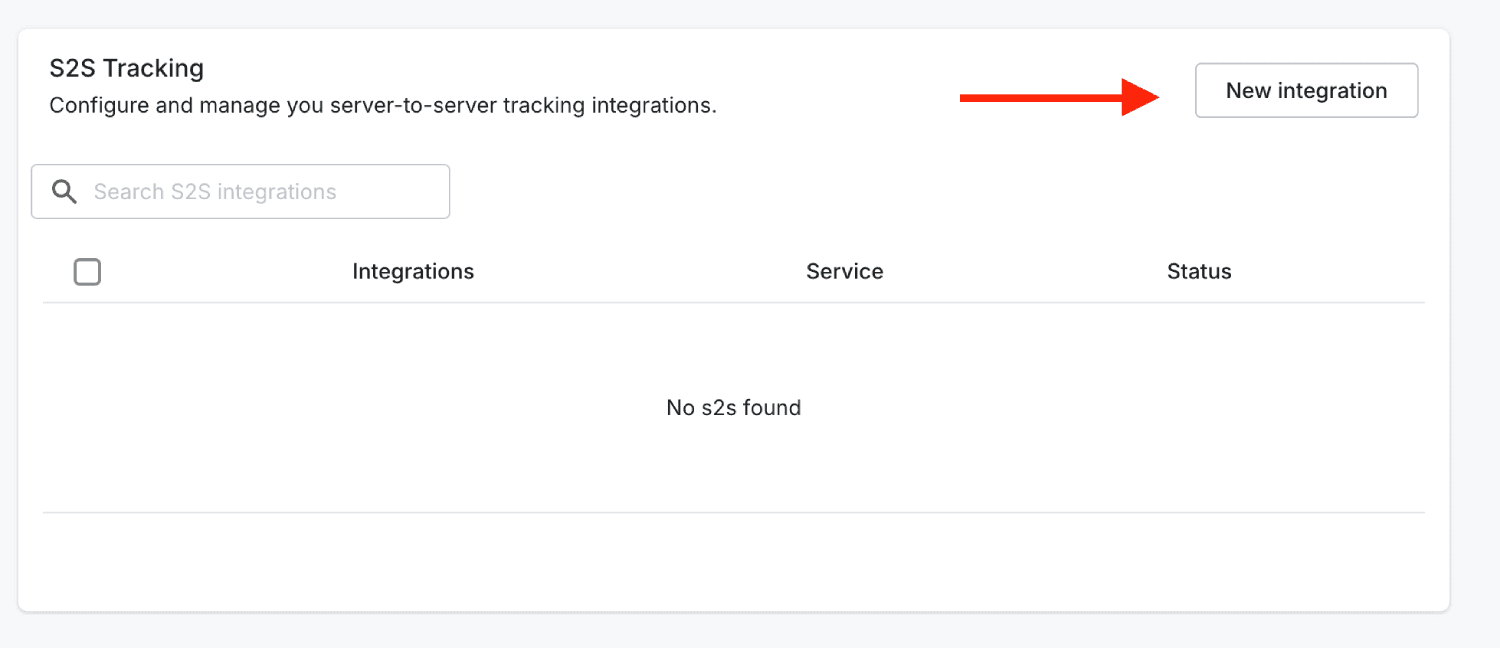
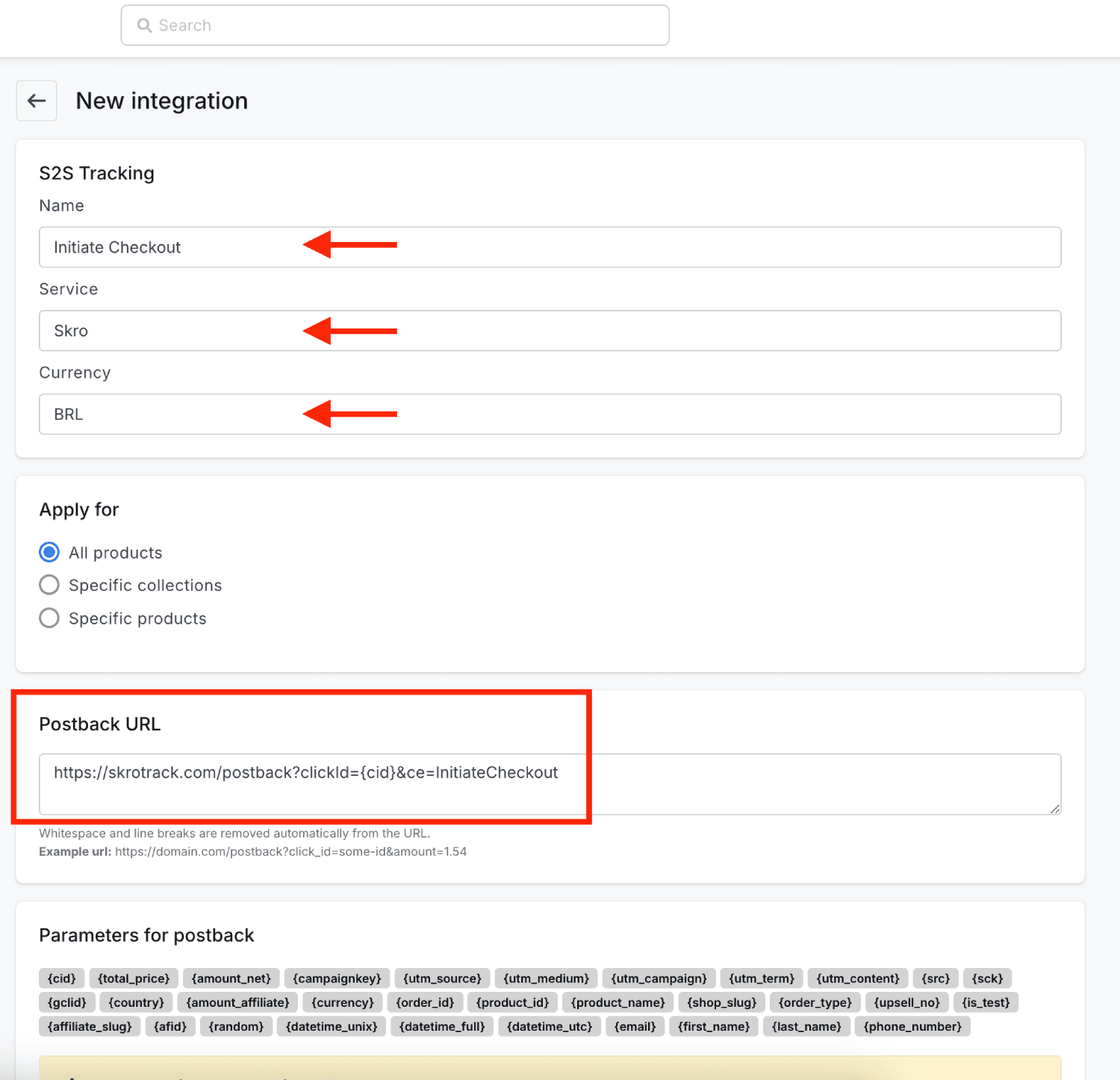
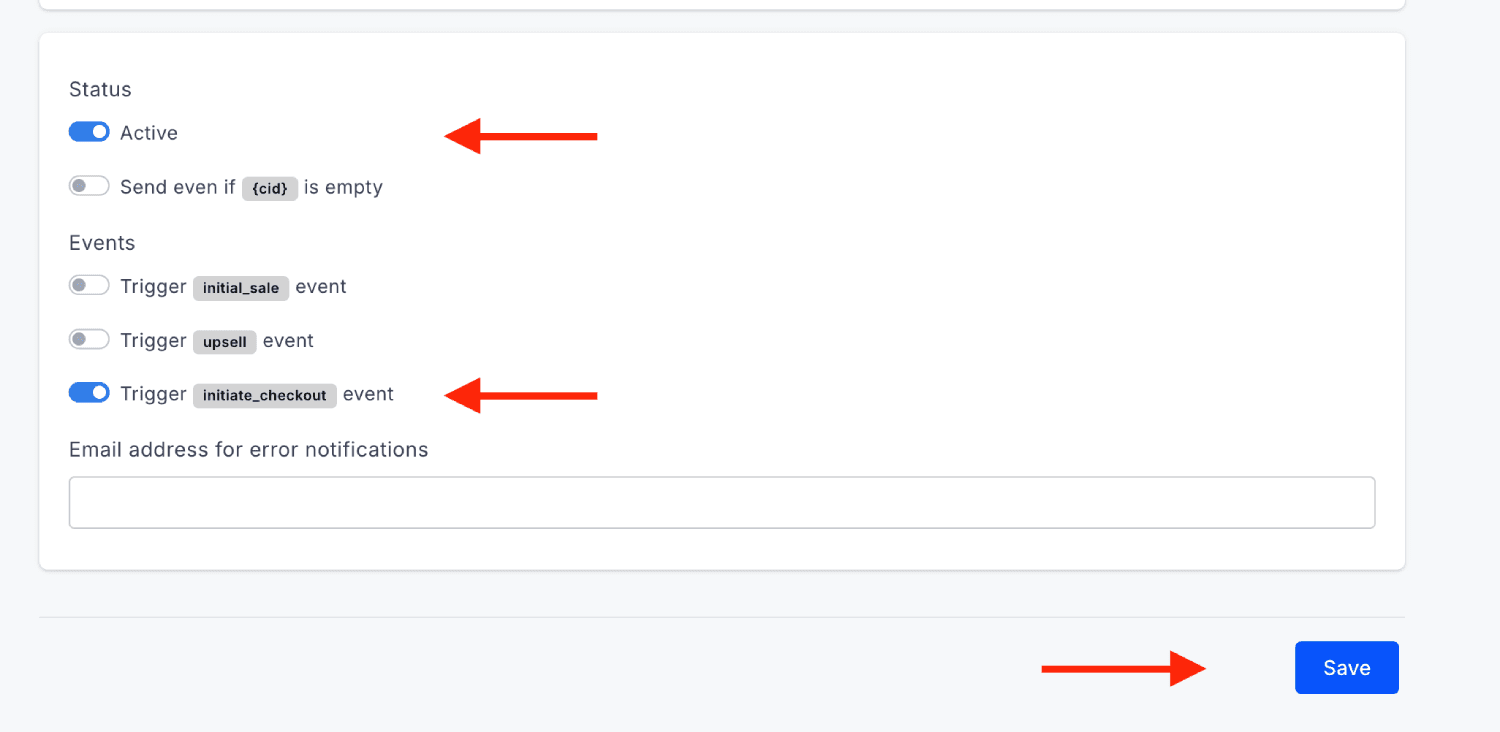
- Add postback for InitiateCheckout event:
https://skrotrack.com/postback?clickId={cid}&ce=InitiateCheckout
- Add postback for Purchase event:
https://skrotrack.com/postback?clickId={cid}&payout={total_price}&transactionId={order_id}&firstName={first_name}&lastName={last_name}&email={email}&phone={phone_number}&ce=Purchase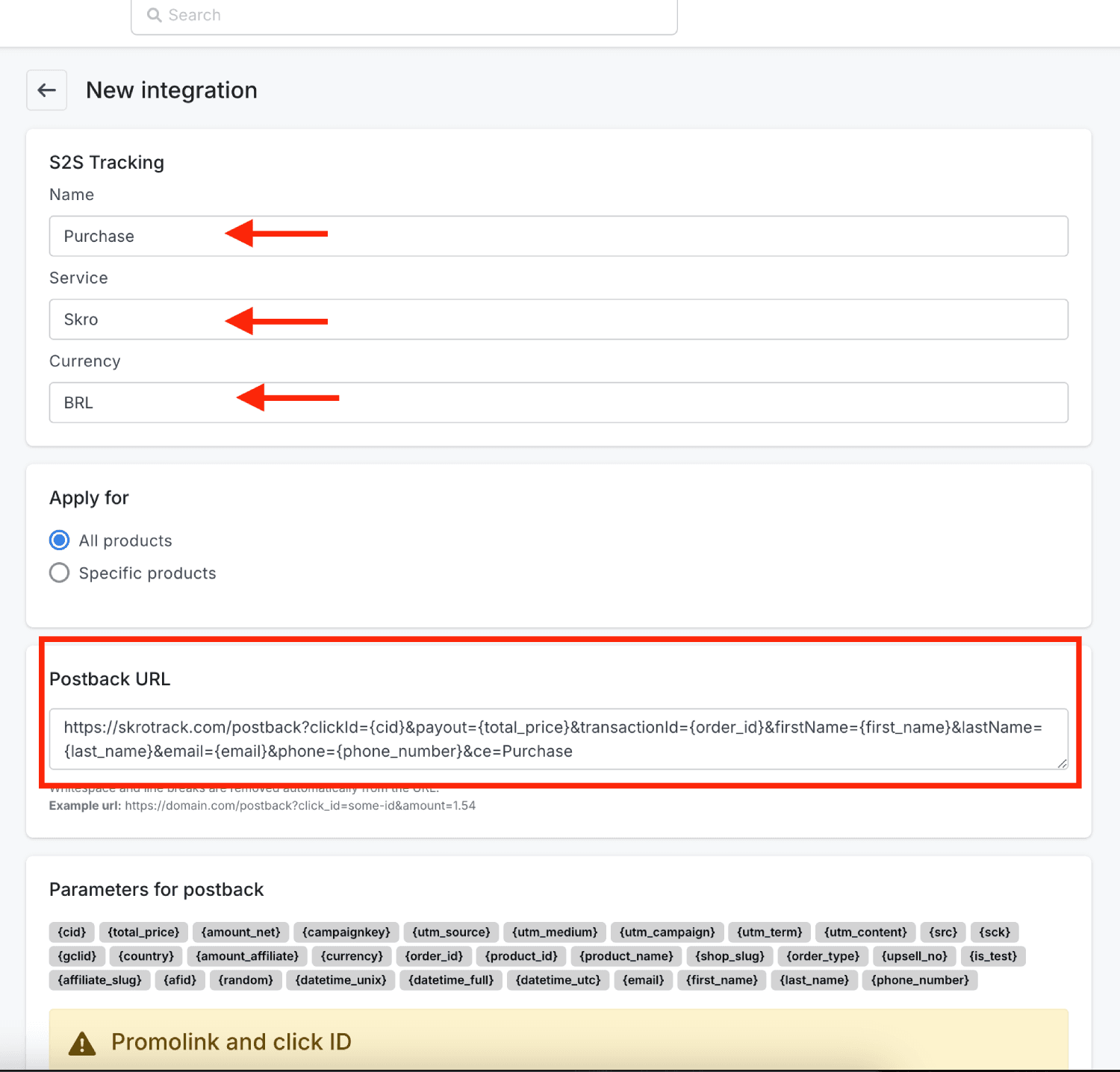
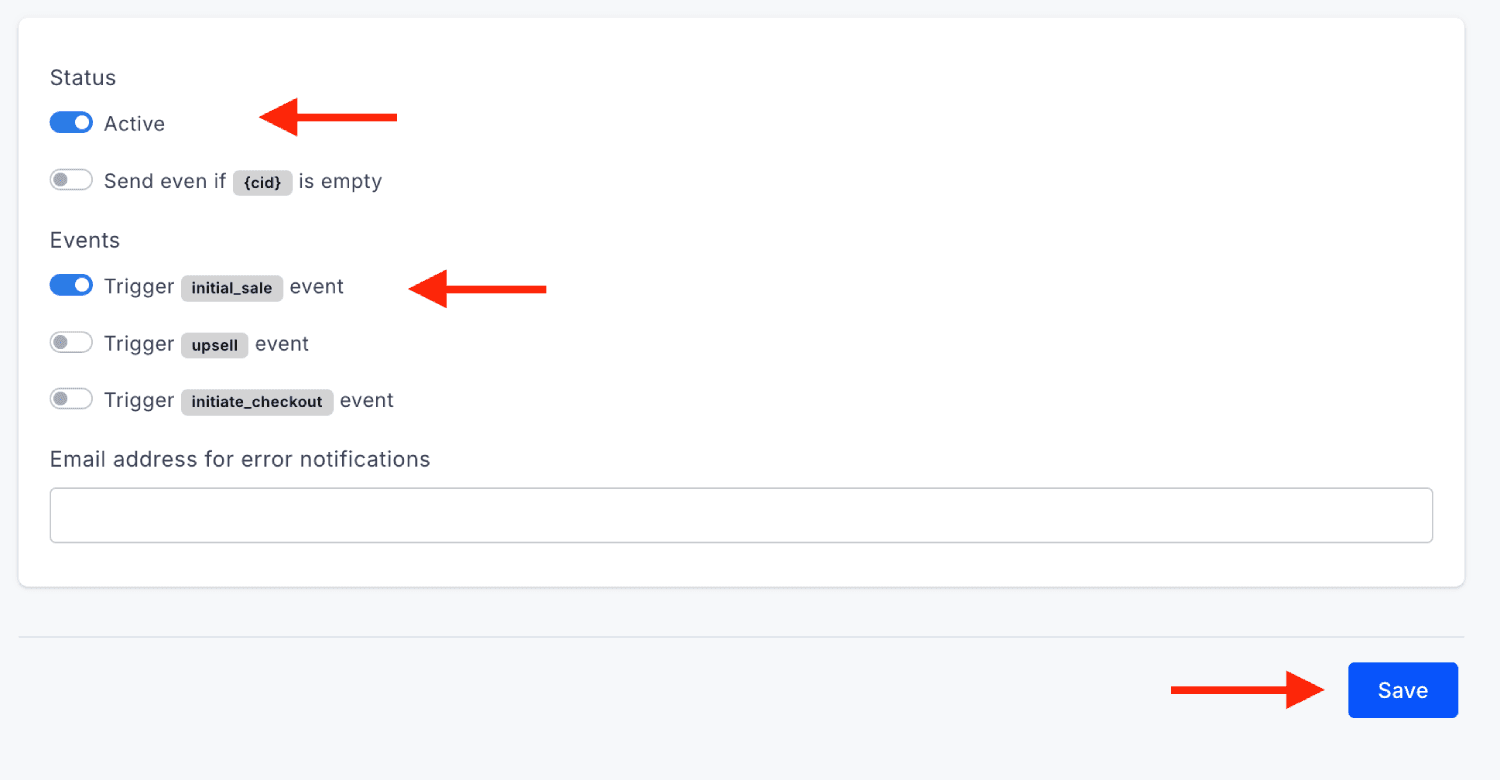
- Add postback for Upsell event:
https://skrotrack.com/postback?clickId={cid}&payout={total_price}&transactionId={order_id}&firstName={first_name}&lastName={last_name}&email={email}&phone={phone_number}&ce=Upsell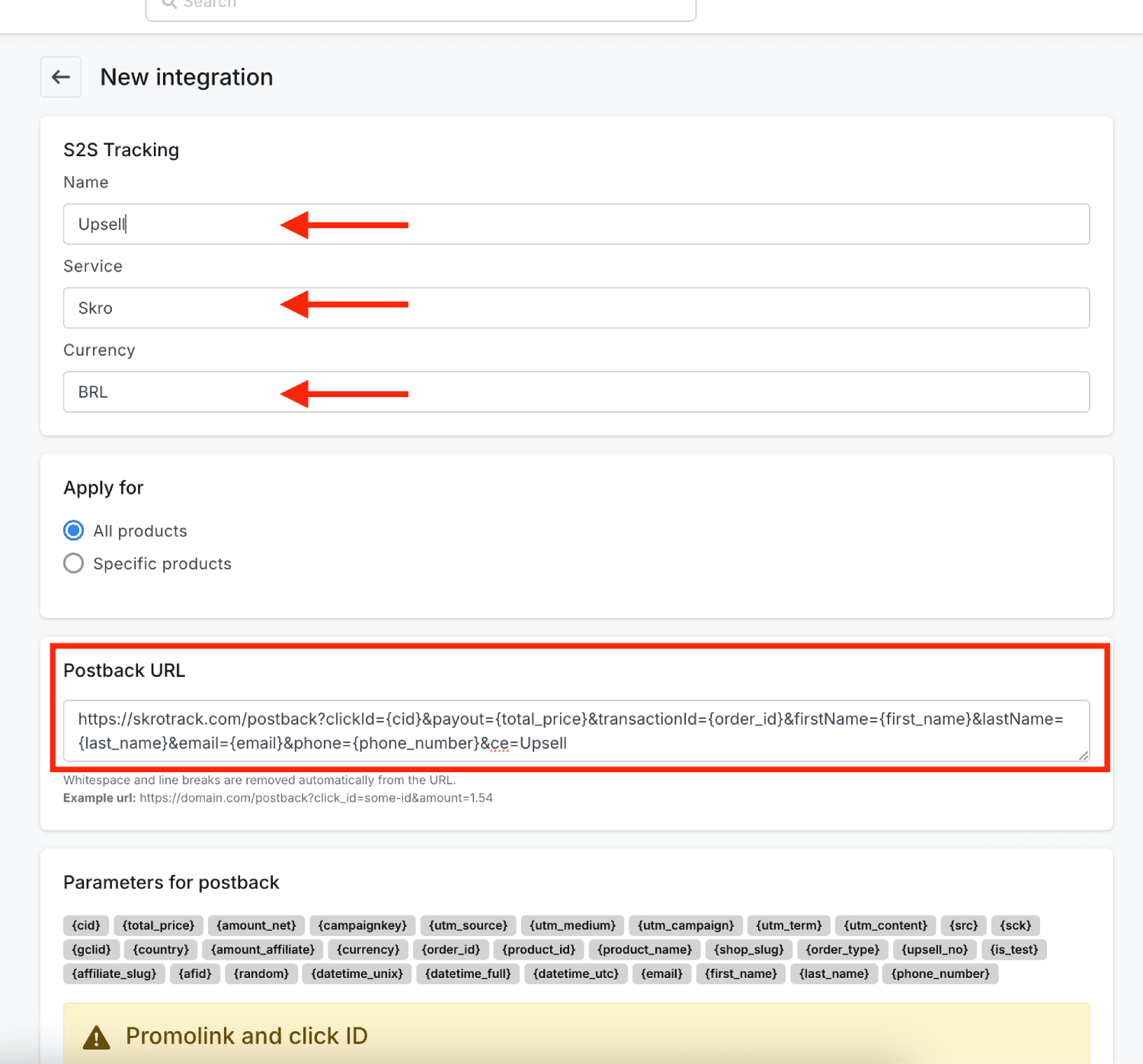
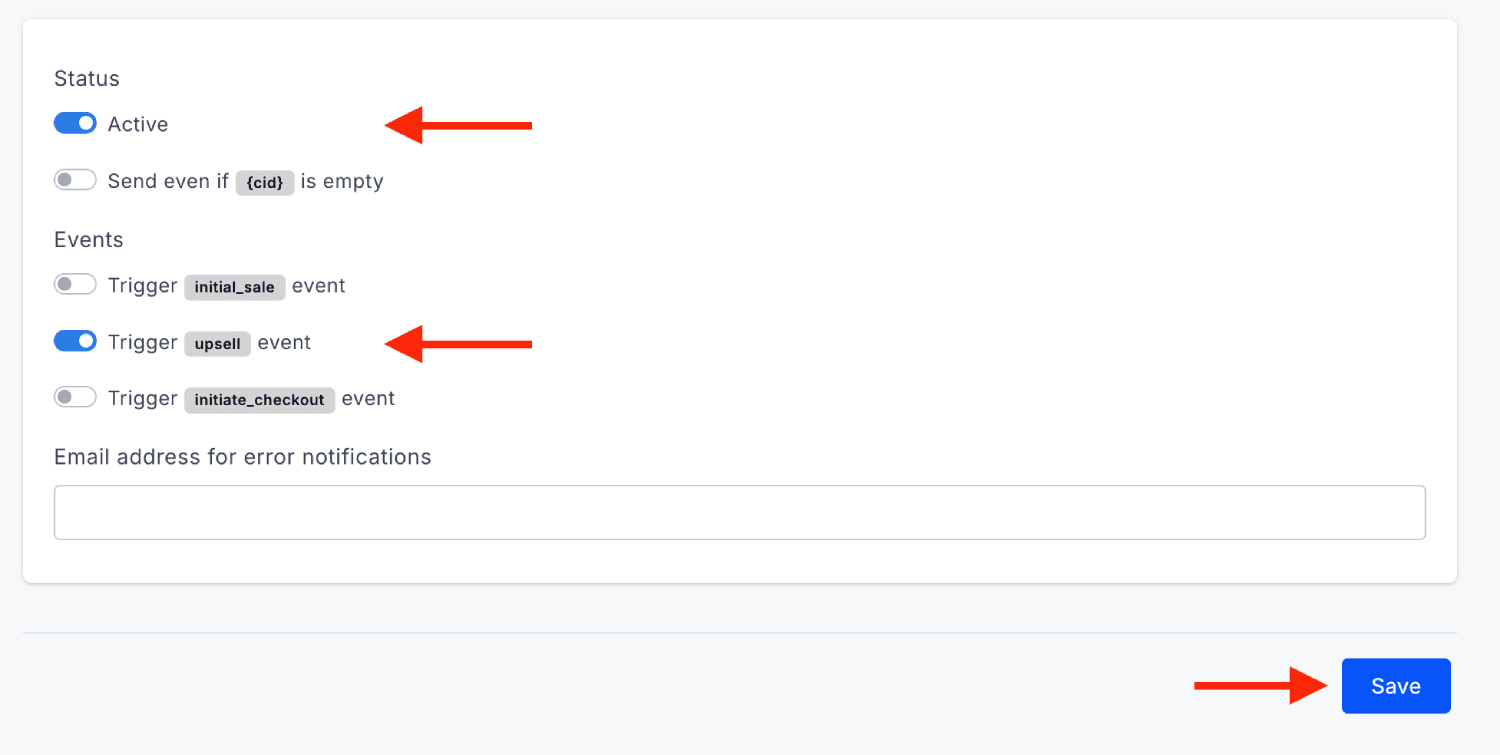
Postback URLs are successfully integrated.
Step 3. Create an Affiliate Network as Cartpanda
-
In Skro, go to the Affiliate Networks view, click Create, select Cartpanda.
-
Select a workspace.
-
Enter a different name if you want.
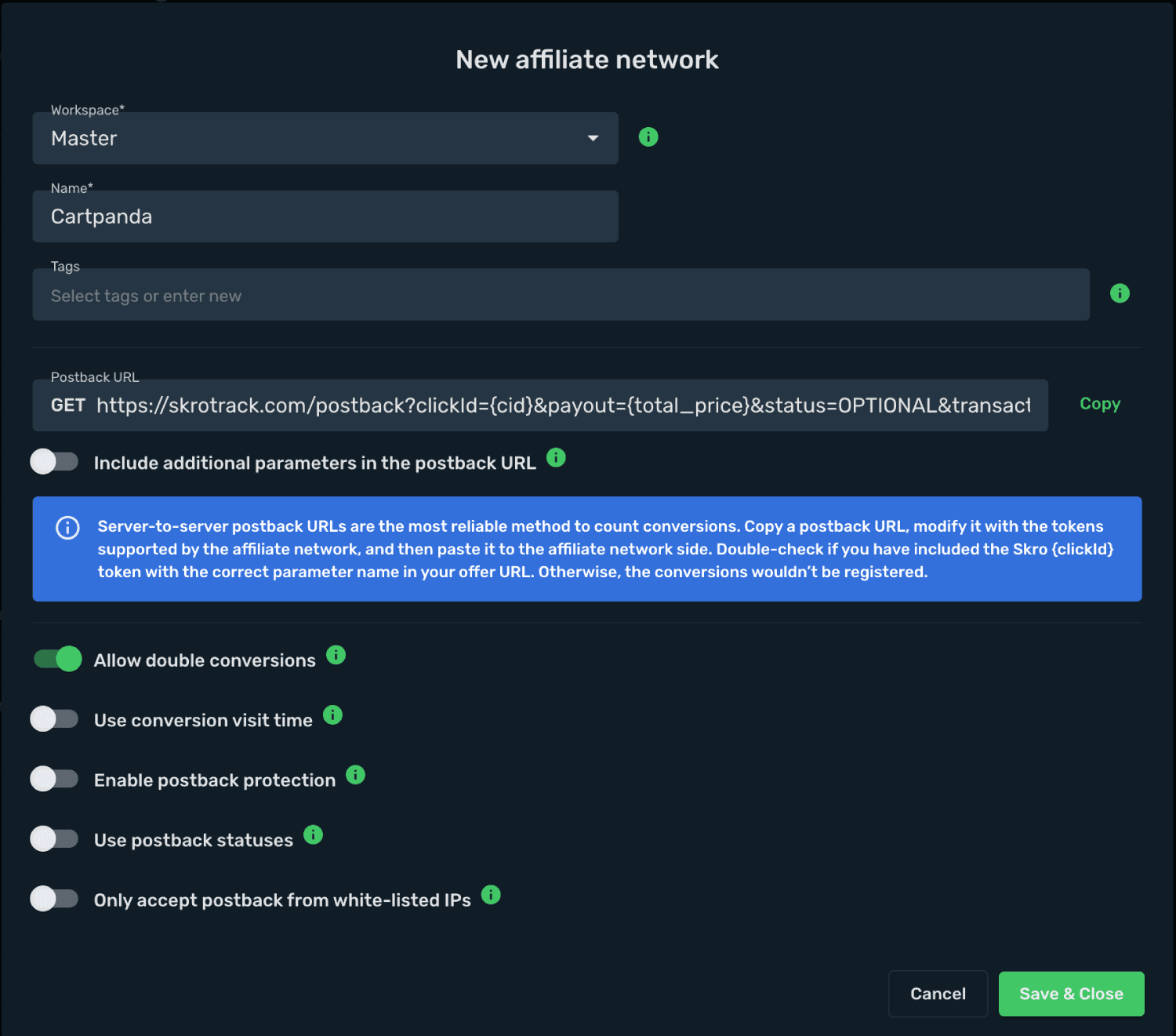
- Click Save & Close.
Step 4. Add Cartpanda checkout links
Offers are your Cartpanda checkout links in Skro. For example, if you have multi-pot checkout links and you want to track them separately, then add them 1-by-1 into Skro. Later, you can list them under your single campaign and send traffic to specific offer.
-
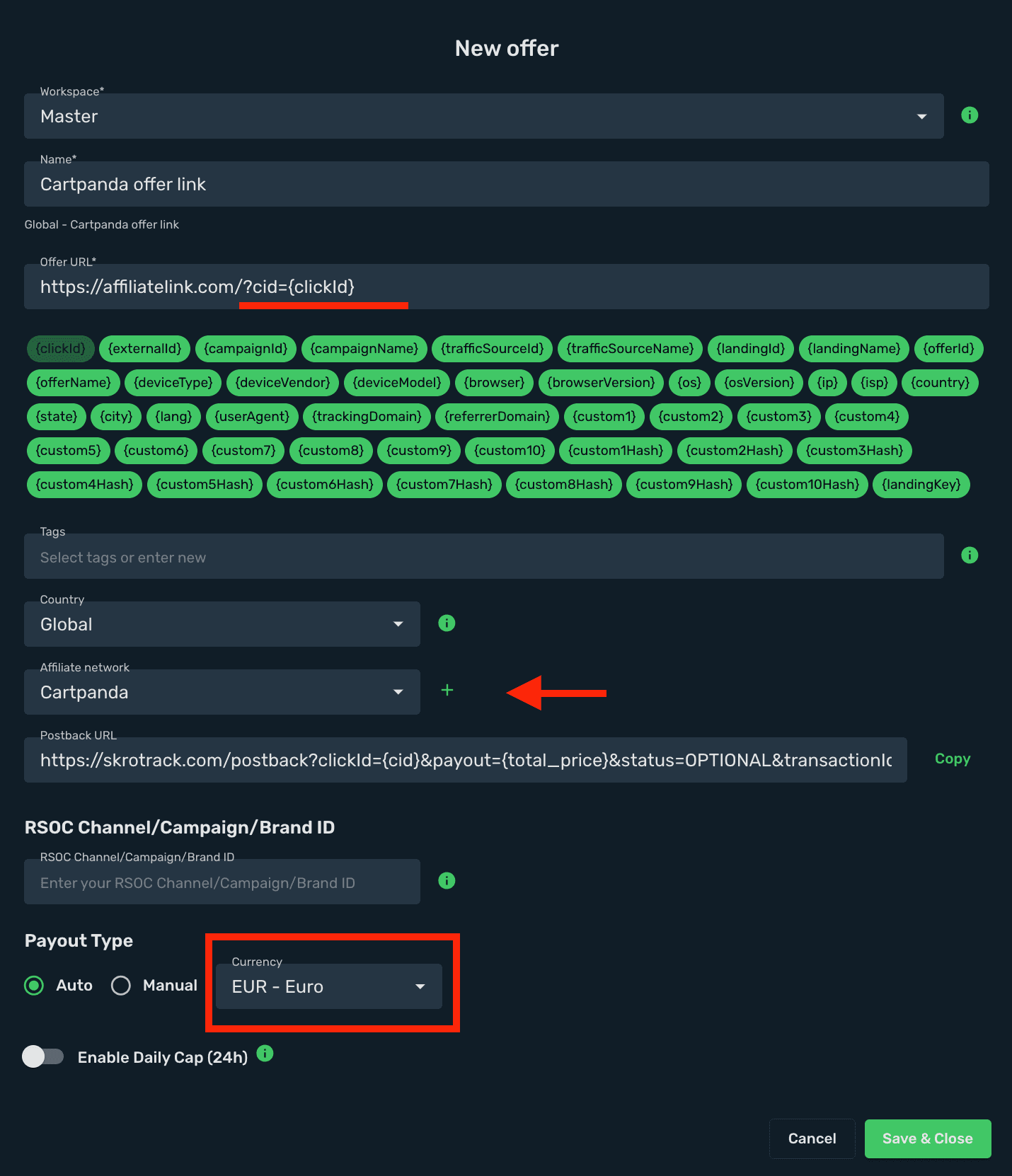
Add your checkout link as offer. Go to the Offers view, click Create.
-
Select a workspace.
-
Enter a name for your offer.
-
Enter your offer URL with the Skro Click ID parameter:
?cid={clickId}
https://my-cartpanda-checkout-link/?cid={clickId}
-
Select Cartpanda as an affiliate network.
-
Payout Type - Make sure you select correct currency for your payouts, it must be same as you put on your Purchase event S2S Postback in Cartpanda.
-
When you are done, then click Save & Close.
Step 5. VSL page set up in Skro
(Optional) If you use a sales page or pre-lander before your Cartpanda checkout page, go to the Landings view and click Create.
Here are listed different flows to track:
Flow1: Meta Ad → VSL → Cartpanda
-
Add your VSL page as Landing in Skro.
-
Add workspace
-
Give it a name.
-
Add your VSL page URL.
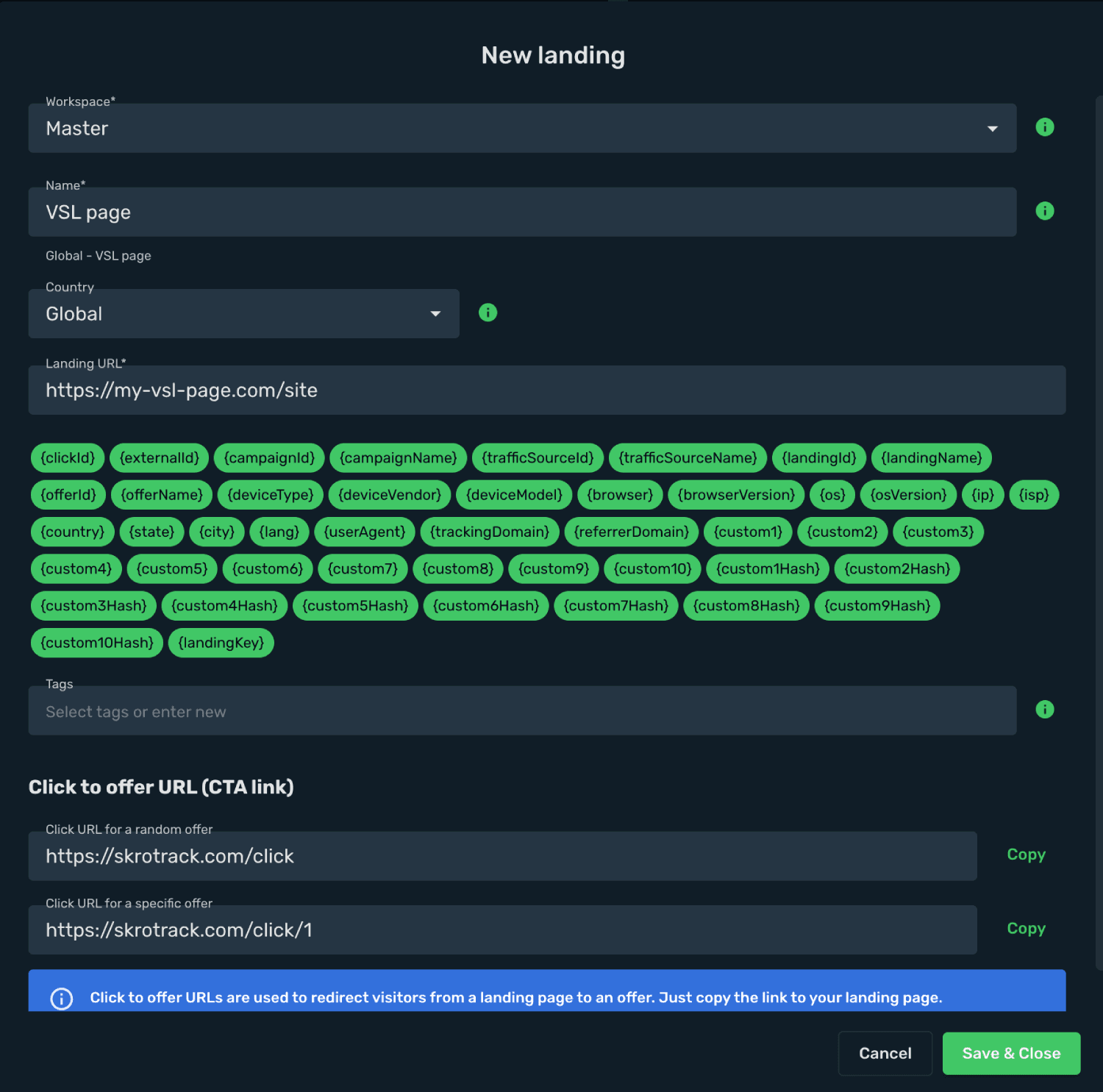
- As you need to send your customers from your VSL page to Cartpanda checkout page you will need to add Skro CTA link to your VSL page.
https://skrotrack.com/click
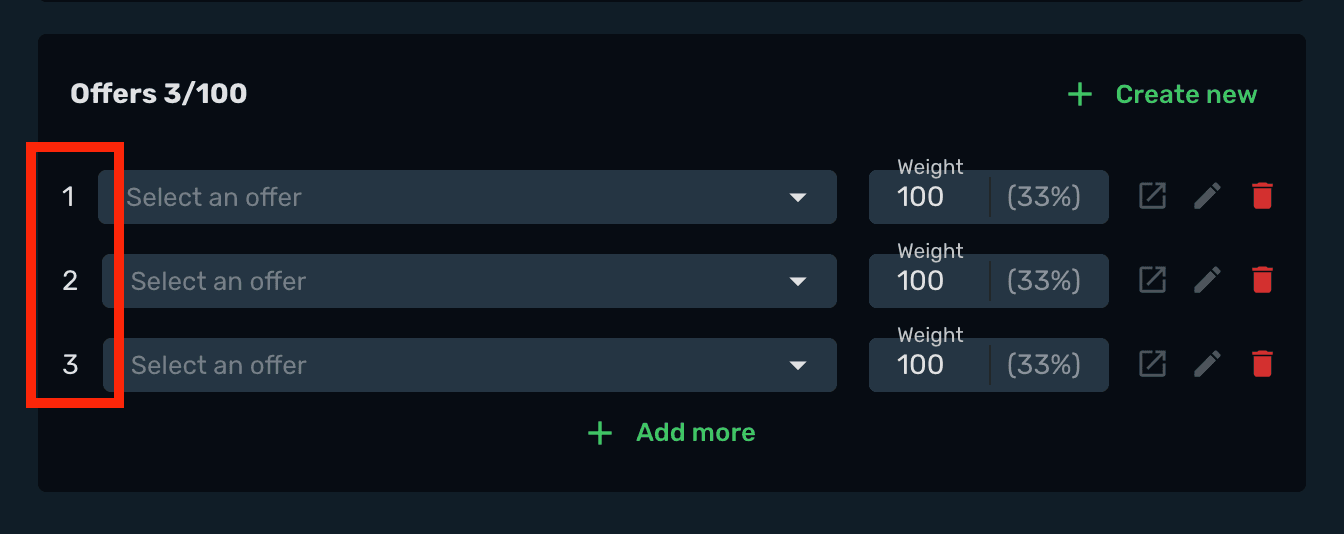
- For example, if you have multi-pot offers and each of them has unique checkout link, then you will need to use specific offer links. The numbers at the very end of these links are sequence numbers that coming from campaign setup in Step 3.
Offer 1: https://skrotrack.com/click/1
Offer 2: https://skrotrack.com/click/2
Offer 3: https://skrotrack.com/click/3
A view of campaign setup in step 3.
Please note that skrotrack.com is the default tracking domain provided by Skro. If you’re using your own custom tracking domain (recommended for higher traffic volumes), make sure to use that domain instead. It’s important that the tracking domain is the same in both your Skro campaign tracking link and in your CTA links on your VSL page.
Flow2: Meta Ad → The White Rabbit Cloaker → VSL → Cartpanda
If you are using The White Rabbit cloaker and VTurb video link on your VSL page, then you need to forward your UTM parameters to your VSL page to track video views on VTurb dashboard.
VSL Page URL with UTM params: (Meta ads compliant)
https://my-vsl-page.com/site?utm_source={custom8}&utm_medium={custom7}&utm_campaign={custom6}&utm_content={custom2}&utm_term={custom4}These macros what are used in UTM params, are Skro specific and coming from Traffic Source parameters mapping.
Step 6. Create a Campaign in Skro
-
Navigate to the Ads Manager view and click Create.
-
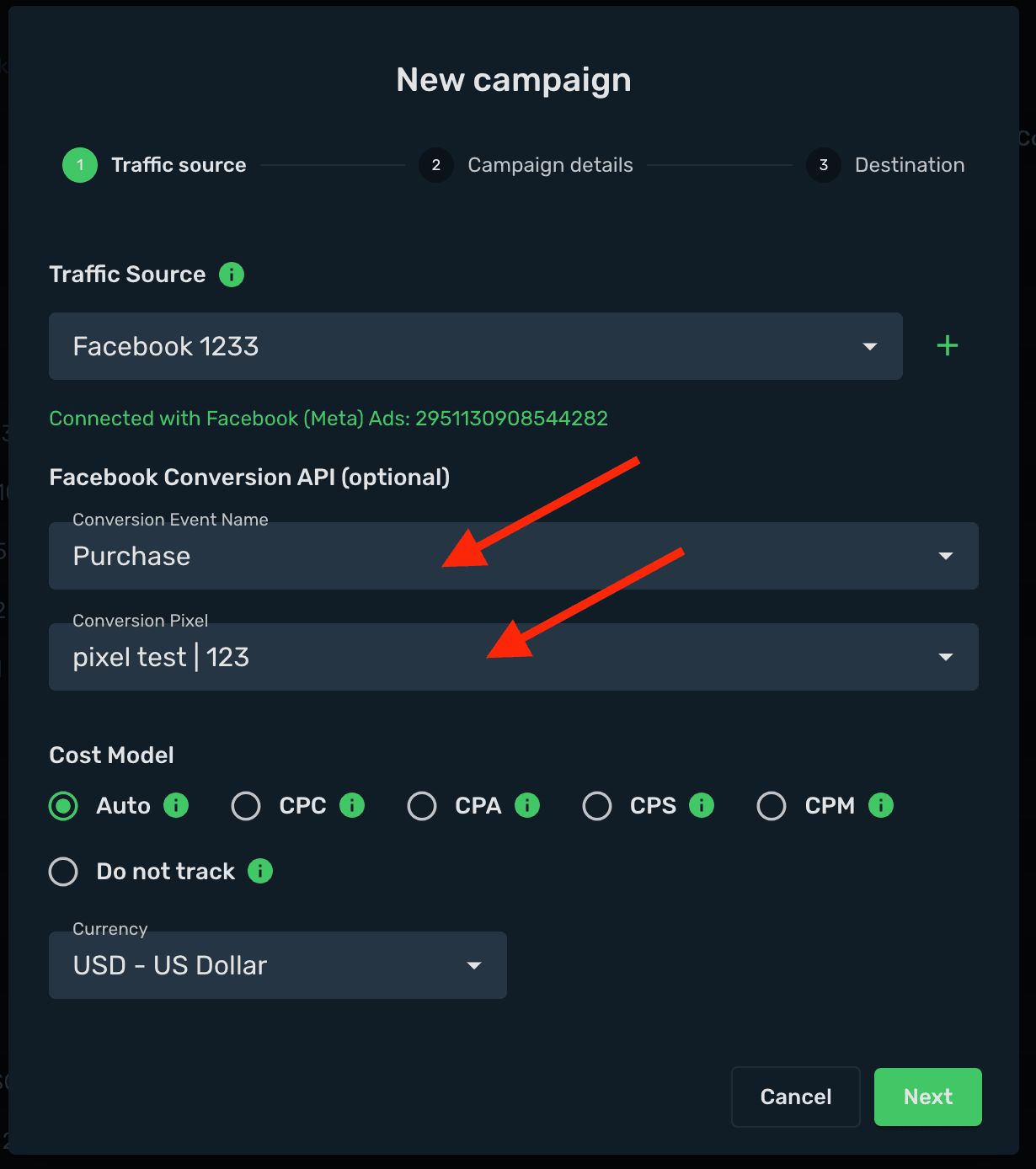
Select your integrated Traffic Source (e.g. Facebook). Meta ads integration guide
-
Select your Conversion Event Name. This must match exactly (case-sensitive) between Skro and your traffic source.
-
Select your Conversion Pixel. This is required for sending conversion data back to your traffic source.
-
Set Cost Model to Auto.
-
Select your cost currency.
-
Click Next.
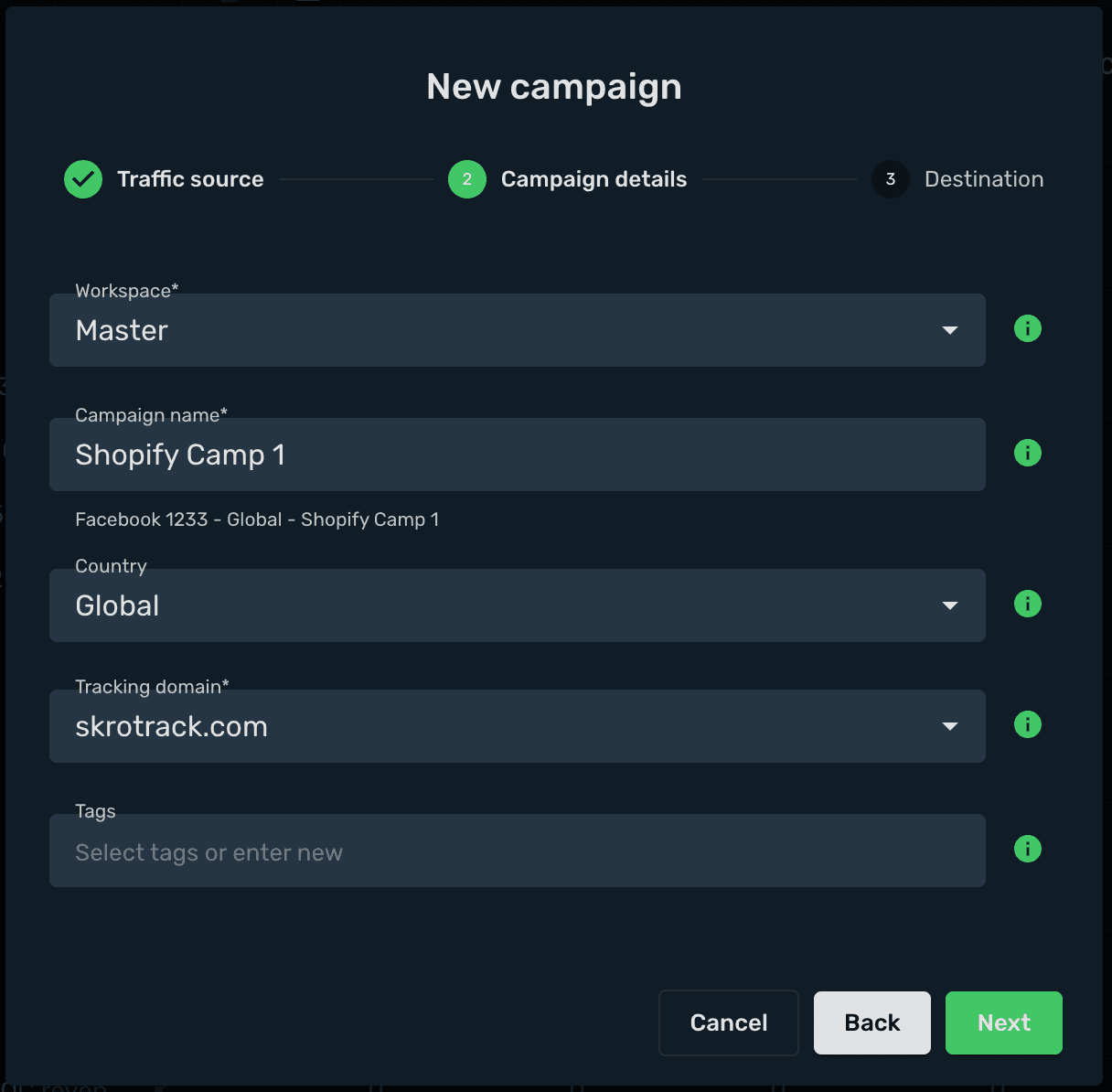
-
Choose a workspace.
-
Add a descriptive campaign name.
-
Click Next.
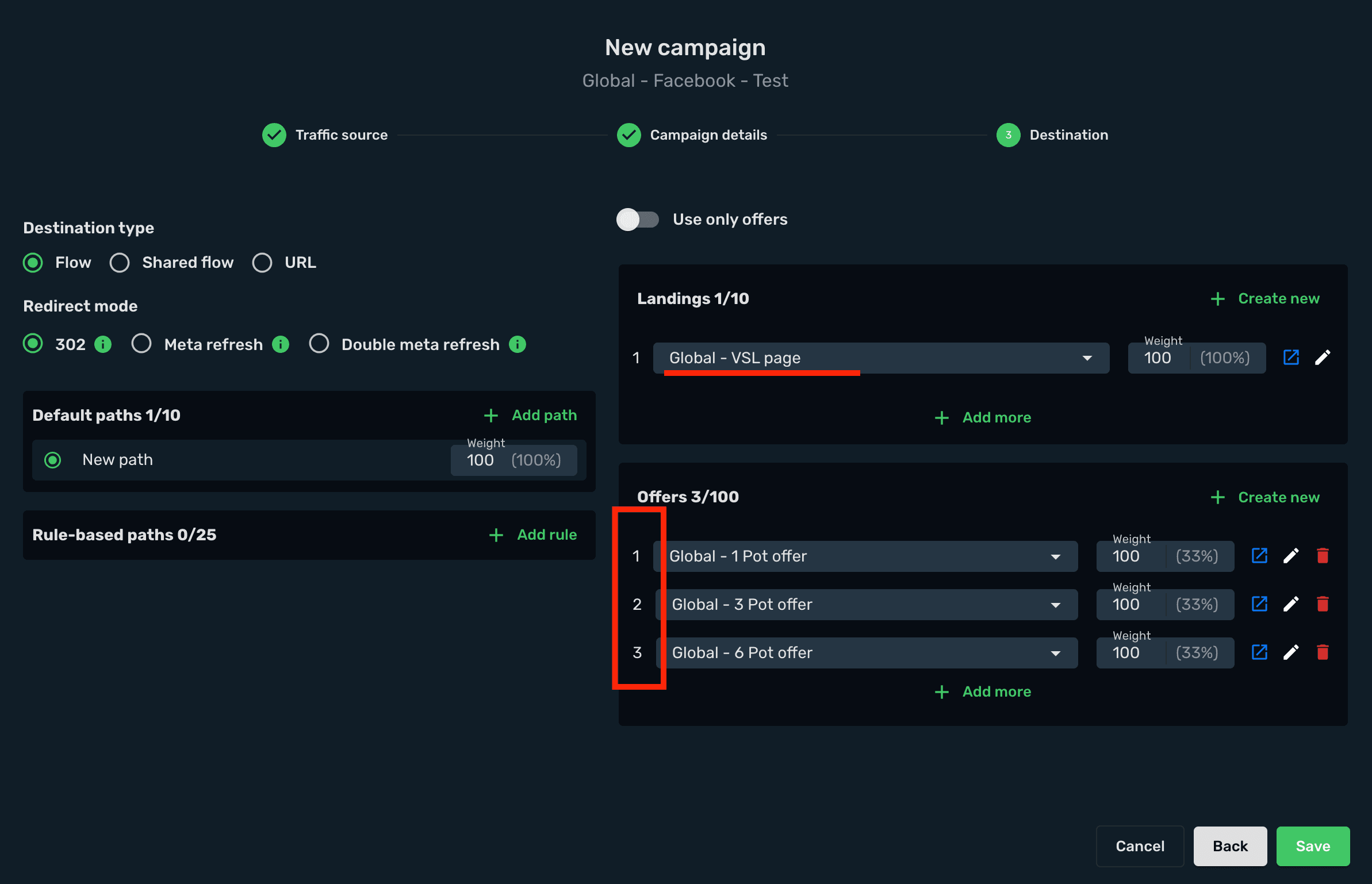
-
Choose your Destination Type (in this example: flow).
-
Select your redirect mode (in this example: 302 redirect).
-
Select your VSL page as Landing.
-
Select your Cartpanda offer / offers.
-
Click Save.
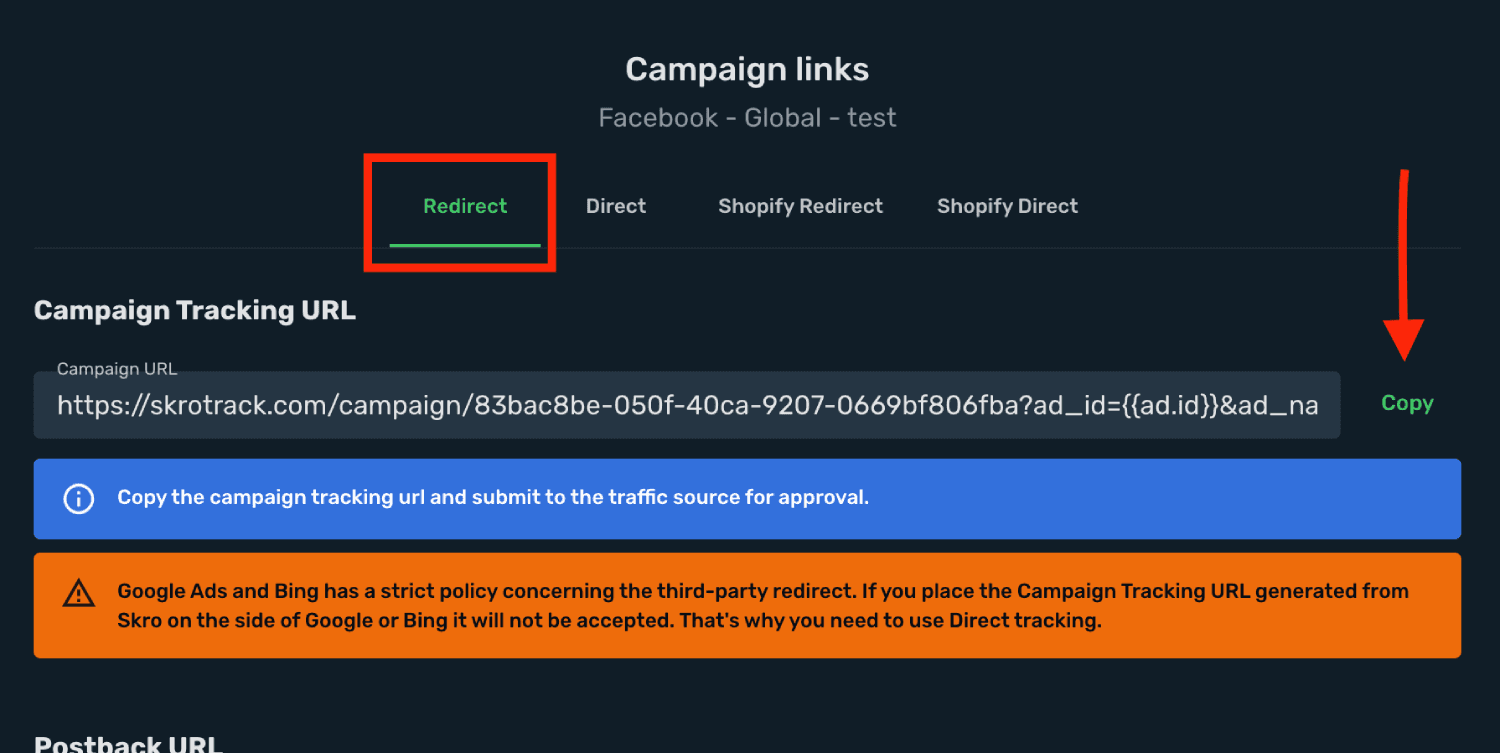
- Choose your tracking method: Redirect or Direct. (In this example we use Redirect.)
Step 7. Set up The White Rabbit (TWR) and Skro tracking link
For example, this is your Skro Campaign tracking link. Usually this link goes to Meta ads and you are done.
https://skrotrack.com/campaign/83bac8be-050f-40ca-9207-0669bf806fba?ad_id={{ad.id}}&ad_name={{ad.name}}&adset_id={{adset.id}}&adset_name={{adset.name}}&campaign_id={{campaign.id}}&campaign_name={{campaign.name}}&placement={{placement}}&site_source_name={{site_source_name}}But if you are using The White Rabbit cloaker, then this set up is a little different.
- This part of the URL goes to Cloaker:
https://skrotrack.com/campaign/83bac8be-050f-40ca-9207-0669bf806fba
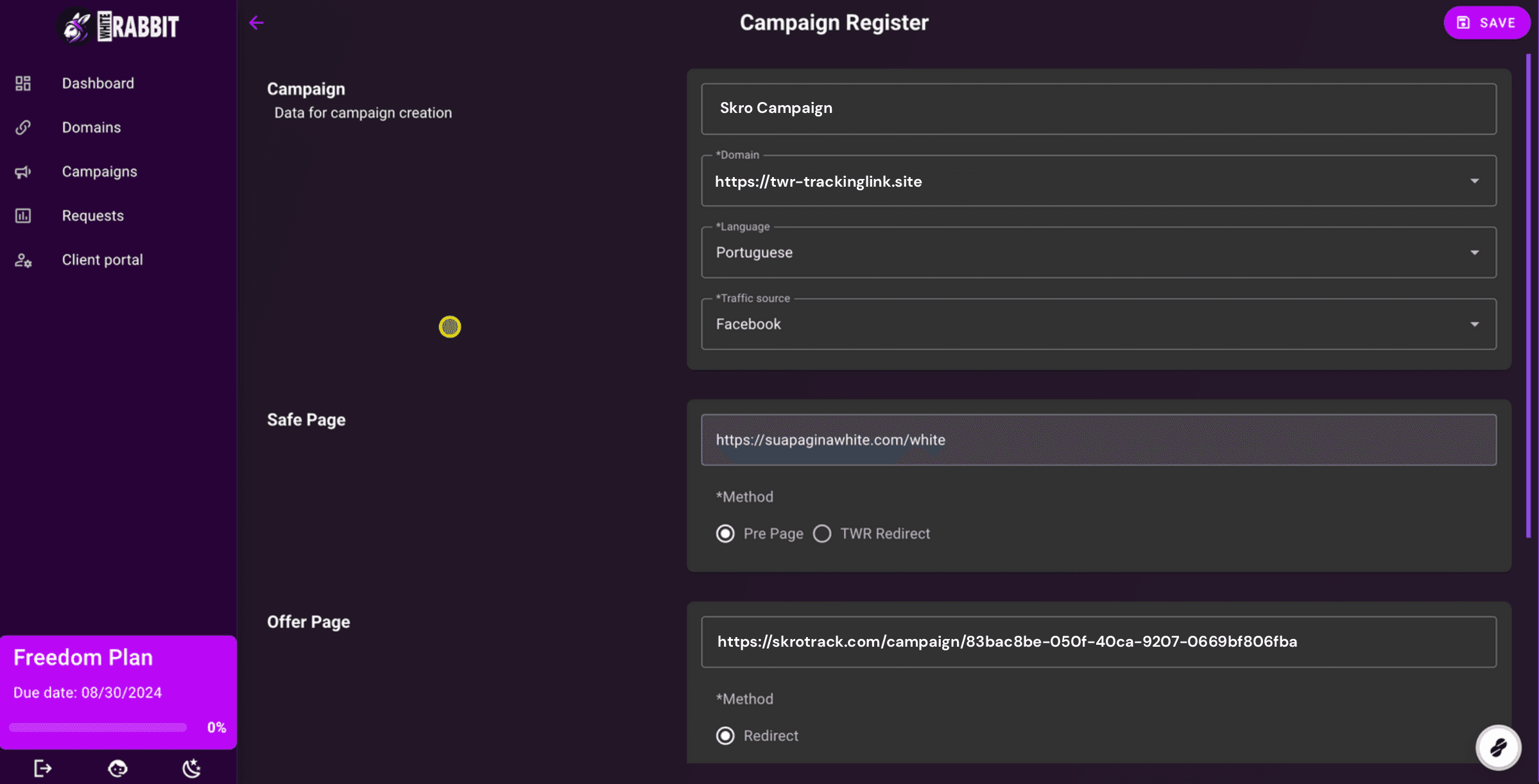
- These URL parameters goes to The White Rabbit tracking link which goes to Meta ads. It means that you must include these params to your The White Rabbit generated parameters.
ad_id={{ad.id}}&ad_name={{ad.name}}&adset_id={{adset.id}}&adset_name={{adset.name}}&campaign_id={{campaign.id}}&campaign_name={{campaign.name}}&placement={{placement}}&site_source_name={{site_source_name}}- Final URL with params will be similar to these params:
https://twr-trackinglink.site/?cwr={{campaign.id}}&cname={{campaign.name}}&domain={{domain}}&placement={{placement}}&adset={{adset.name}}&adname={{ad.name}}&site={{site_source_name}}&xid=4b3gtc4x&ad_id={{ad.id}}&ad_name={{ad.name}}&adset_id={{adset.id}}&adset_name={{adset.name}}&campaign_id={{campaign.id}}&campaign_name={{campaign.name}}&placement={{placement}}&site_source_name={{site_source_name}}Your Cartpanda integration is complete! Remember: all traffic must go through your Skro campaign link, otherwise the tracking will not work.
Get started with Facebook integration
Verify the setup
Follow a campaign link and complete a test conversion using your provider’s test workflow. Confirm that the original click ID reaches the provider and is returned to Skro, then check the event and revenue in your campaign report.
Troubleshooting
If data is missing, check the selected workspace, integration, campaign, and reporting date range. Compare parameter names and macro values with the examples in this guide before repeating the test.
Related guides
Need help with this guide? Contact Skro support.