

Ads.com Integration
Connect Ads.com Integration with Skro and configure the identifiers used to synchronize search arbitrage revenue.
Integration
Skro integration with Ads.com gives you the ability to sync revenue data that has been adjusted after different traffic sources.
- Update revenue and conversions every hour.
Step 1. Add integration
- Log in to your Skro account.
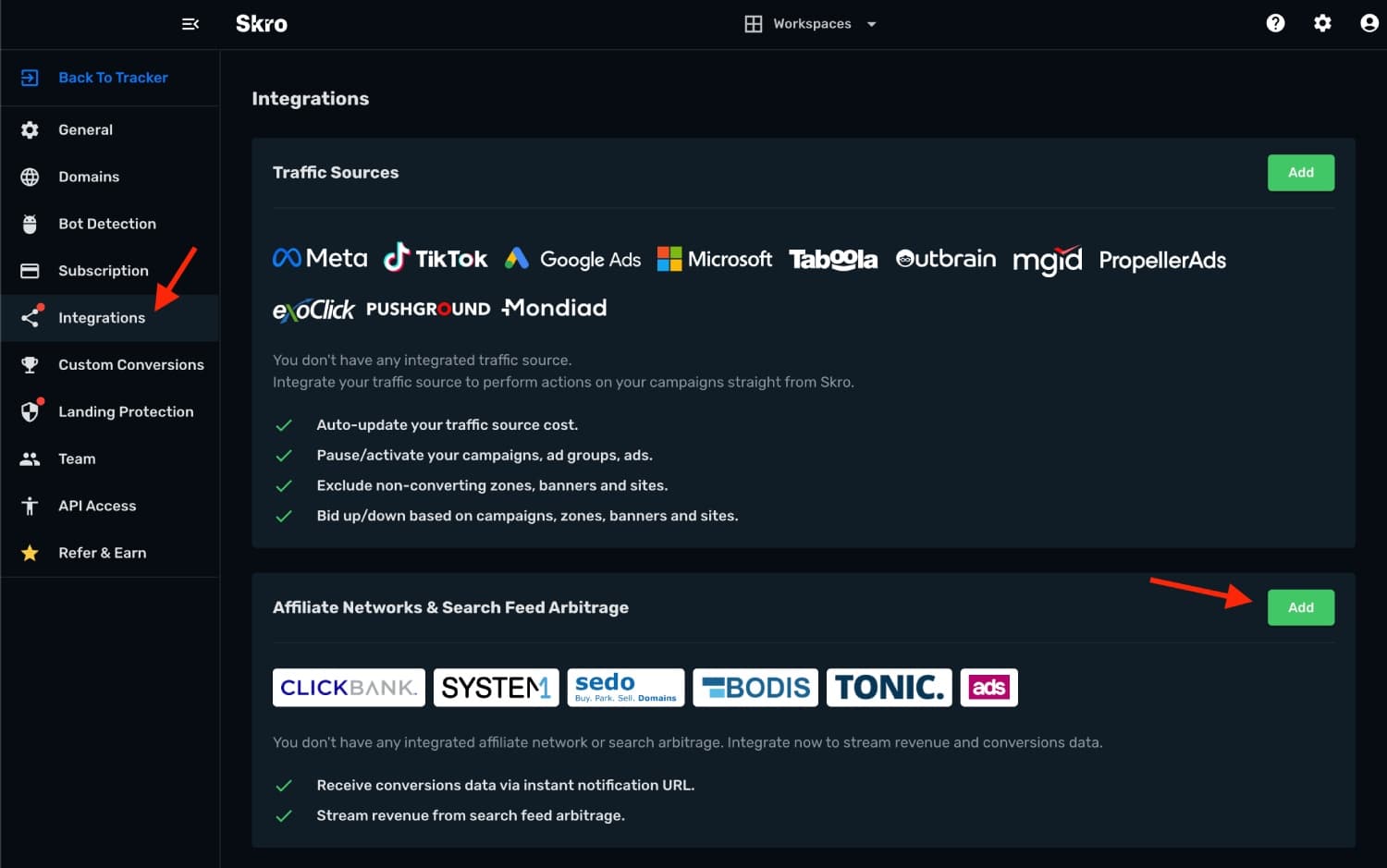
- Navigate to Settings → Integrations.
- Click Add in Affiliate Networks & Search Feed Arbitrage section.
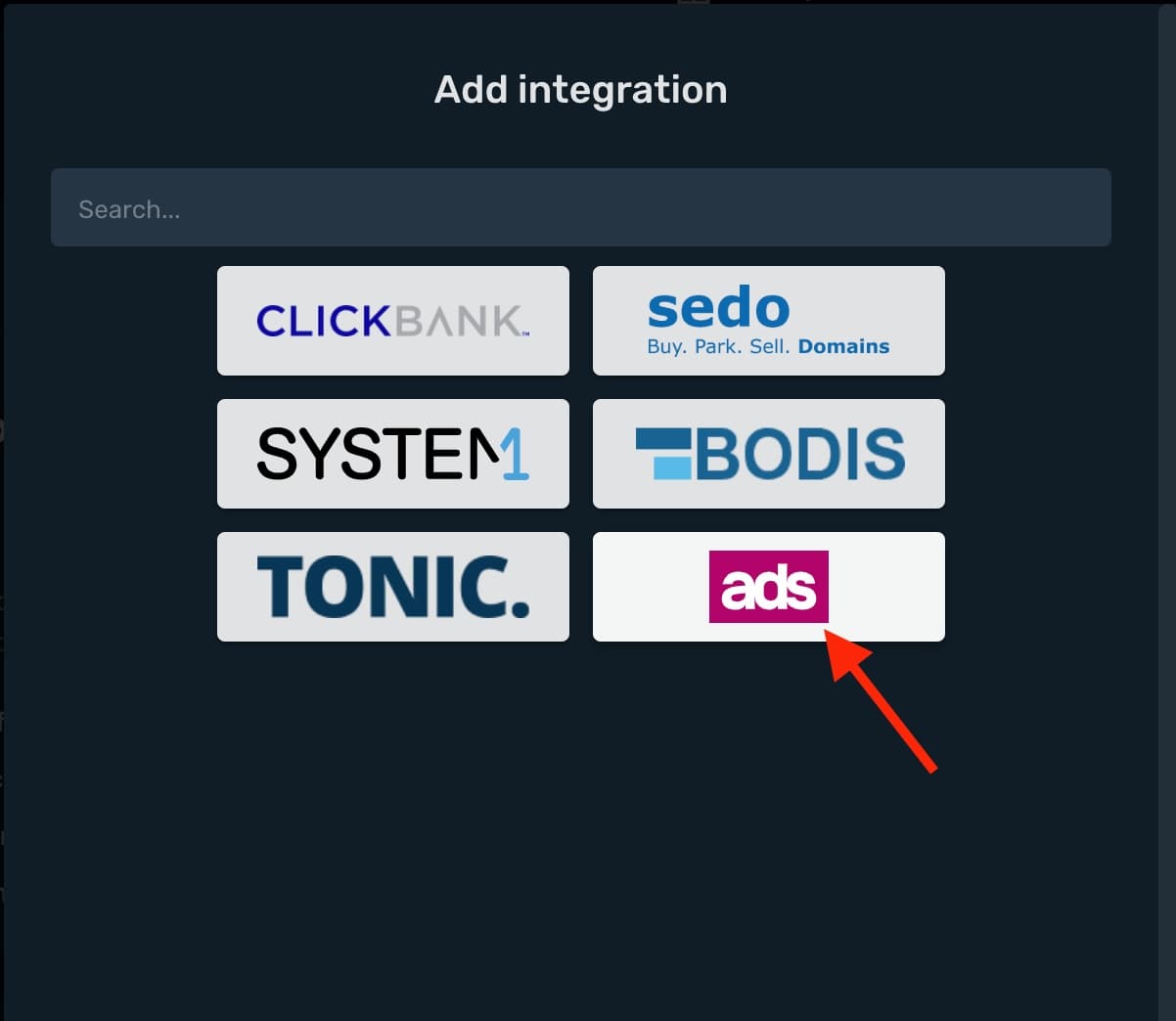
- Click Ads.com logo.
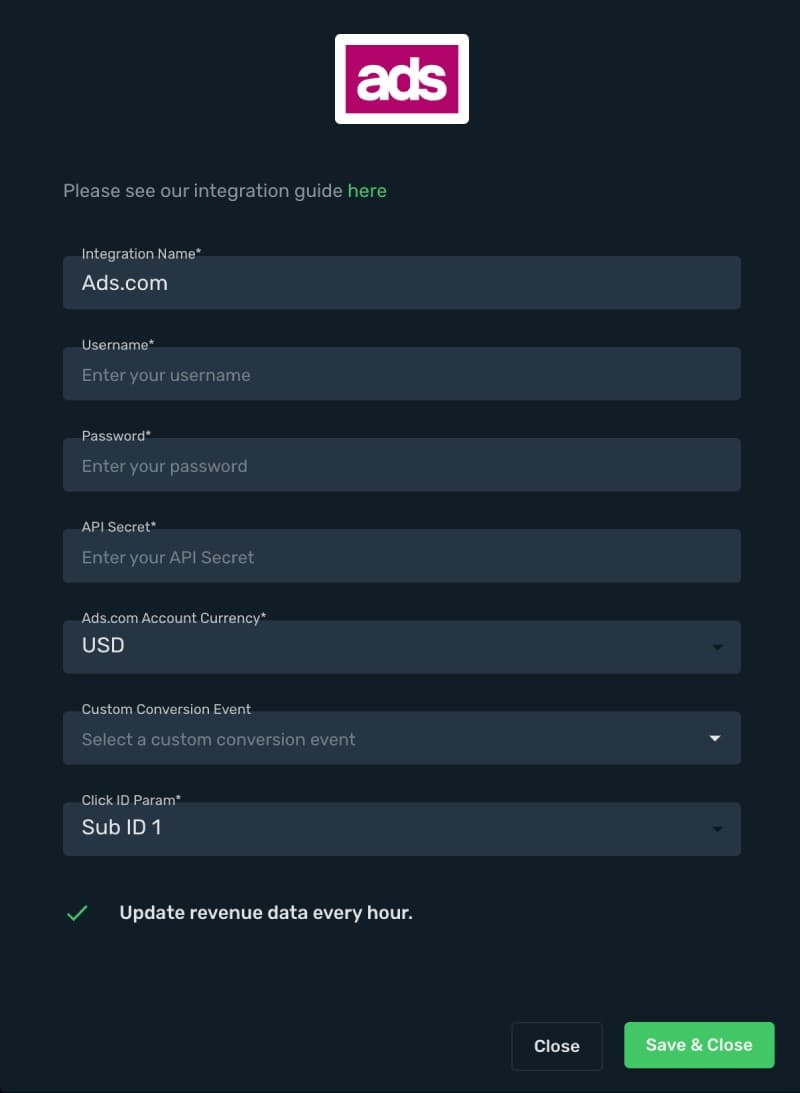
- Name is a title for your integration.
- Username - Enter your account username not email.
- Password - Enter your account password.
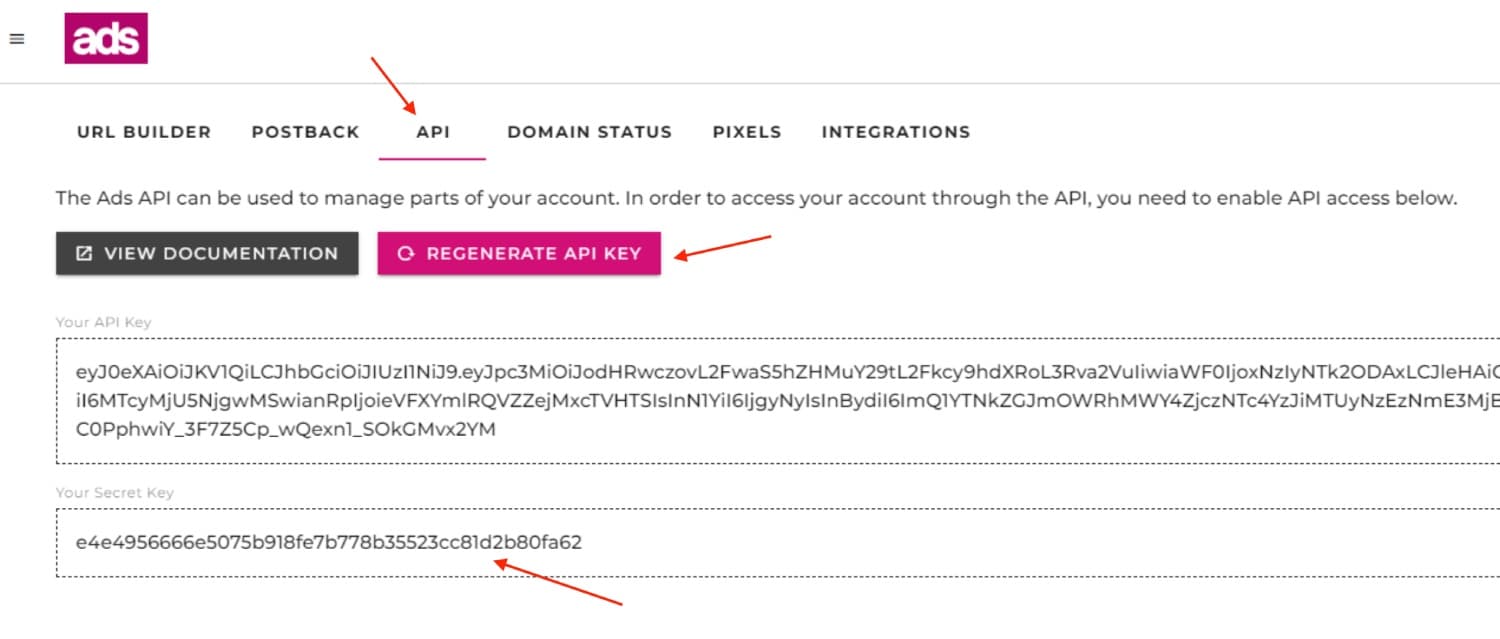
- Logging in into your Ads.com Account.
- Go to the Tracking section, which you can access from the left-side menu.
- Click API tab.
- Click Generate API Key and copy the Secret Key and paste it to Skro.
- Ads.com Account Currency is the currency of the earnings.
- Custom Conversion Event is optional, but you can see a revenue and conversions info in a separate columns in your Skro reports. To use that you will need to use Custom Conversions in Skro.
- Click ID Param is the parameter what you use in your offer URL to send Skro Click ID. There are available 5 Sub IDs (subid1 - subid5). Once you have selected a Sub ID, remember to consistently use it when passing the Click ID while creating offers for this feed.
- If you are done, then click Save & Close.
Step 2. Offer URL Params
Example of the offer URL with Skro click ID macro:
https://domain.com/?subid1={clickId}
More info about Sub ID tracking is here
Step 3. Postback URL
Example of the Postback URL setup on Ads.com:
Log in to your Ads.com account and navigate to the Tracking → Postback and create new postback.
Event Type: Ad Click
Postback URL: https://your-tracking-domain.com/postback?clickId={subid1}&p1={click_term}
Revenue data coming through the API integration.
If you want to track different events like views, ad click a separate columns, then you will need to use Custom Conversions in Skro.
To fire custom conversion then you will need to append &ce=YOUR_EVENT_NAME to your postback URL.
https://your-tracking-domain.com/postback?clickId={subid1}&p1={click_term}&ce=YOUR_EVENT_NAME
More info about Postback (S2S) tracking is here
The integration is ready to synchronize earnings data.
Verify the setup
Confirm that the offer identifiers match the values in your integration. After the next revenue synchronization, compare the same date range and currency in Skro and your provider account.
Troubleshooting
If data is missing, check the selected workspace, integration, campaign, and reporting date range. Compare parameter names and macro values with the examples in this guide before repeating the test.
Related guides
Need help with this guide? Contact Skro support.