

Retreaver integration
Connect Retreaver with Skro to associate inbound calls and conversion events with the campaigns that generated them.
Step 1. Setup in Retreaver
- Add the following essential elements to your Retreaver account:
- Step 1. Create a Retreaver Call Tracking Campaign.
- Step 2. Create A Number Pool For Your Campaign
- Step 3. Configure Your Number Pool For Real-Time Tracking
- Step 4. Tell Retreaver Which Numbers To Replace On Your Landing Page
Step 2. Set Up Parameter Mapping for Skro Click ID
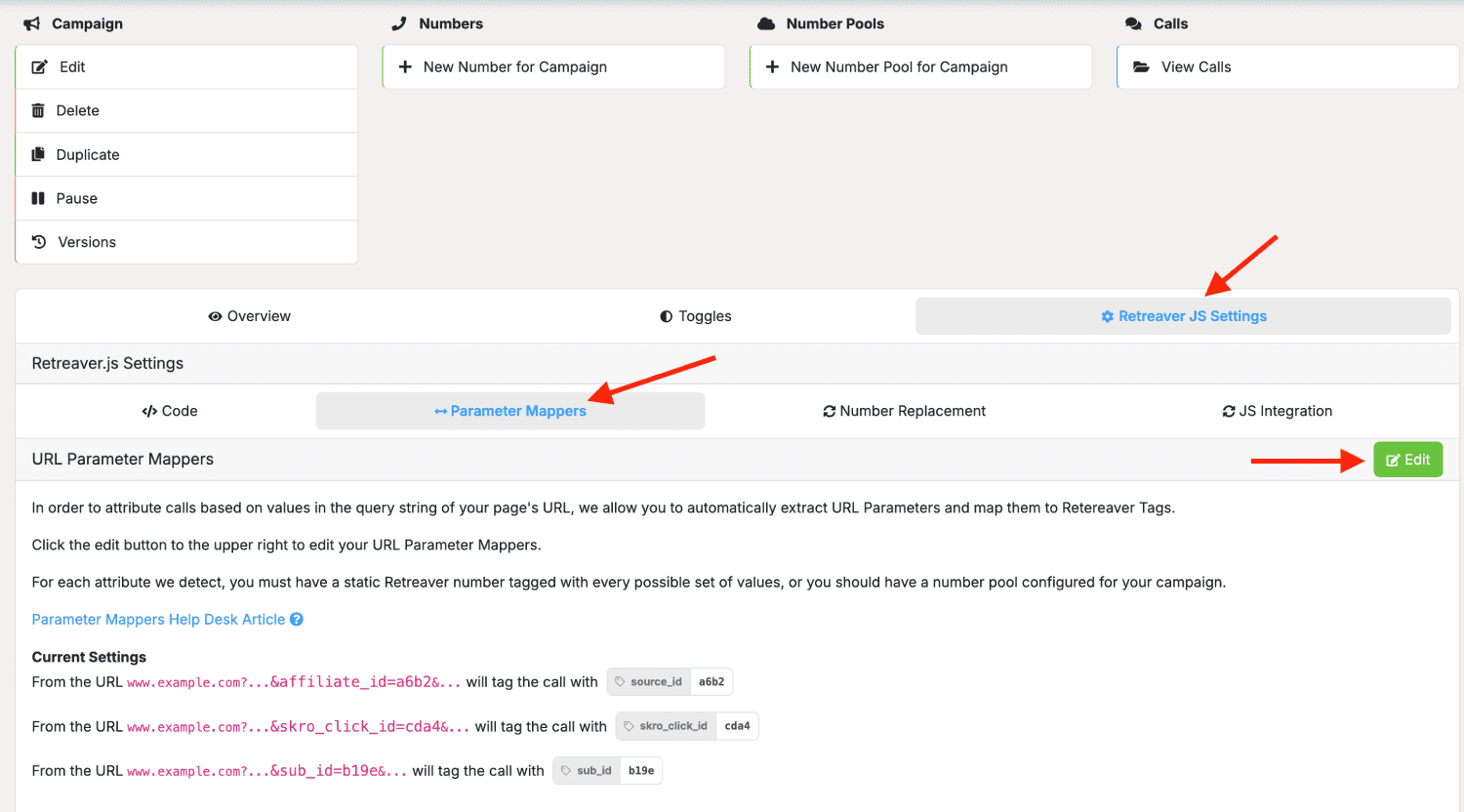
- In Retreaver account, go to Campaign settings → Retreaver JS Settings → Parameter Mappers and click Edit.
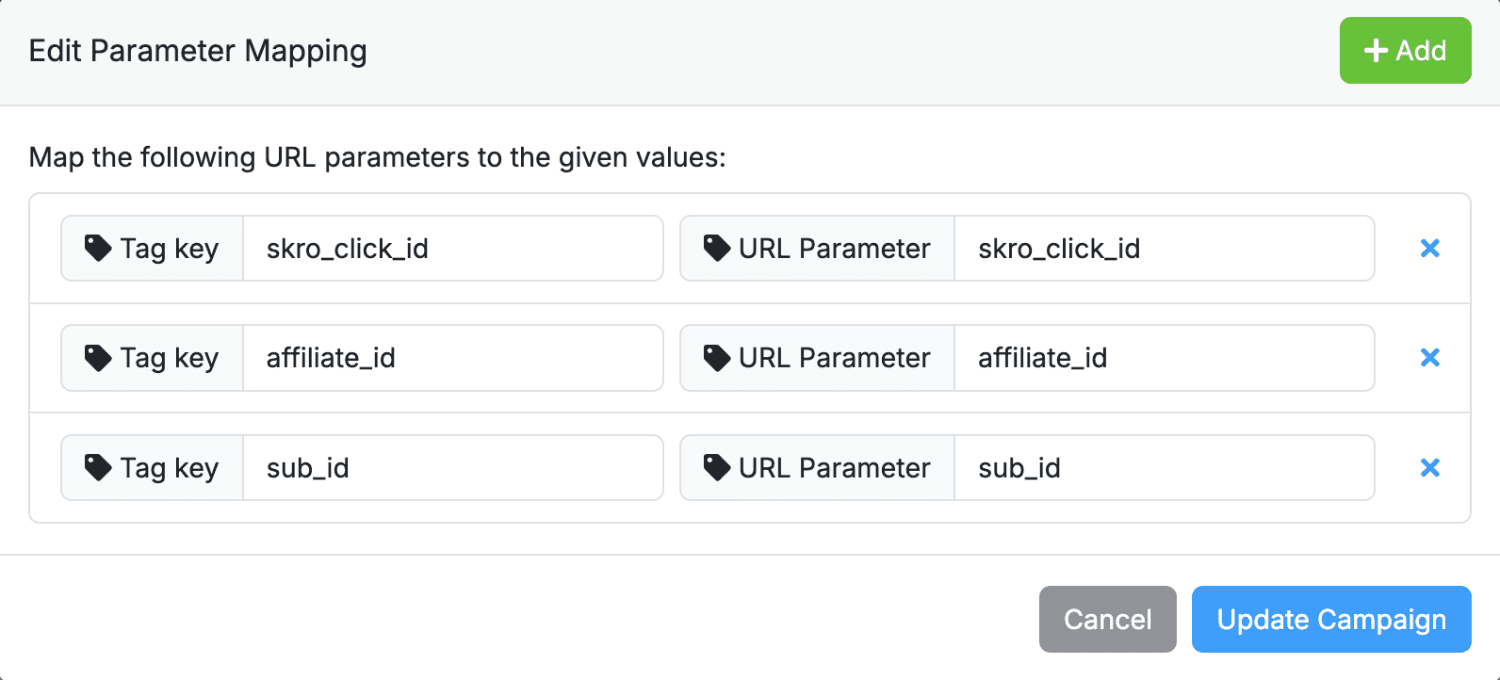
- Add new URL parameter name mapping for Skro Click ID: skro_click_id. It is needed to fire Skro postback URL with correct click ID.
Step 3. Install JS tracking scripts
Select your tracking method:
- Add your landing page as Offer in Skro.
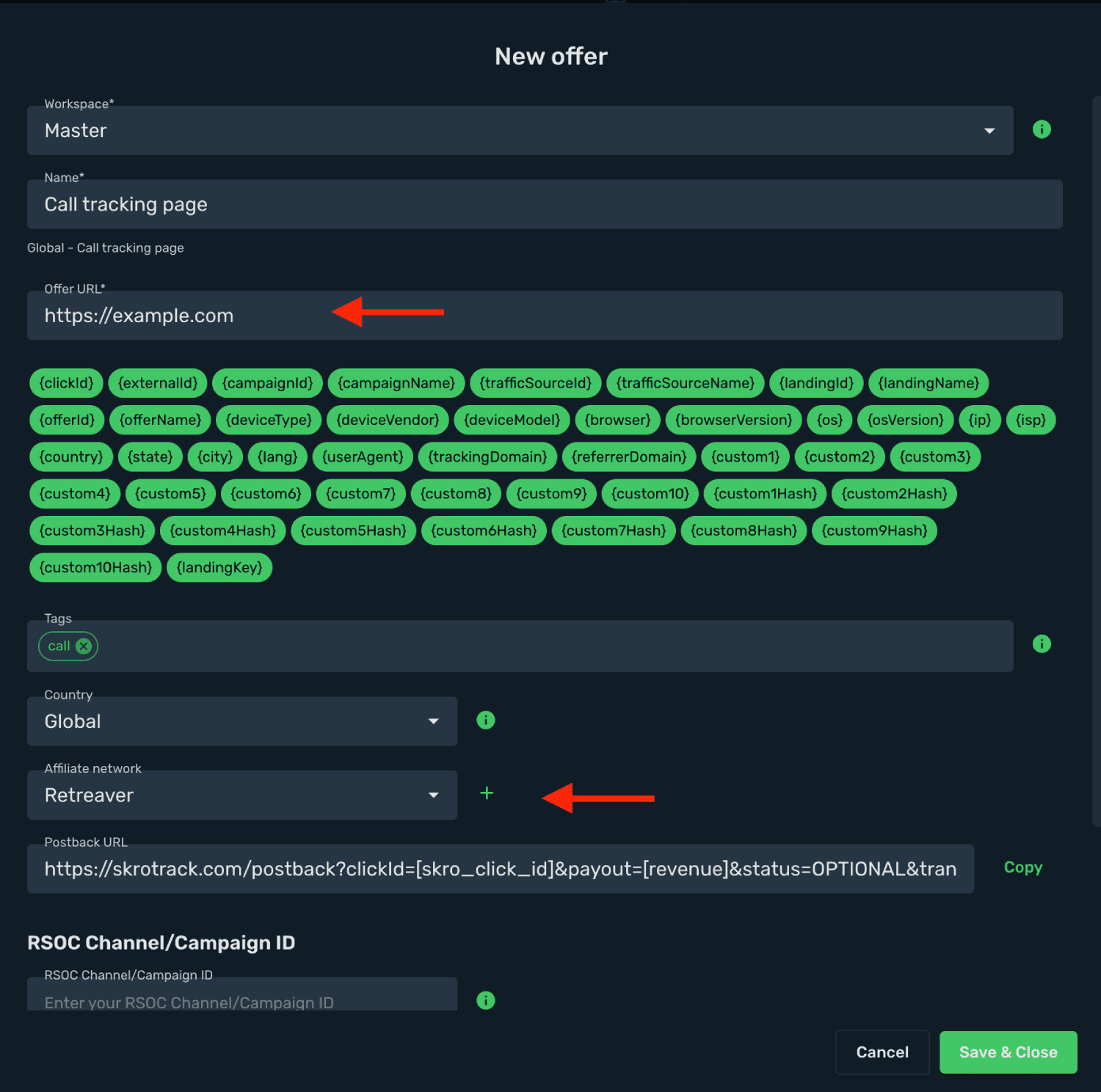
- Select an Affiliate Network as Retreaver.
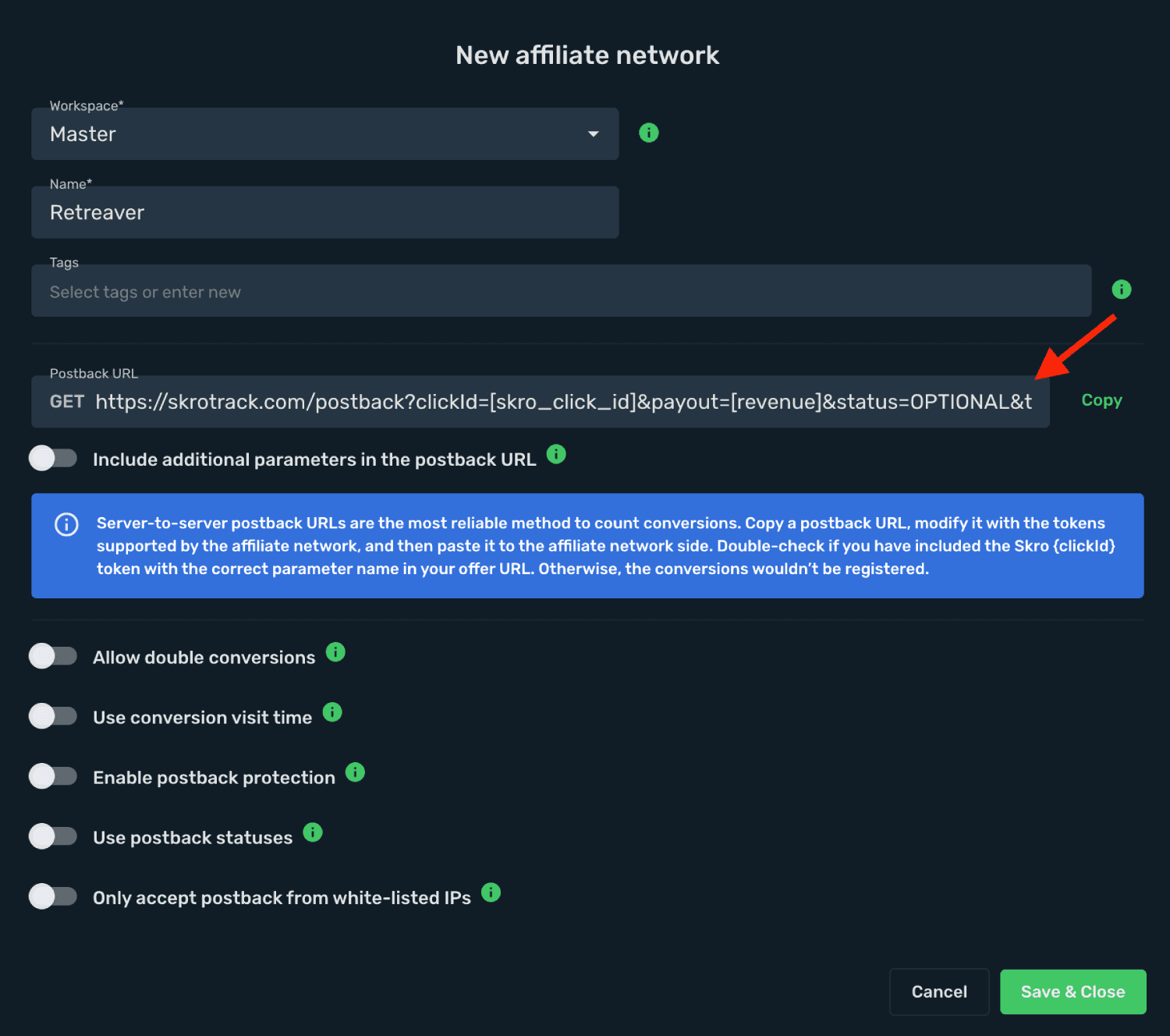
- Create a campaign in Skro.
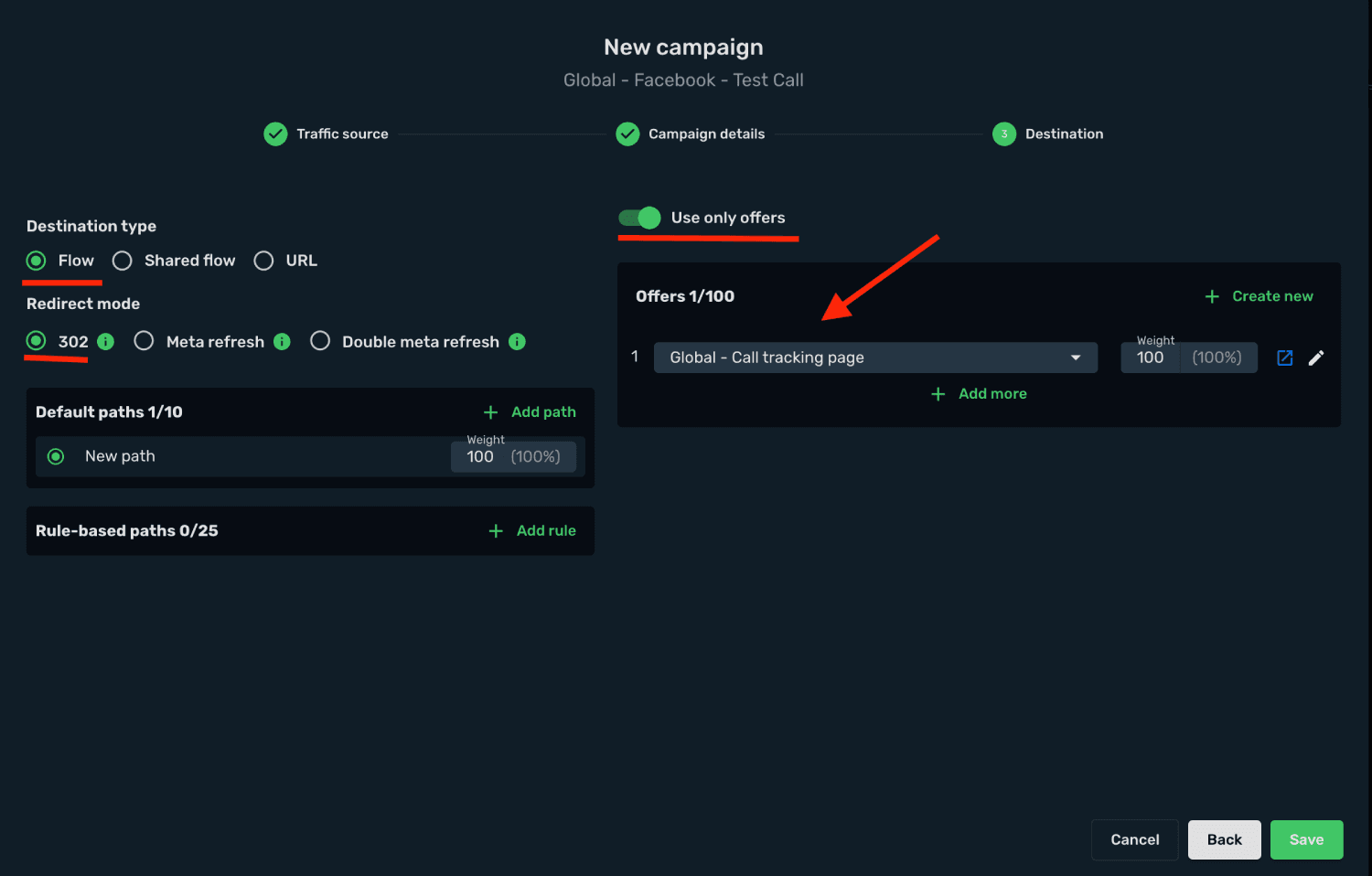
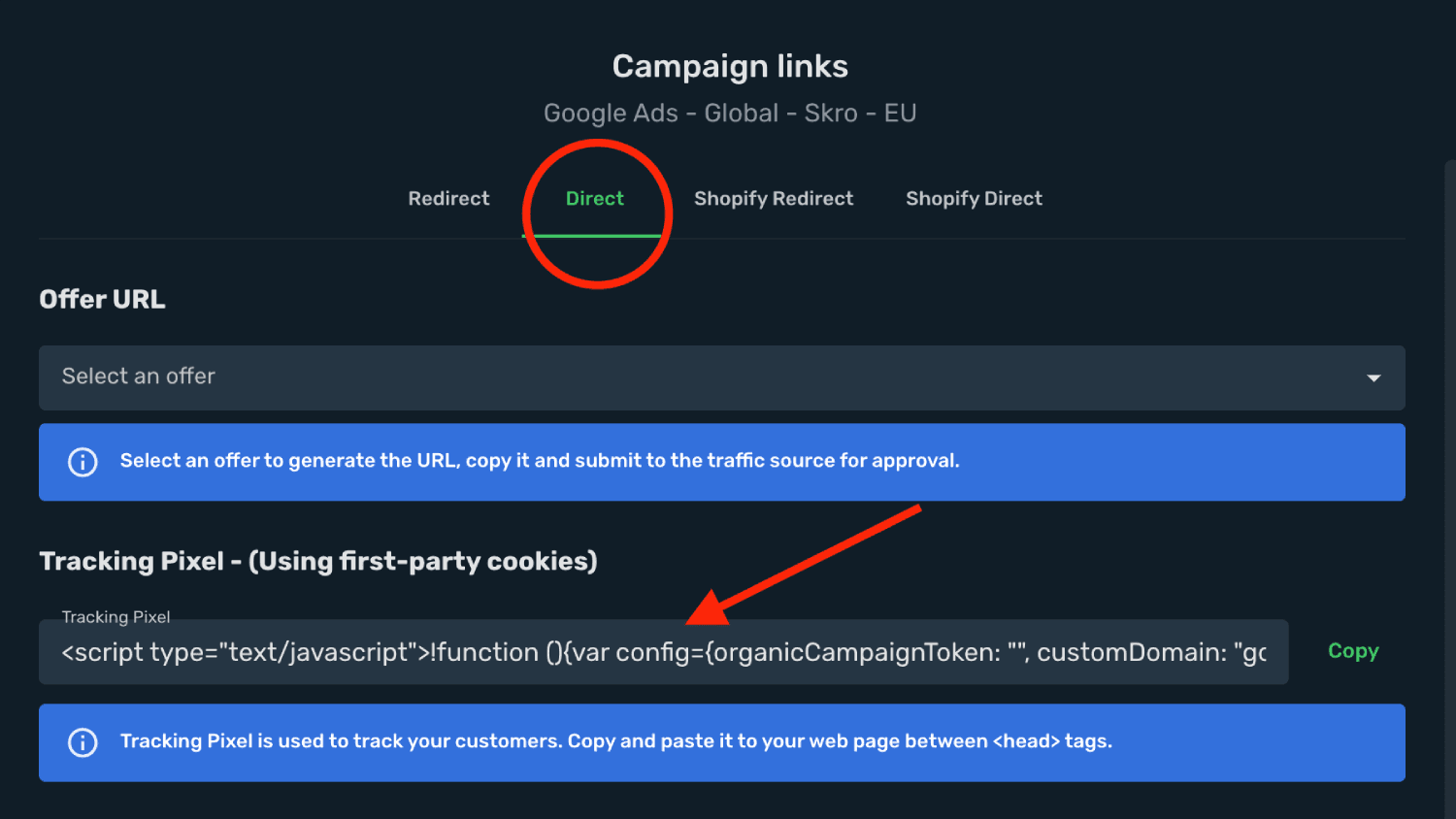
- Copy Skro tracking pixel from Campaigns → Links → Direct and paste it to your landing page between HEAD tags.
- Copy this Retreaver tracking pixel to your landing page after Skro tracking pixel code.
Remember to replace the YOUR_CAMPAIGN_KEY element in the script with the actual Retreaver Campaign Key, which can be taken from your Campaign settings → Retreaver JS Settings → Code → Advanced.
<script type="text/javascript">
            (function () {
                var scriptElement = document.createElement('script');
                scriptElement.type = 'text/javascript';
                scriptElement.async = true;
                scriptElement.defer = true;
                scriptElement.src = document.location.protocol + '//dist.routingapi.com/jsapi/v1/retreaver.min.js';
                scriptElement.onload = scriptElement.onreadystatechange = function () {

                    Retreaver.configure({
                        host: 'api.routingapi.com',
                        prefix: document.location.protocol === 'https:' ? 'https' : 'http'
                    });

                    var campaign = new Retreaver.Campaign({campaign_key: 'YOUR_CAMPAIGN_ID'});

                    function getSkroClickIdFromCookies() {
                        const skroClickId = document.cookie.split(";").map(x => x.trim()).filter(x => x.startsWith("skro-click-id"))[0];
                        return skroClickId ? skroClickId.split("=")[1] : "";
                    }

                    campaign.request_number(function (number) {
                        var link = '<a href="tel:' + number.get('number') + '">' + number.get('formatted_number') + '</a>';
                        document.getElementById('phone-number').innerHTML = link;

                        number.add_tags({
                            skro_click_id: window.skclid !== undefined ? window.skclid : getSkroClickIdFromCookies()
                        });
                    });
                };
                (document.getElementsByTagName('head')[0] || document.getElementsByTagName('body')[0]).appendChild(scriptElement);
            })();
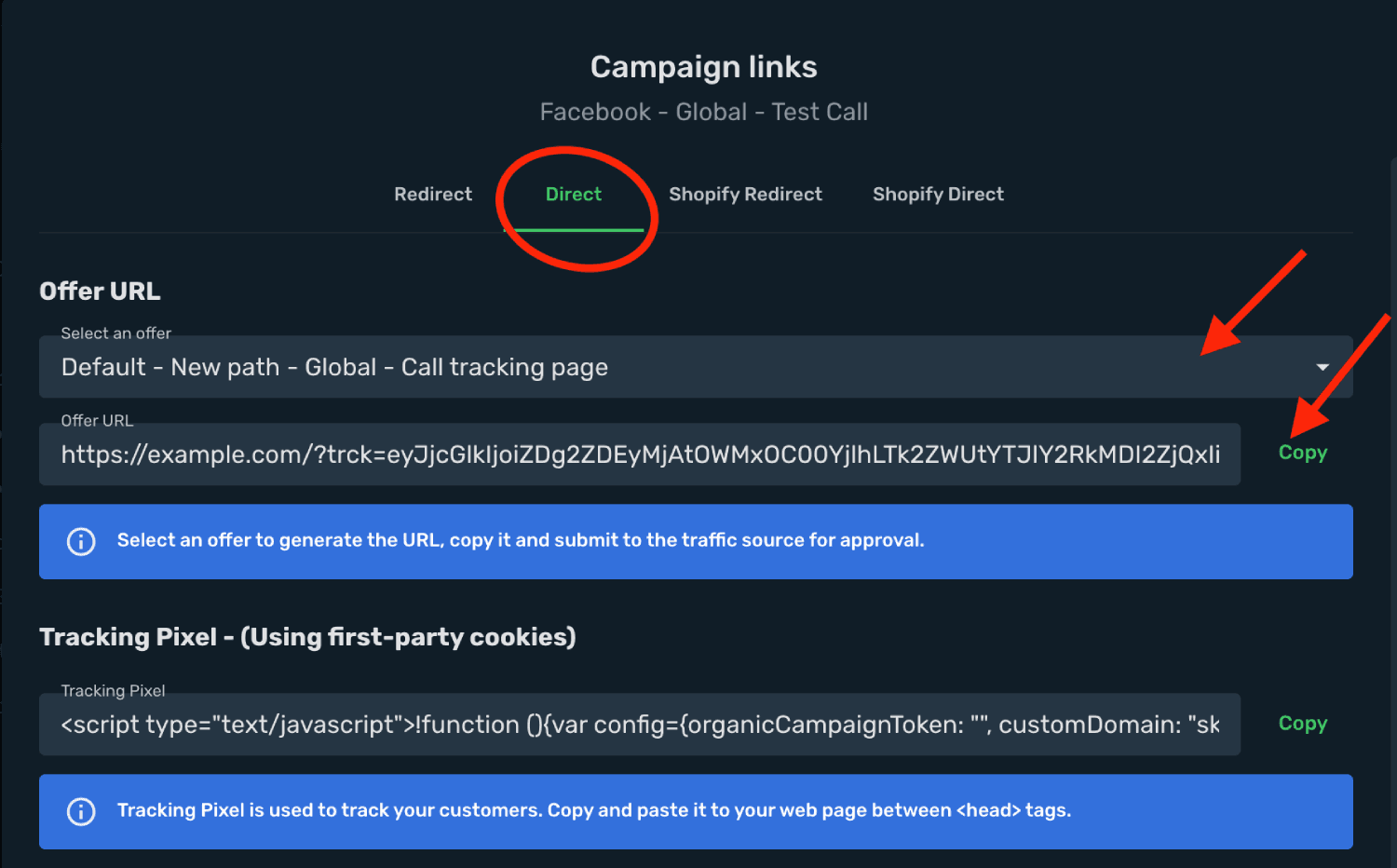
</script>- Copy Skro generated Offer URL with tracking params and submit to the traffic source for approval.
- Add your landing page as Offer in Skro.
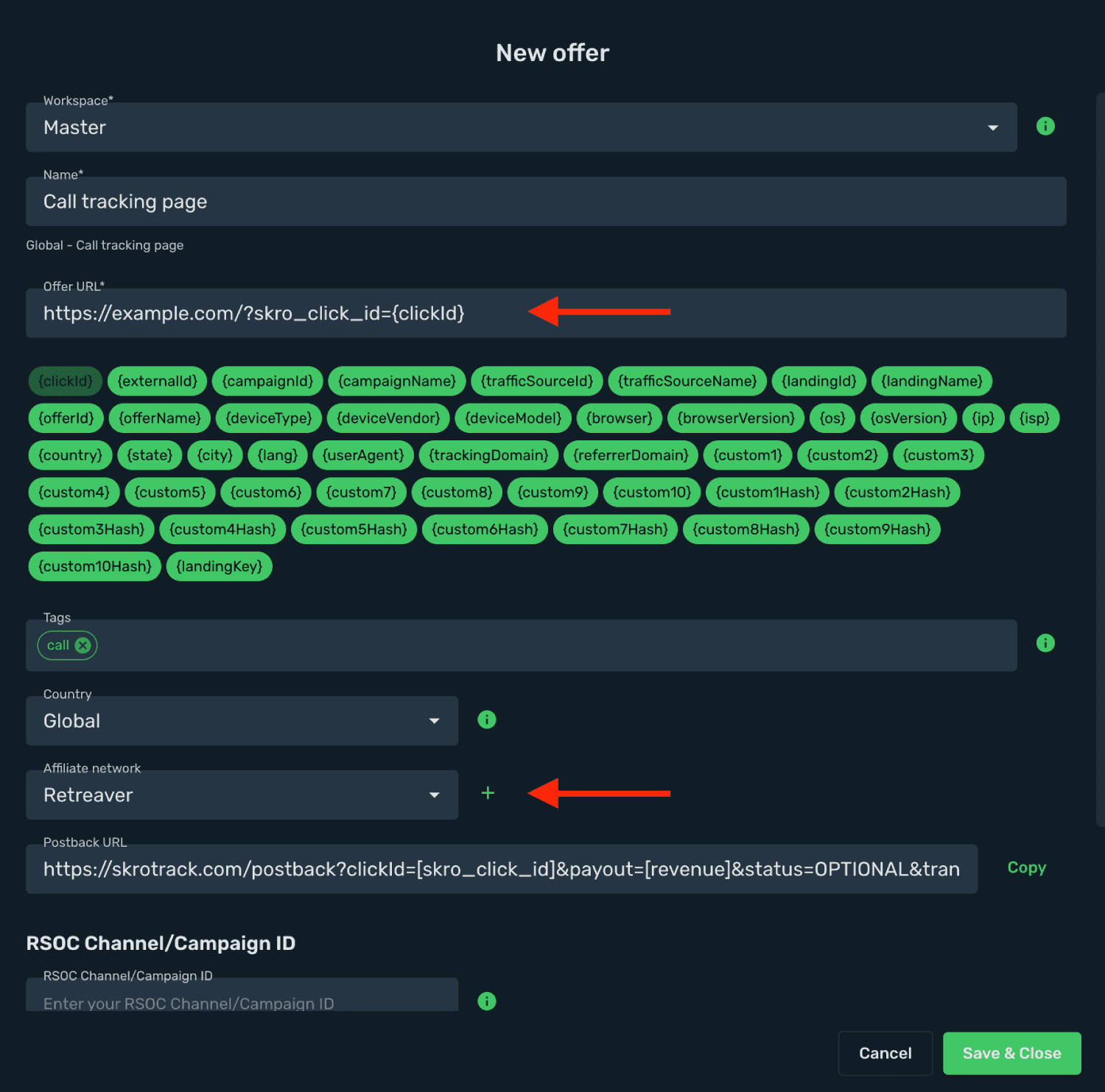
- Select an Affiliate Network as Retreaver.
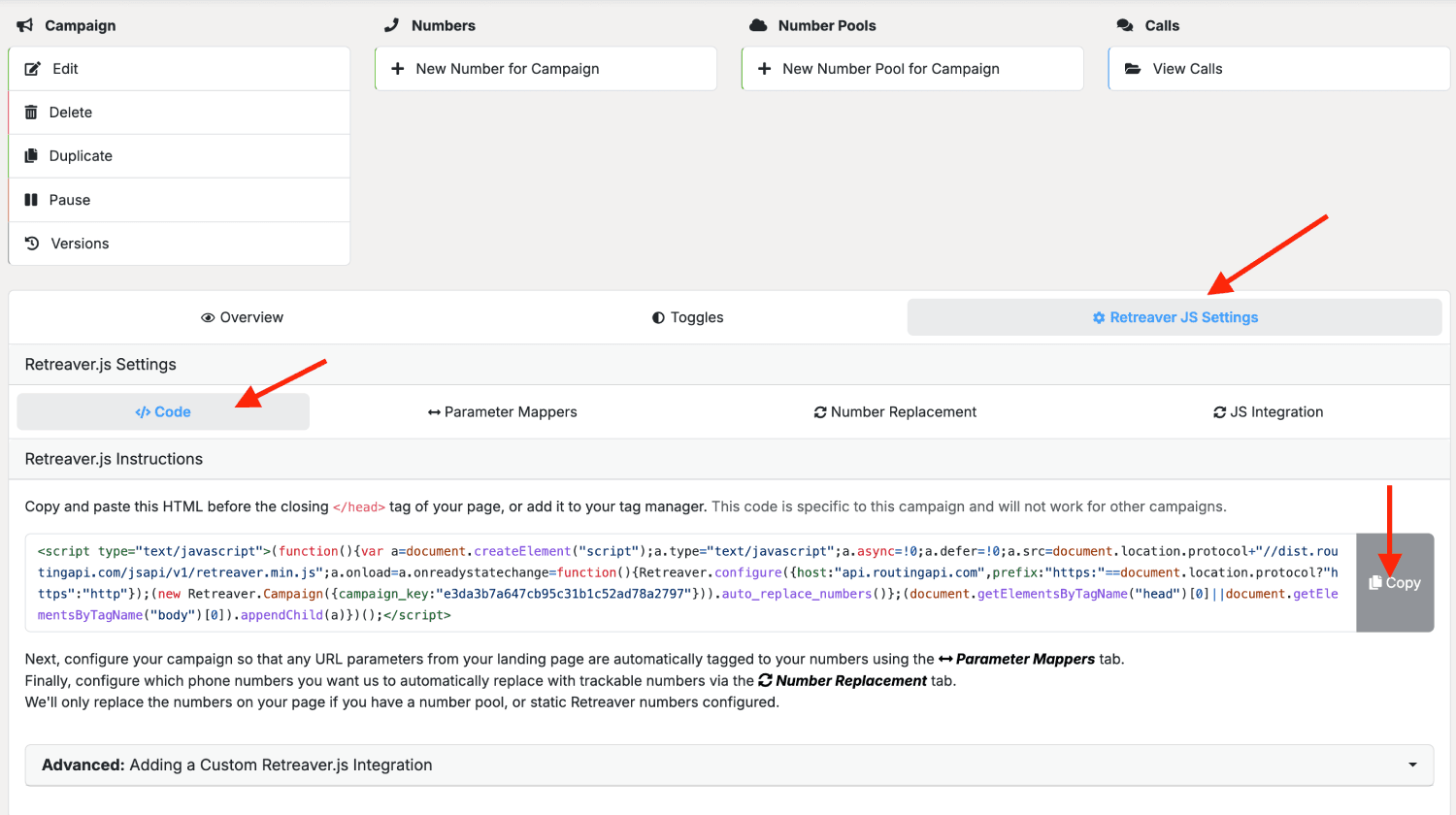
It is very important to map Skro click id to your offer URL. You must use this parameter name and macro: &skro_click_id={clickId}- Go back to Retreaver and navigate to Campaign settings → Retreaver JS Settings → Code and click Copy. Copy that code to your landing page between HEAD tags.
- In Skro, go to Campaigns and click Create to add new campaign.
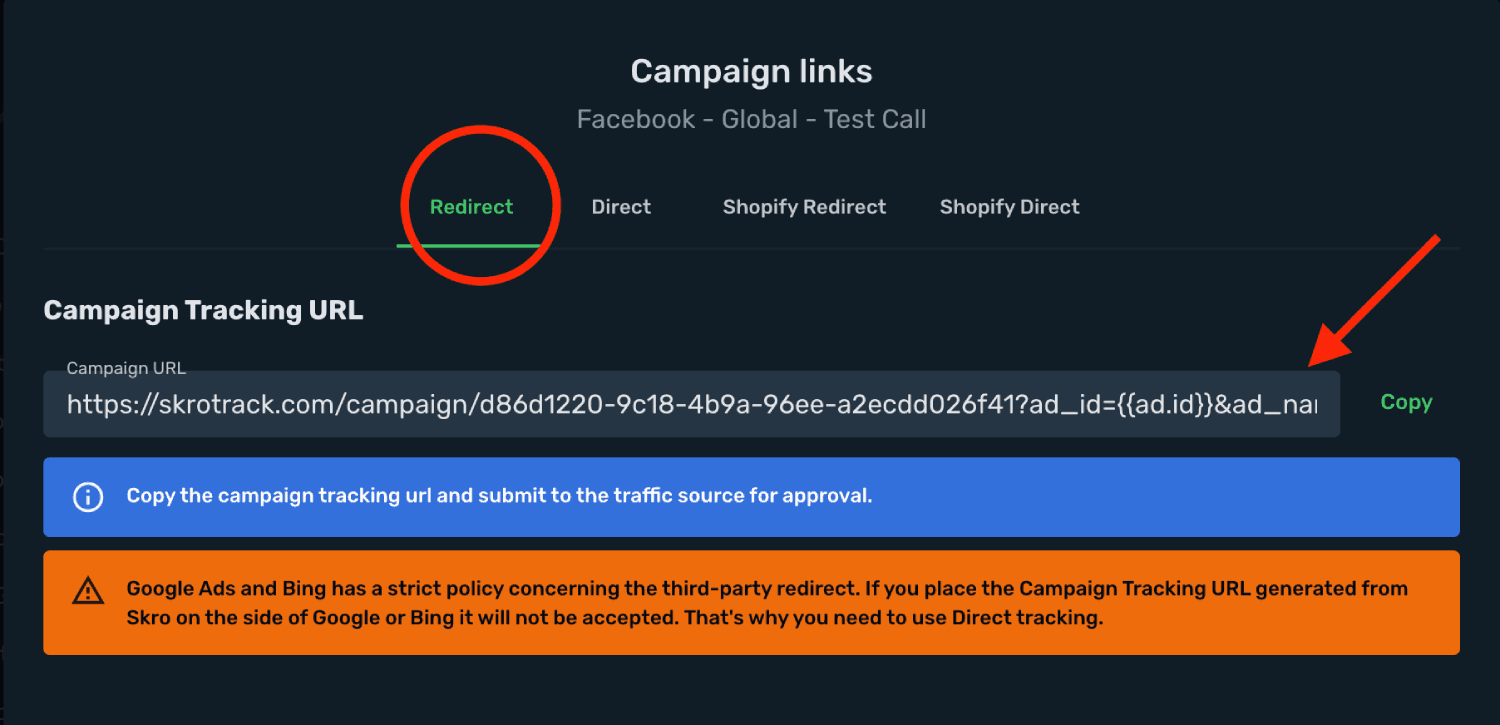
- After creating the campaign, copy the Campaign Tracking URL and submit to the traffic source for approval.
Step 4. Set up Webhooks for Retreaver campaign
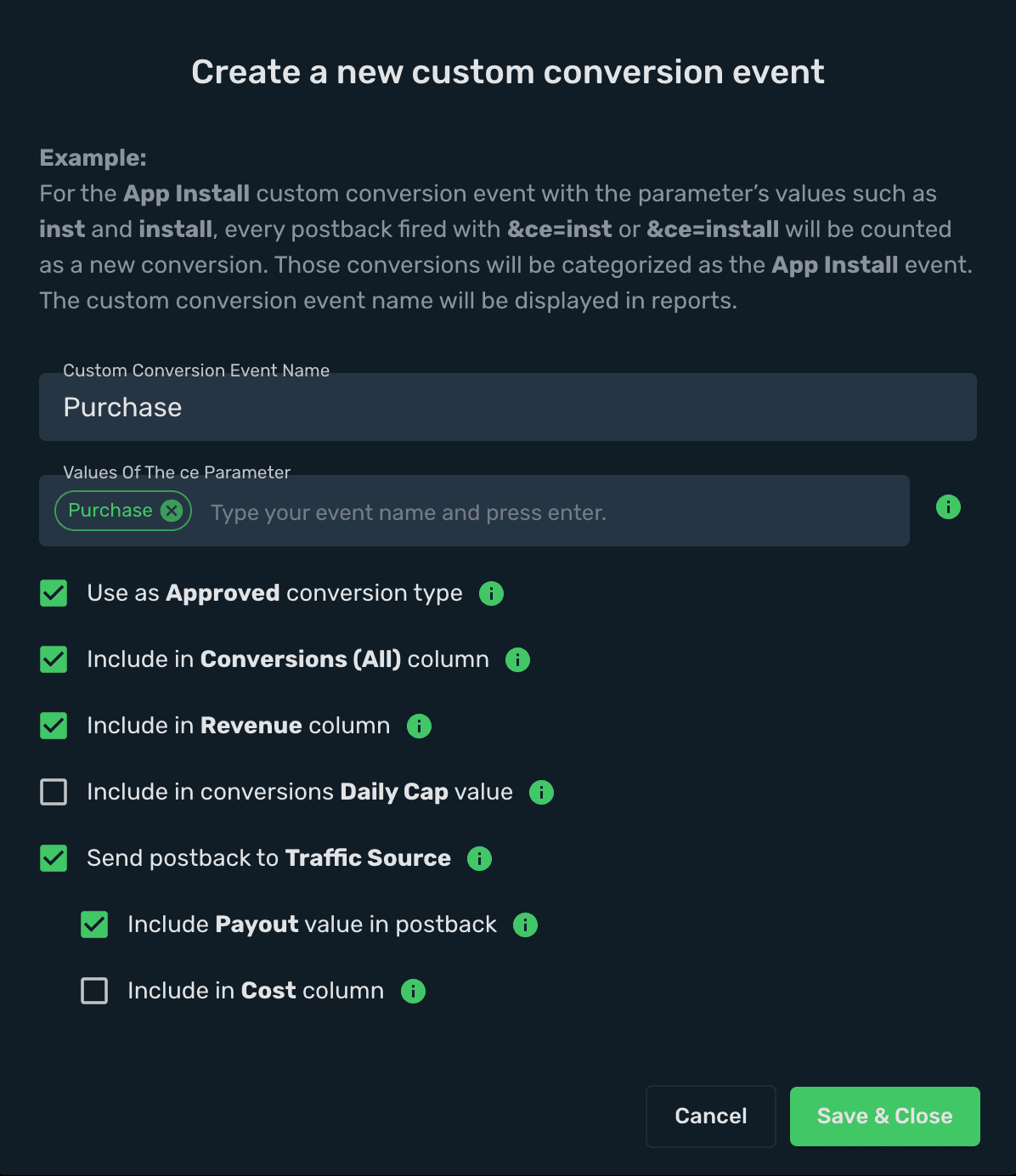
In this example we are going to create two custom conversion events, Phone Call and Purchase.
-
In Skro, go to Settings → Custom Conversions and click Create.
-
Complete the required fields and click Save & Close.
If you are using custom tracking domain then replace skrotrack.com with your custom tracking domain name.
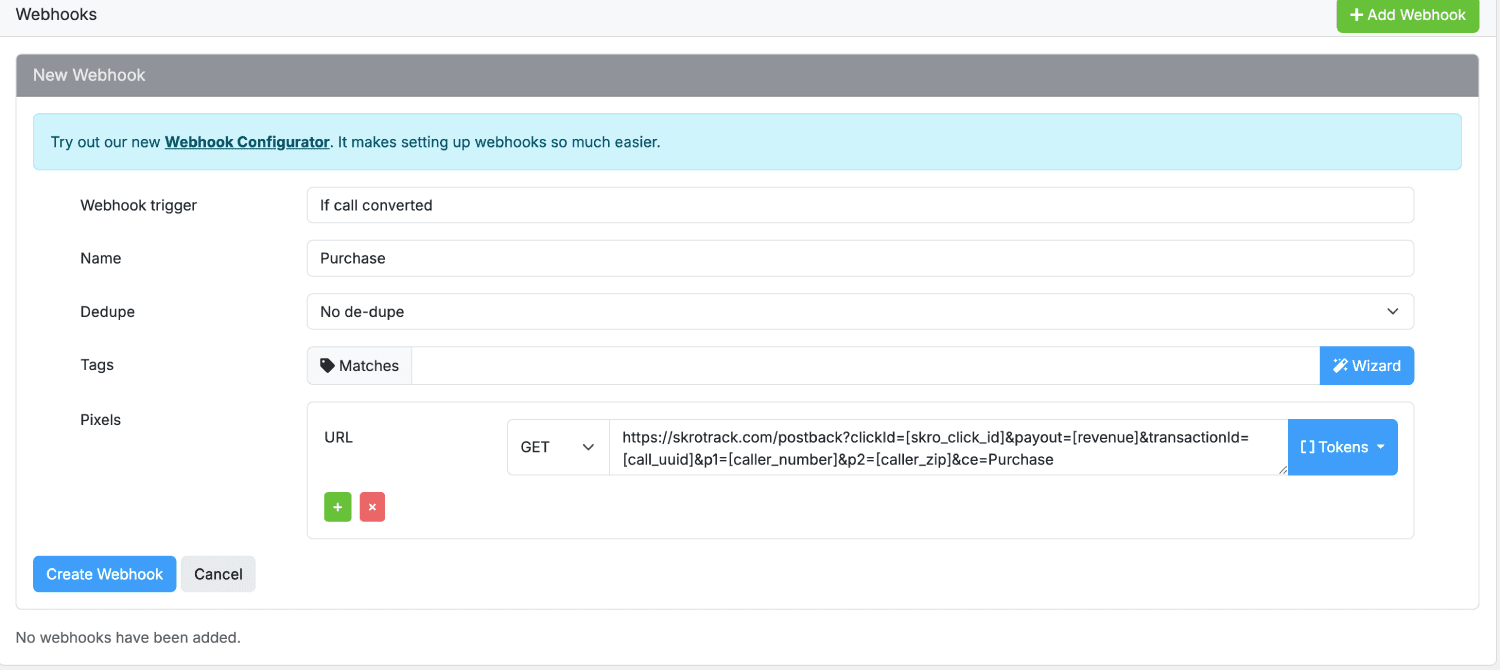
Postback URL: https://skrotrack.com/postback?clickId=[skro_click_id]&payout=[revenue]&transactionId=[call_uuid]&p1=[caller_number]&p2=[caller_zip]&ce=Purchase- In Retreaver account, go to Campaign settings → Webhooks → Add webhook → choose the condition If call converted → select GET request → paste the Postback URL.
- Create another custom conversion for Phone Call events.
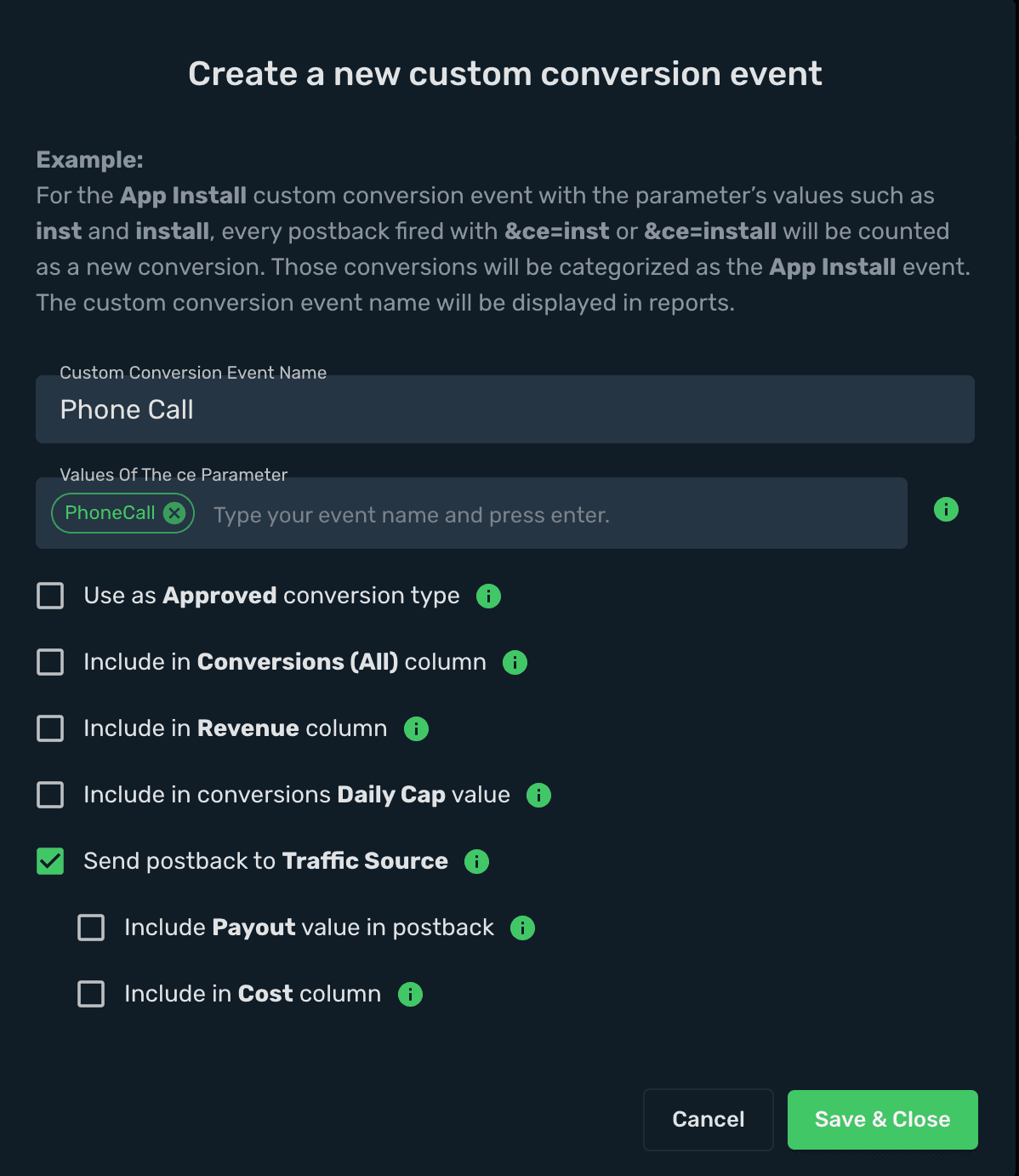
Postback URL: https://skrotrack.com/postback?clickId=[skro_click_id]&transactionId=[call_uuid]&p1=[caller_number]&p2=[caller_zip]&ce=PhoneCall- In Retreaver account, go to Campaign settings → Webhooks → Add webhook → choose the condition When a call comes in → select GET request → paste the Postback URL.
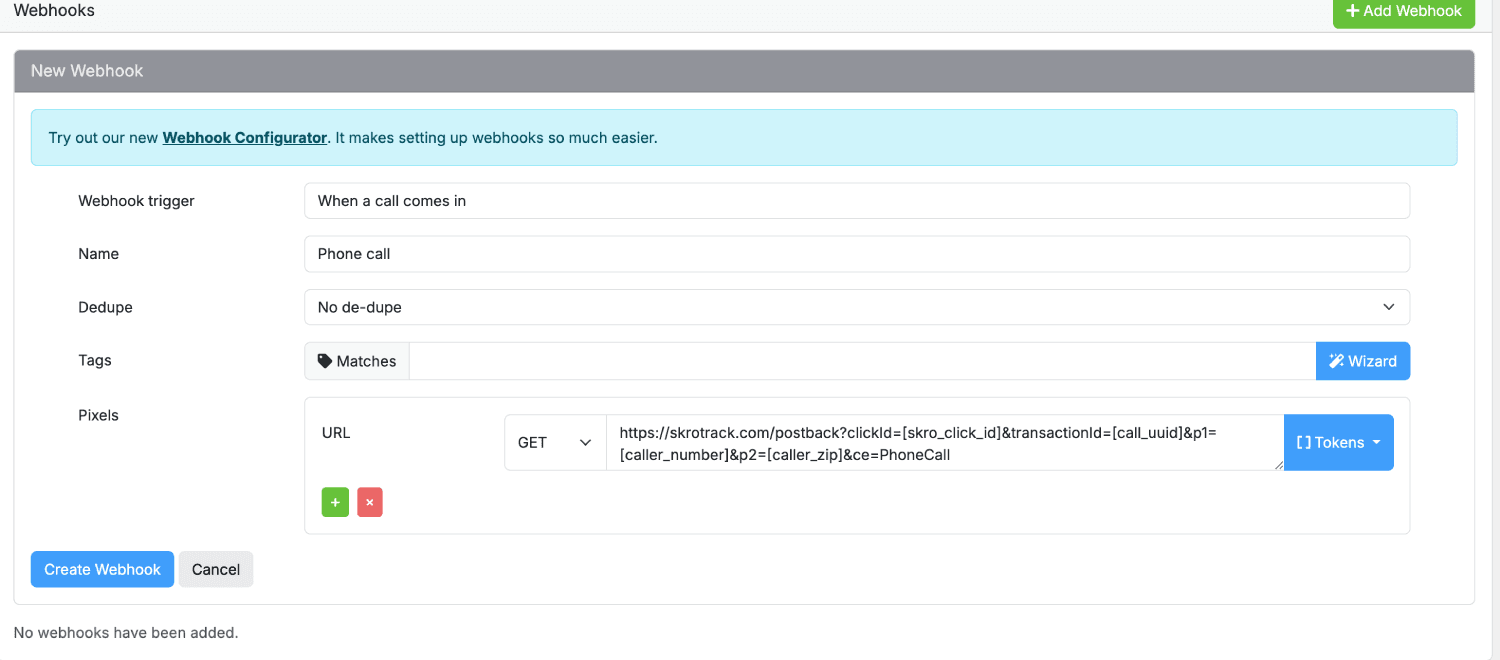
The integration is ready.
Verify the setup
Follow a campaign link and complete a test conversion using your provider’s test workflow. Confirm that the original click ID reaches the provider and is returned to Skro, then check the event and revenue in your campaign report.
Troubleshooting
If data is missing, check the selected workspace, integration, campaign, and reporting date range. Compare parameter names and macro values with the examples in this guide before repeating the test.
Related guides
Need help with this guide? Contact Skro support.