

ClickBank integration
Connect ClickBank to Skro, map click IDs, and configure postbacks to attribute conversions and revenue to your campaigns.
This guide uses ClickBank’s global server-to-server (S2S) postback integration.
Step 1. ClickBank (S2S) global postback
-
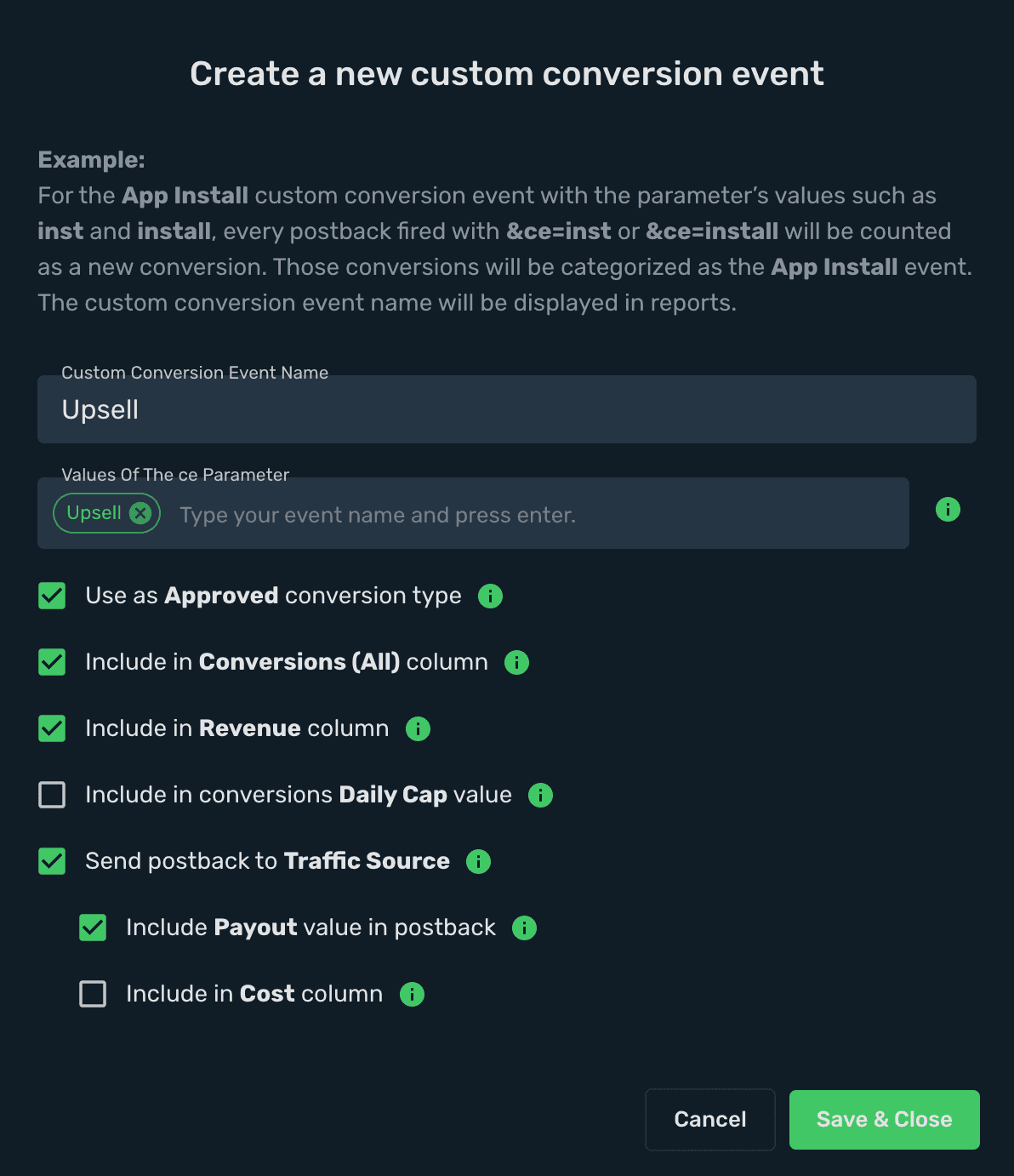
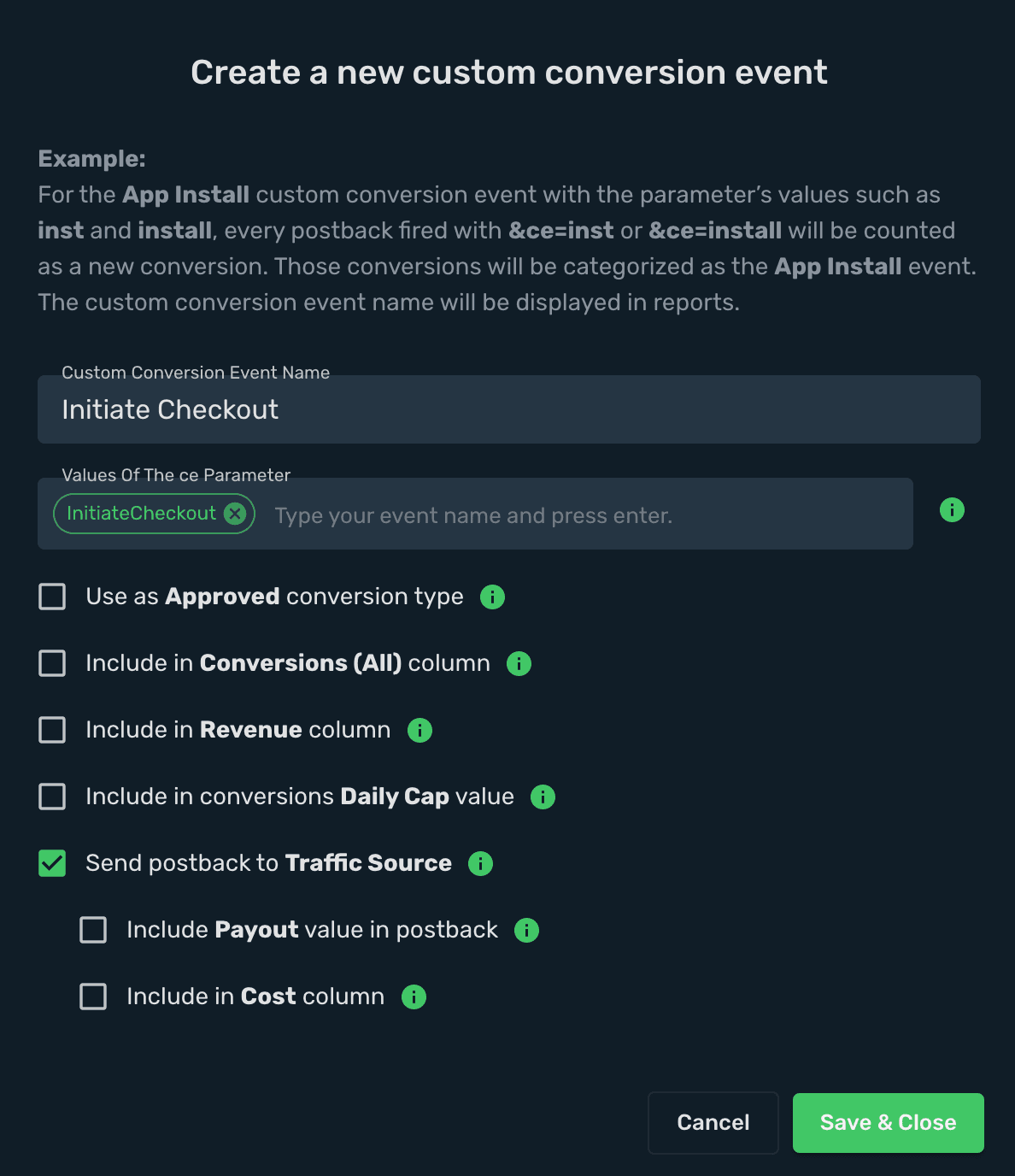
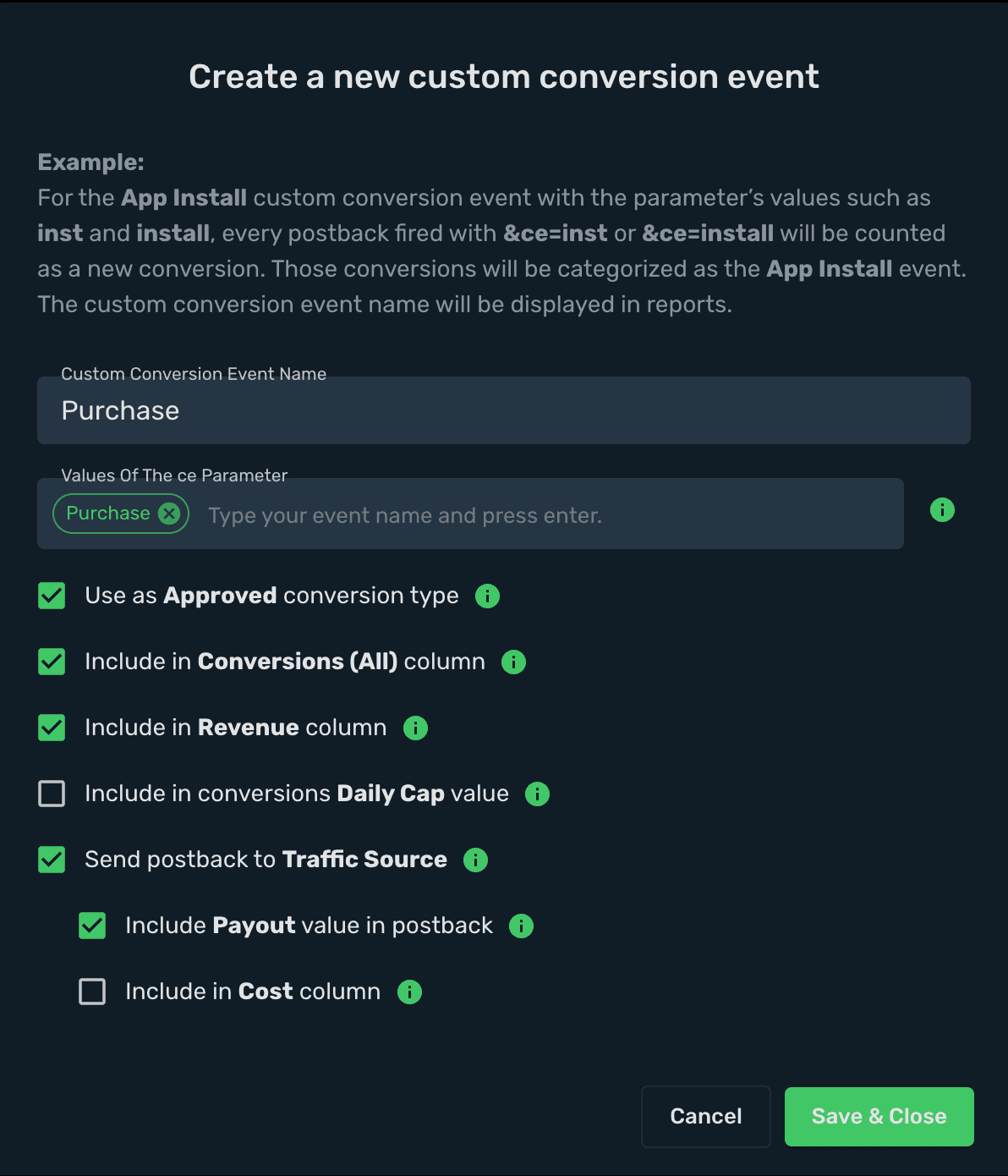
Log in to your Skro account and go to Custom Conversions and add 3 different events there.
-
First event name is Upsell.
- Second event name is InitiateCheckout.
- Third event name is Purchase.
-
Now, go back to Clickbank and set up Postback URL and customize it as per the target event types.
-
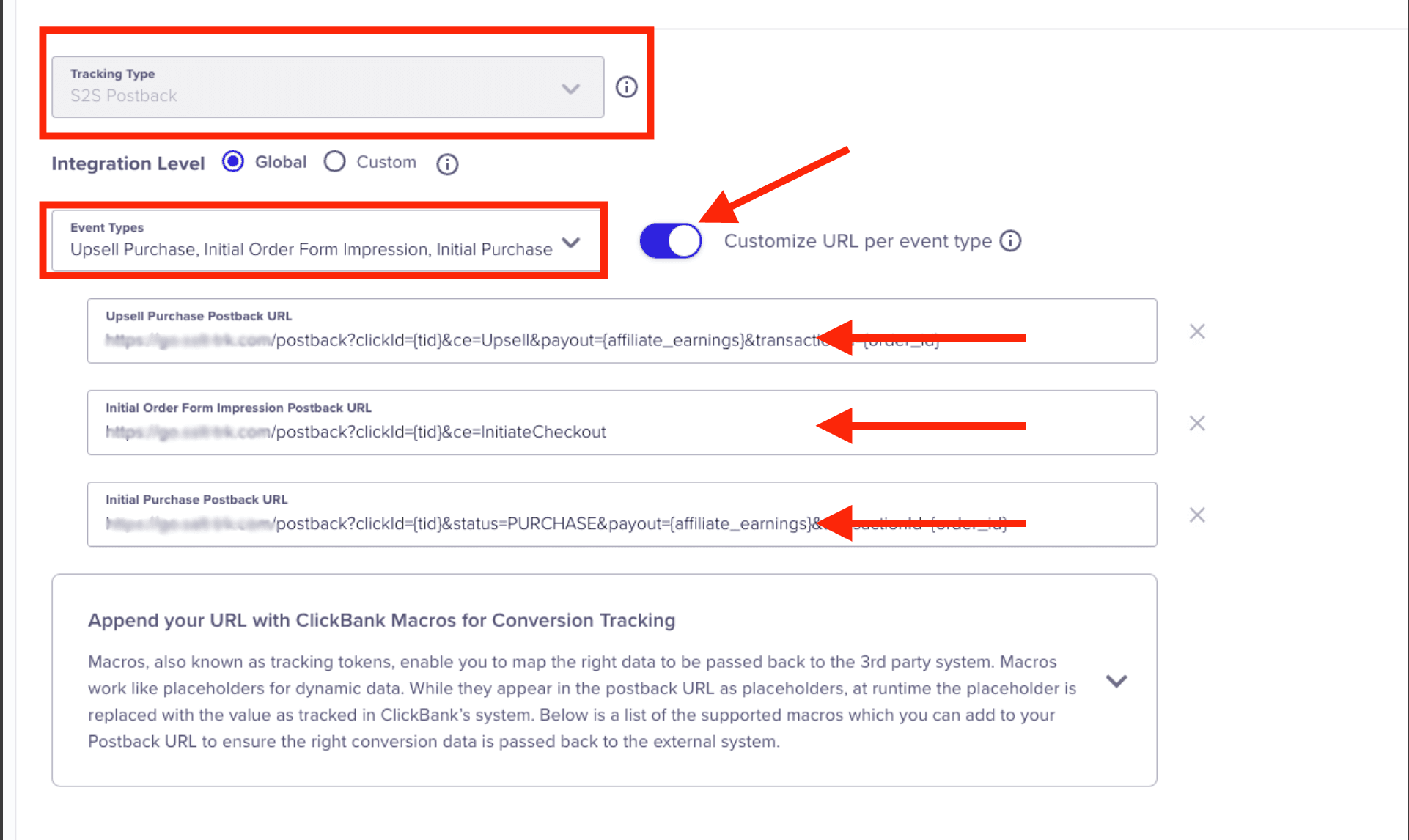
In your ClickBank account go to Integrations → Postback/Pixels → Add Integrations → Custom Postback/Pixel
-
In the Event Types drop-down select Upsell Purchase, Initial Purchase, Initial Order Form Impression and enable the Customize URL per event type toggle → add Skro Postback URL's and add &ce=eventname to each Postback URL with the event name you want to track and then click Save.
Upsell Purchase Postback URL:
https://skrotrack.com/postback?clickId={tid}&payout={affiliate_earnings}&transactionId={order_id}&ce=Upsell
Initial Order Form Impression Postback URL:
https://skrotrack.com/postback?clickId={tid}&ce=InitiateCheckout
Initial Purchase Postback URL:
https://skrotrack.com/postback?clickId={tid}&payout={affiliate_earnings}&transactionId={order_id}&ce=Purchase
Step 2. Add ClickBank offer to Skro
-
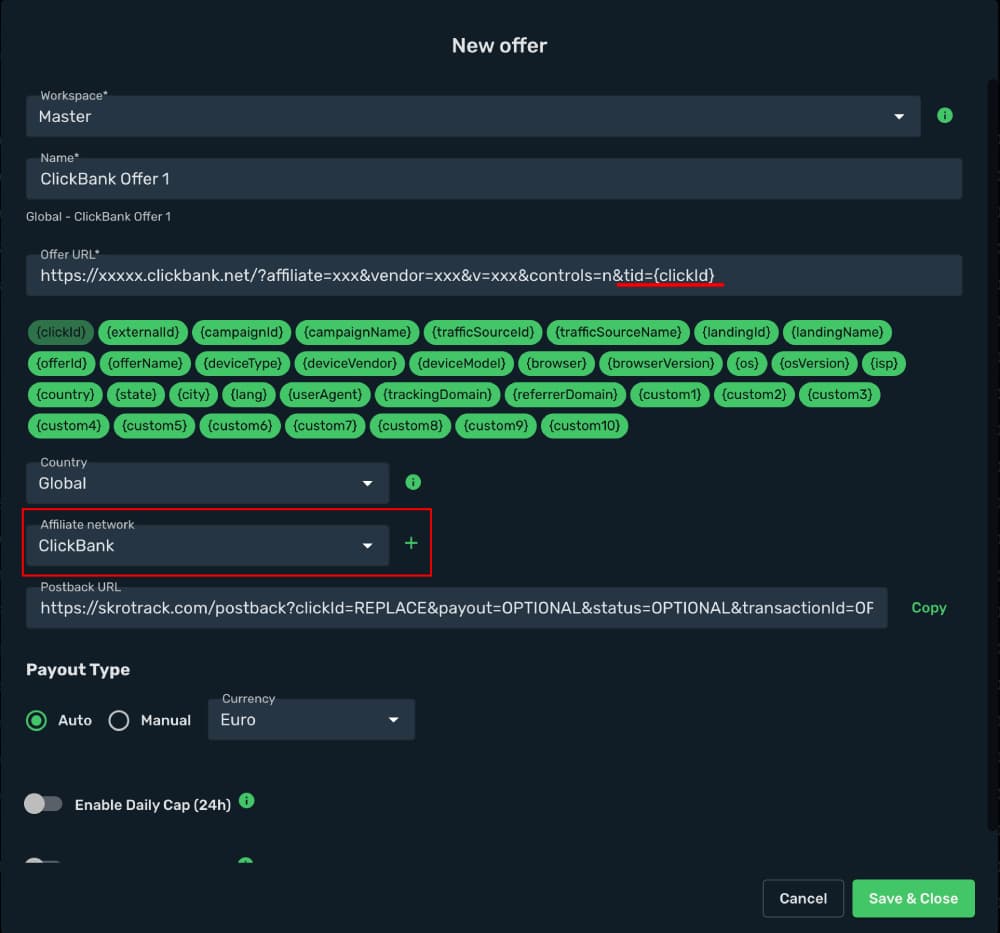
Navigate to Offers and press Create.
-
Enter your offer name.
-
Copy the offer link from ClickBank to the Offer URL field and append
&tid={clickId}parameter to the end of the offer URL.
-
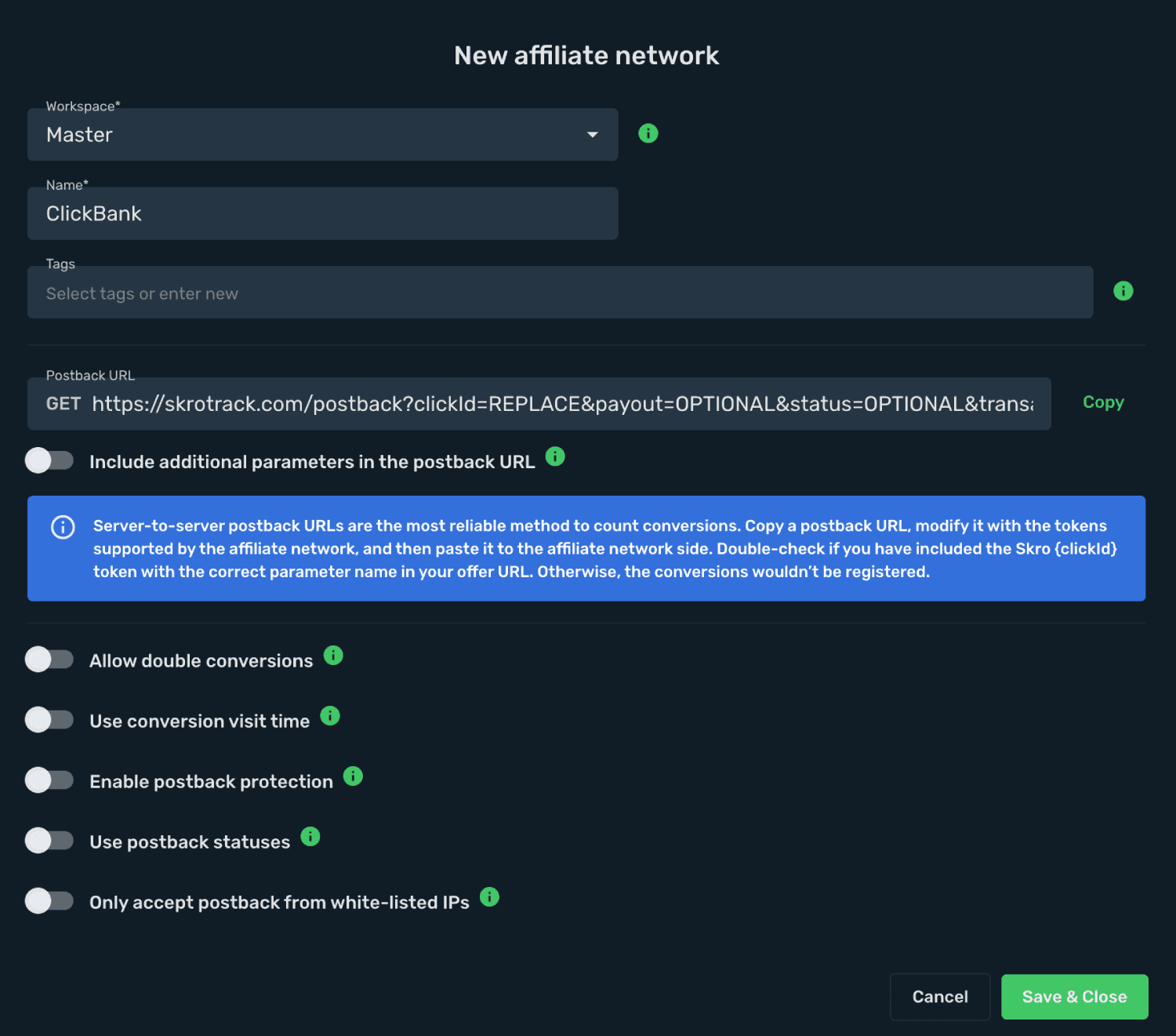
Choose ClickBank from the Affiliate Network dropdown menu or create new.
-
Clickbank setup as Affiliate Network on Skro.
The integration is ready. Continue by creating a campaign.
Verify the setup
Follow a campaign link and complete a test conversion using your provider’s test workflow. Confirm that the original click ID reaches the provider and is returned to Skro, then check the event and revenue in your campaign report.
Troubleshooting
If data is missing, check the selected workspace, integration, campaign, and reporting date range. Compare parameter names and macro values with the examples in this guide before repeating the test.
Related guides
Need help with this guide? Contact Skro support.