

Mobplus integration
Connect Mobplus to Skro, map click IDs, and configure postbacks to attribute conversions and revenue to your campaigns.
Why choose Mobplus?
- 50,000+ active, direct, and exclusive offers
- Guaranteed payments with multiple payout options
- Extensive industry experience and strong global partnerships
- Low payout threshold — just $100
- Professional and responsive account managers
🎁 Exclusive Bonus for Skro Clients
Get +$20 to payout from $200 with Promo code Skro
Step 1. Add affiliate network to Skro
- Go to Affiliate Networks and click ****Create.
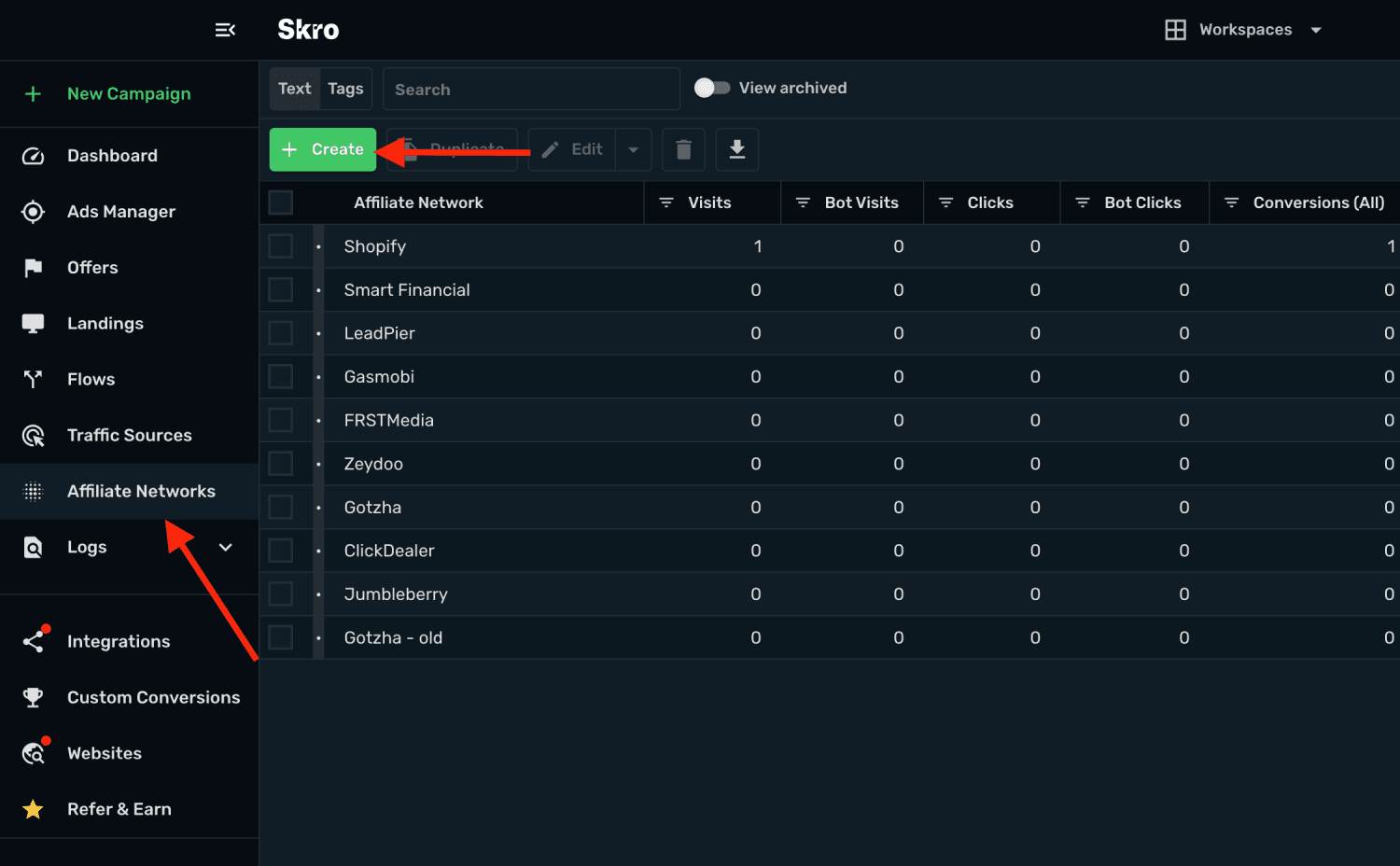
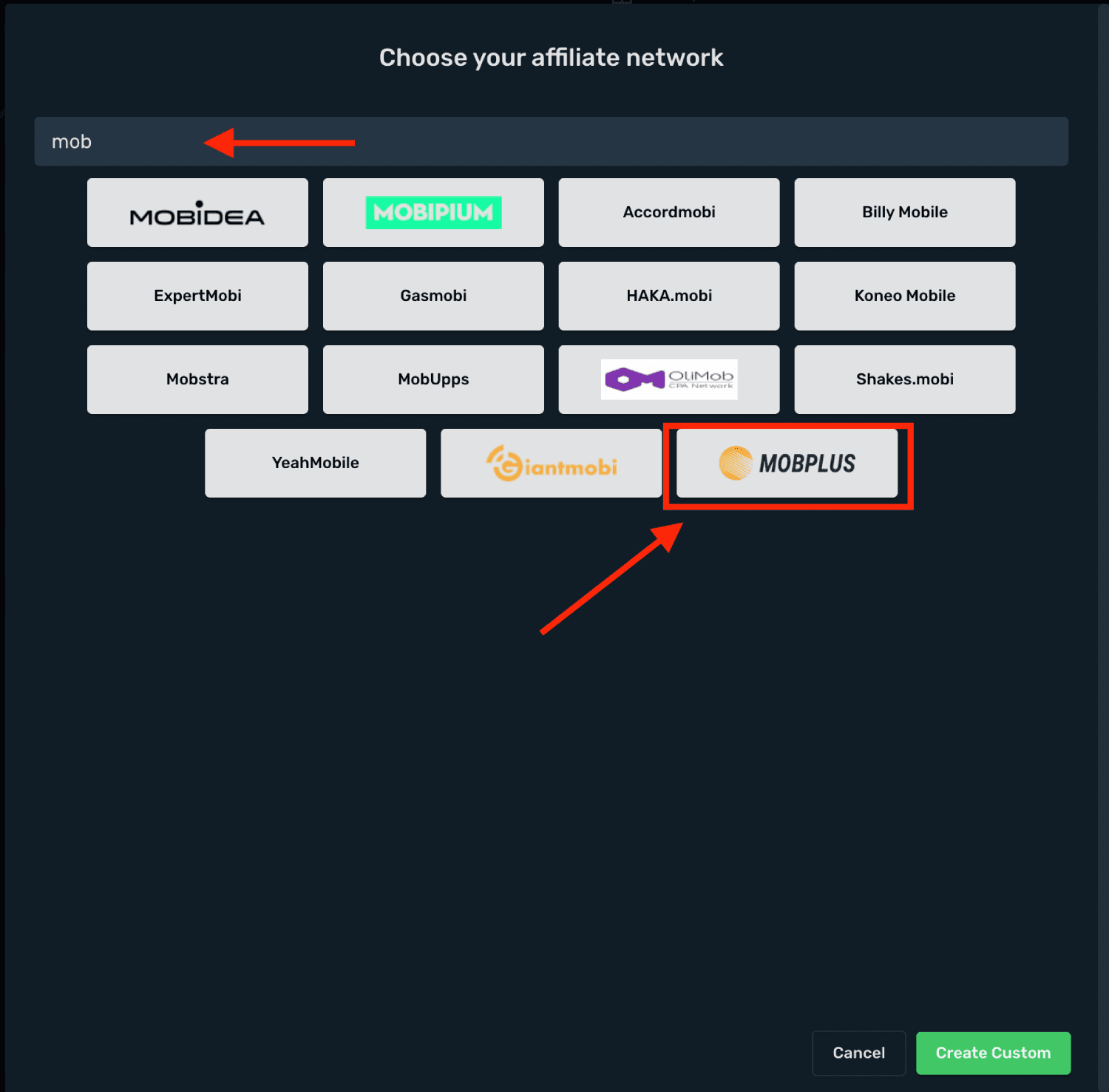
- Search Mobplus and click Mobplus logo.
-
Copy postback pixel.
-
Click Save & Close.
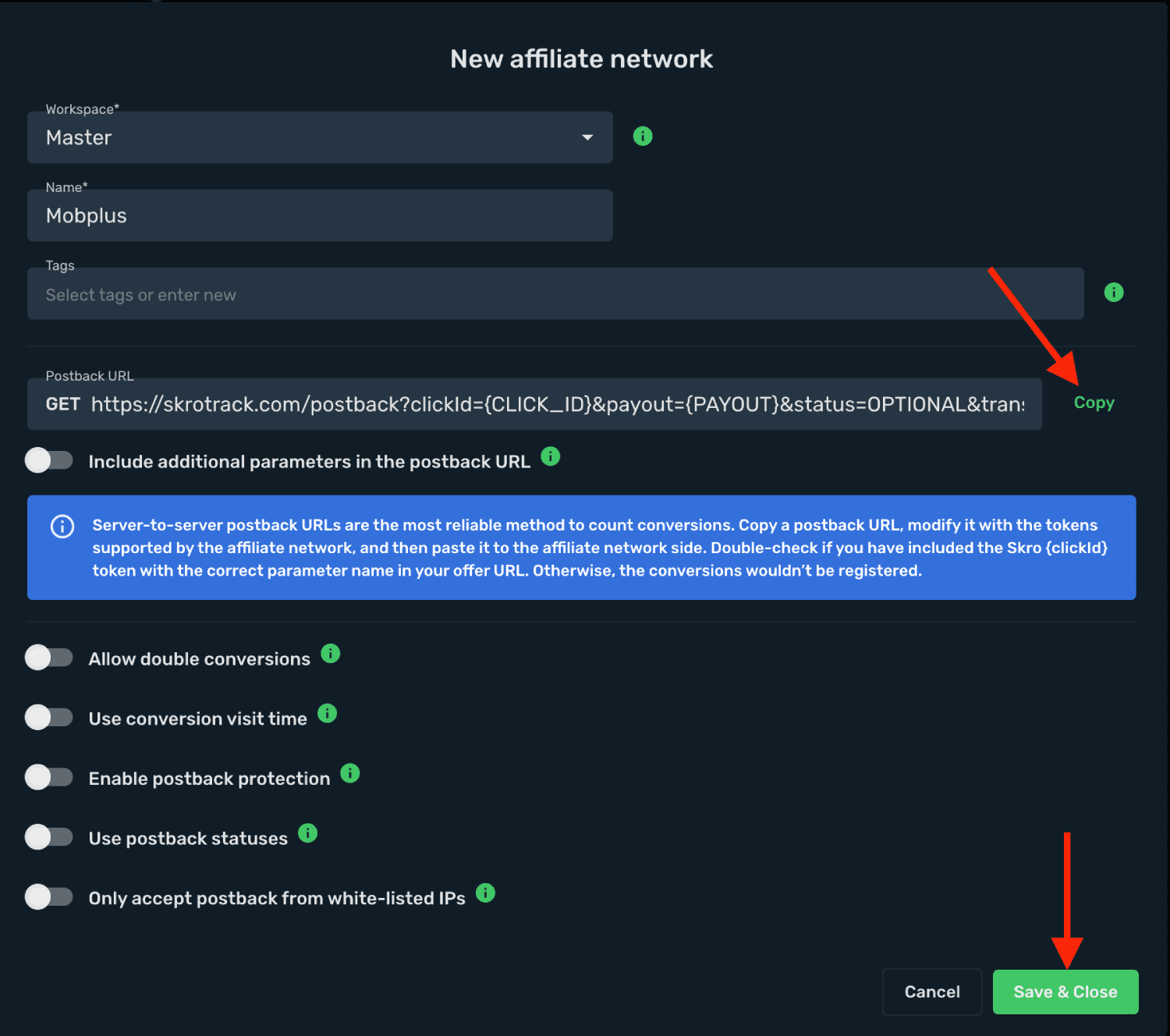
The Mobplus affiliate network is now saved in Skro. Use the copied postback URL in Mobplus in the next step.
Step 2. Setting up a postback URL and Getting an offer from Mobplus
-
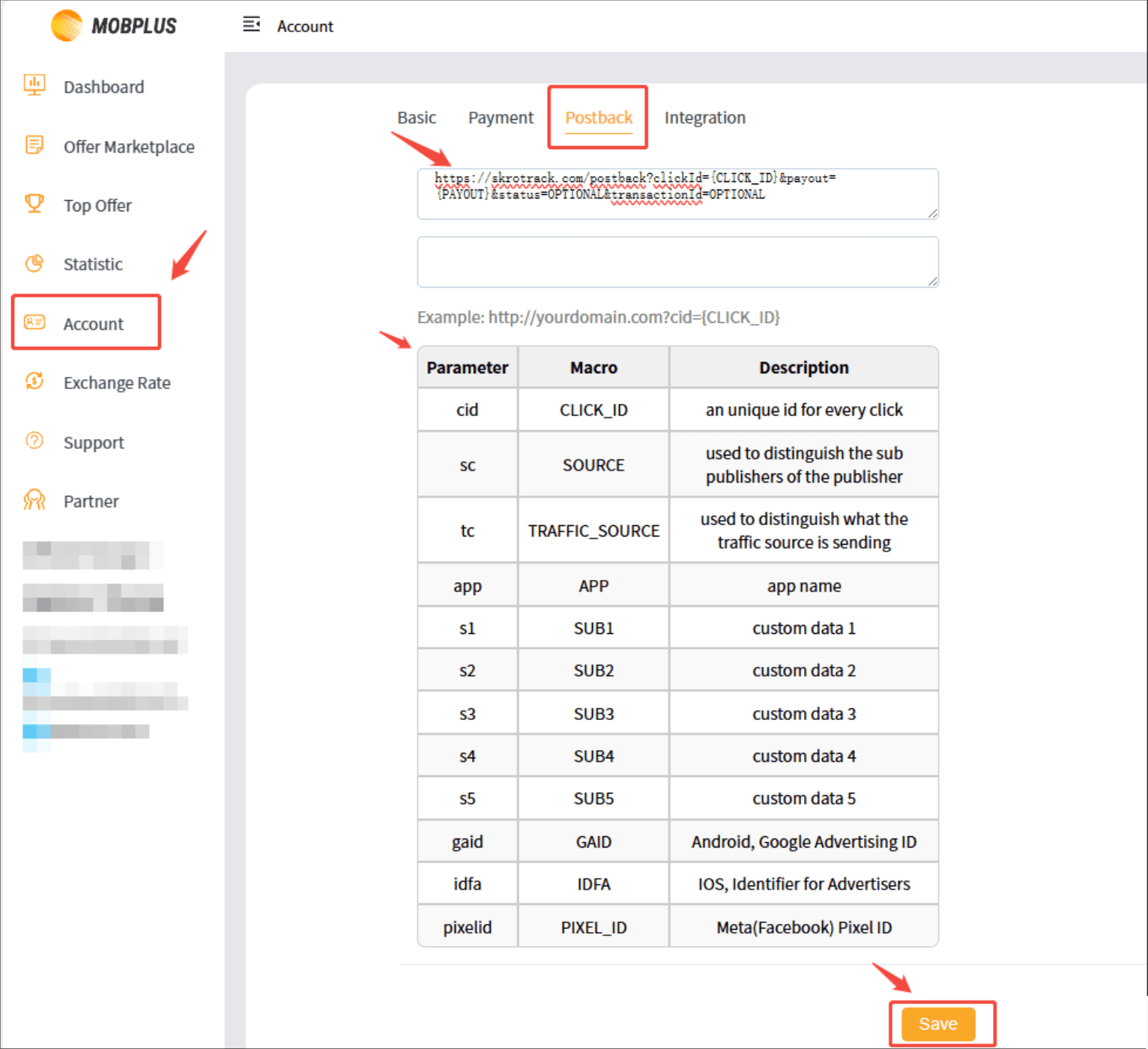
In Mobplus, click to enter your account.
-
Go to the Postback.
-
Paste the Postback URL that you have copied from Skro in the URL text field.
-
Click the Save.
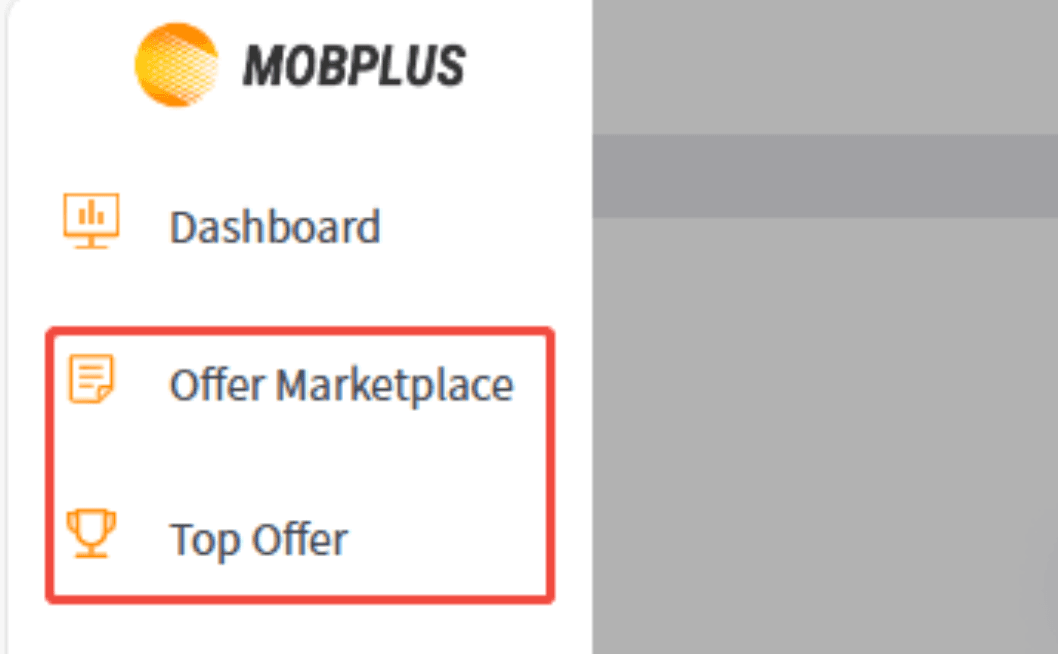
- Go to the Offer Marketplace/Top Offer.
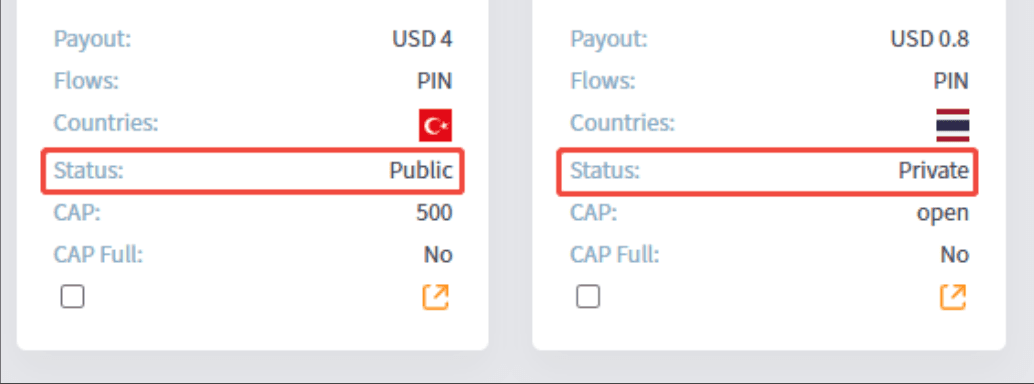
- Locate an offer you want to promote. Note that you have to be approved before you will be able to run some offers. Those offers will have the Apply to run will be Private status. Offers that do not require approval will be Open status. Or select the offers status to check/approve and run.

- Click the Share.
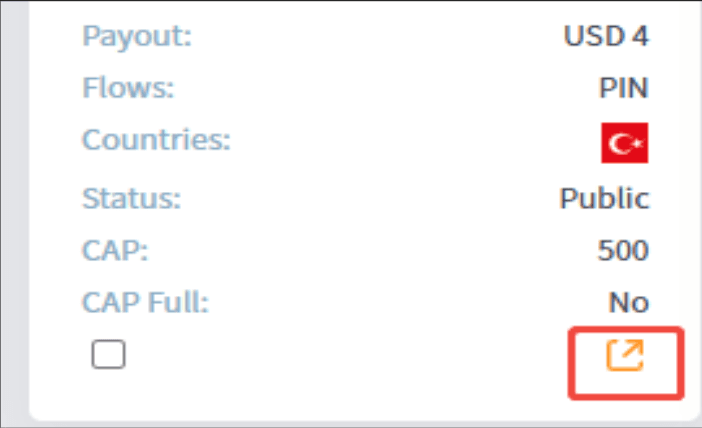
- Copy the offer URL to the clipboard.

Step 3. Add offer to Skro
-
Go to Offers → Create
-
Choose your workspace.
-
Add name.
-
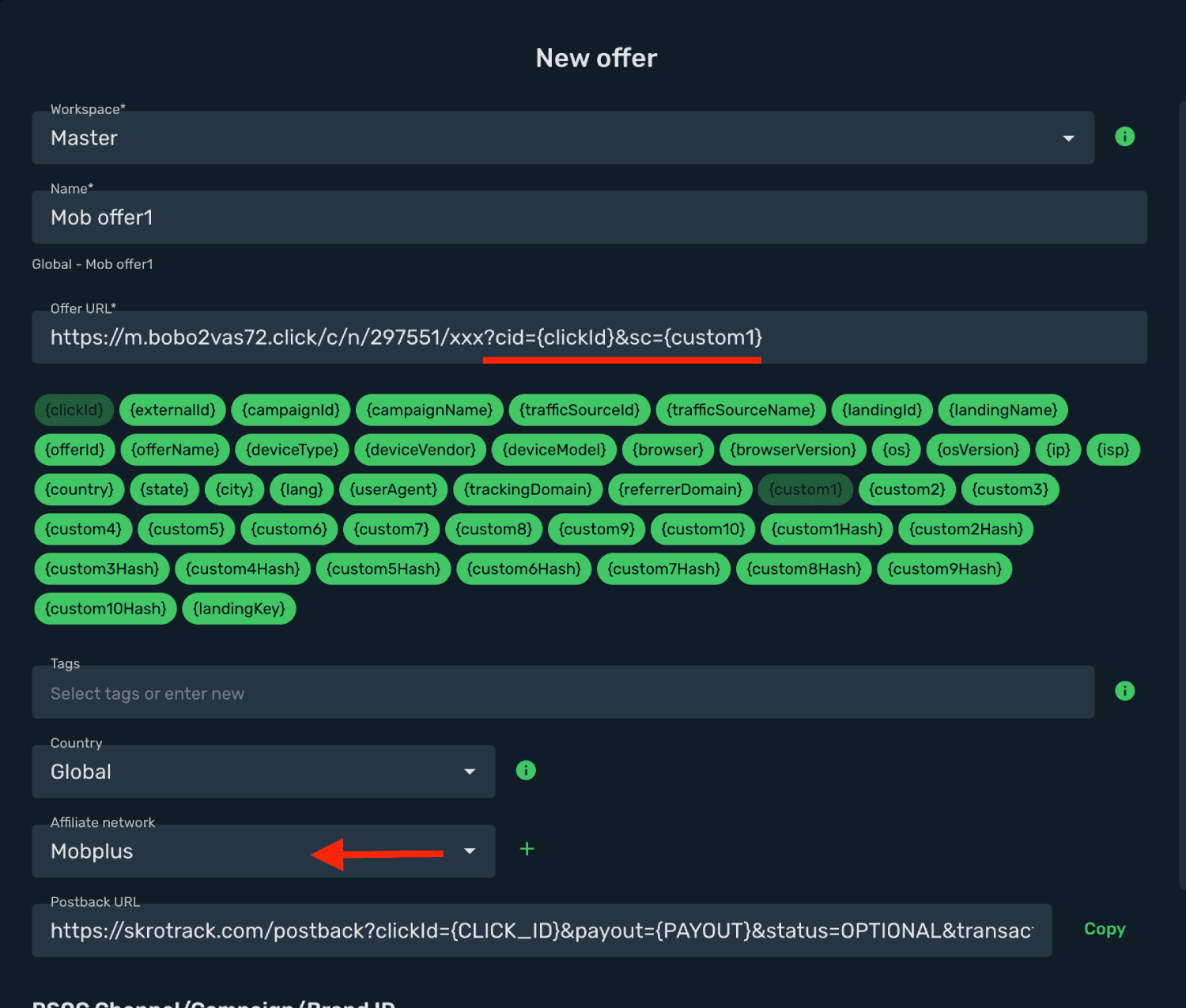
Grab the offer link from Mobplus and add it to Offer URL field and change the macros to this
?cid={clickId}&sc={custom1}.
{clickId} - The Skro click ID macro.
{custom1} - That's traffic source Ad ID / Site ID or any other source mapping. It depends on traffic source.
- Choose Mobplus as Affiliate Network.
Step 4. Create campaign
- Start with traffic source. In this example, we have direct link to Facebook integration guide.
Get started with Facebook integration
Verify the setup
Follow a campaign link and complete a test conversion using your provider’s test workflow. Confirm that the original click ID reaches the provider and is returned to Skro, then check the event and revenue in your campaign report.
Troubleshooting
If data is missing, check the selected workspace, integration, campaign, and reporting date range. Compare parameter names and macro values with the examples in this guide before repeating the test.
Related guides
Need help with this guide? Contact Skro support.