

CrakRevenue integration
Connect CrakRevenue to Skro, map click IDs, and configure postbacks to attribute conversions and revenue to your campaigns.
Step 1. Add affiliate network to Skro
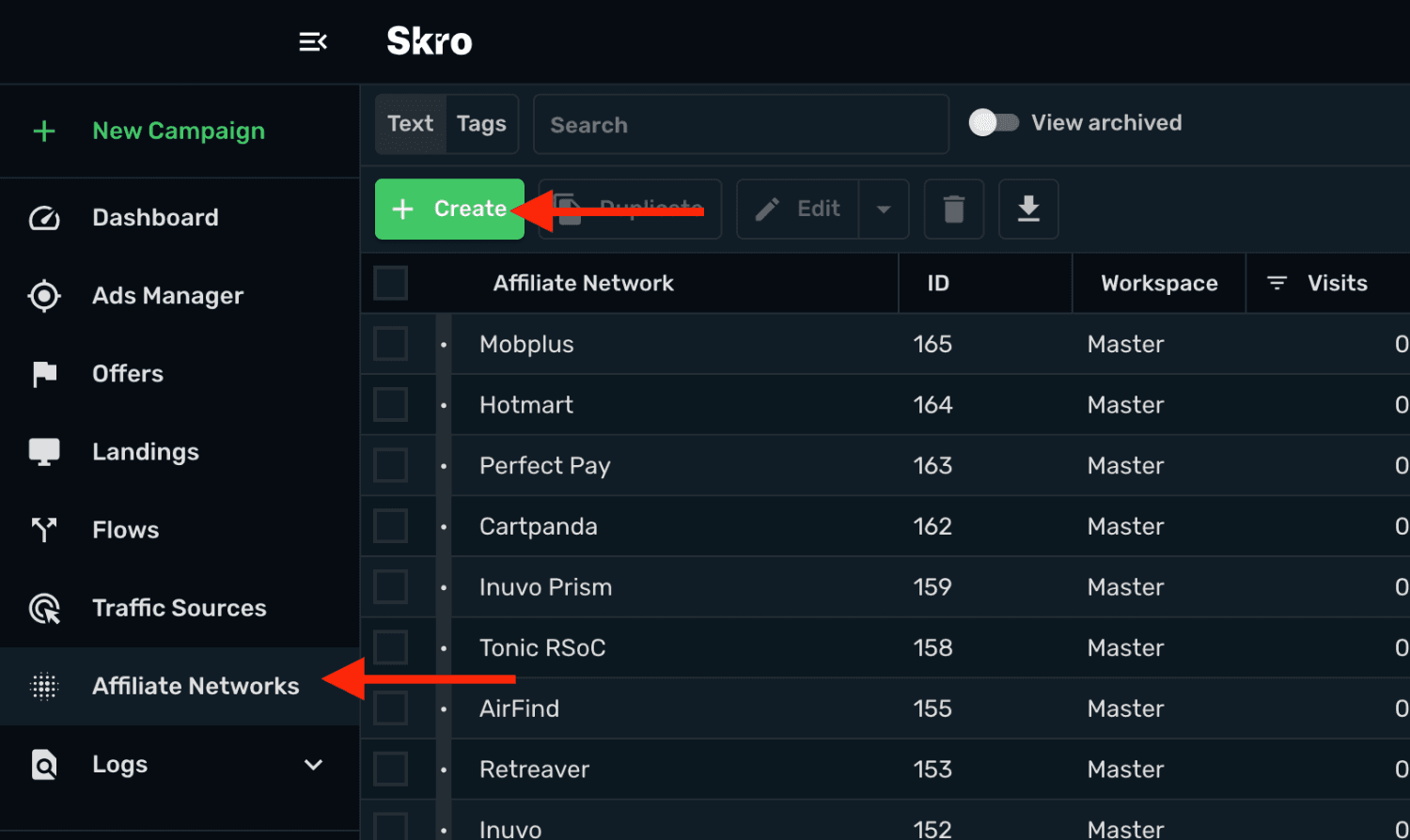
- Go to Affiliate Networks and click Create.
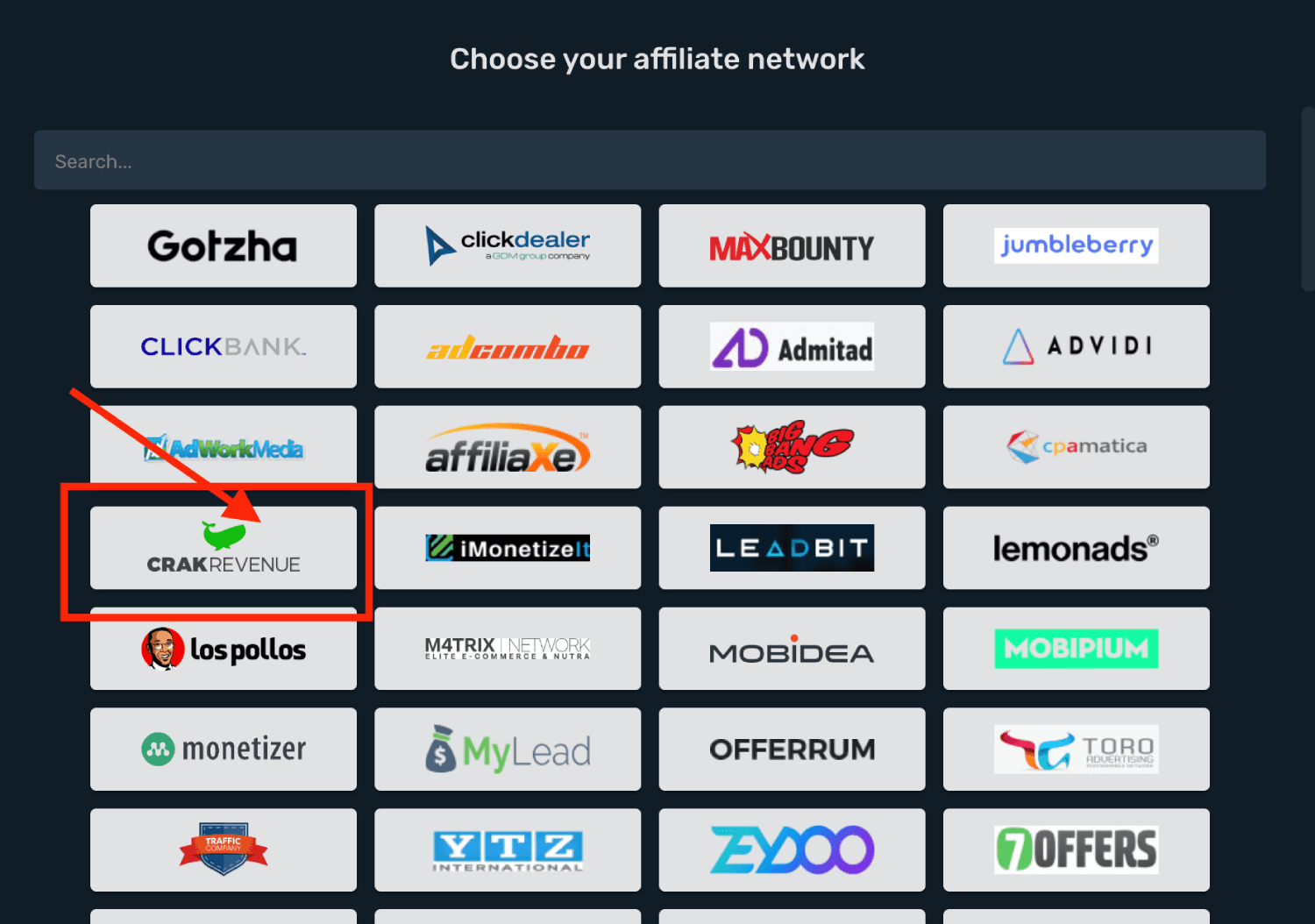
- Search CrakRevenue and select the CrakRevenue template.
-
Select your Workspace and Copy postback URL to your clipboard.
-
Click Save & Close.
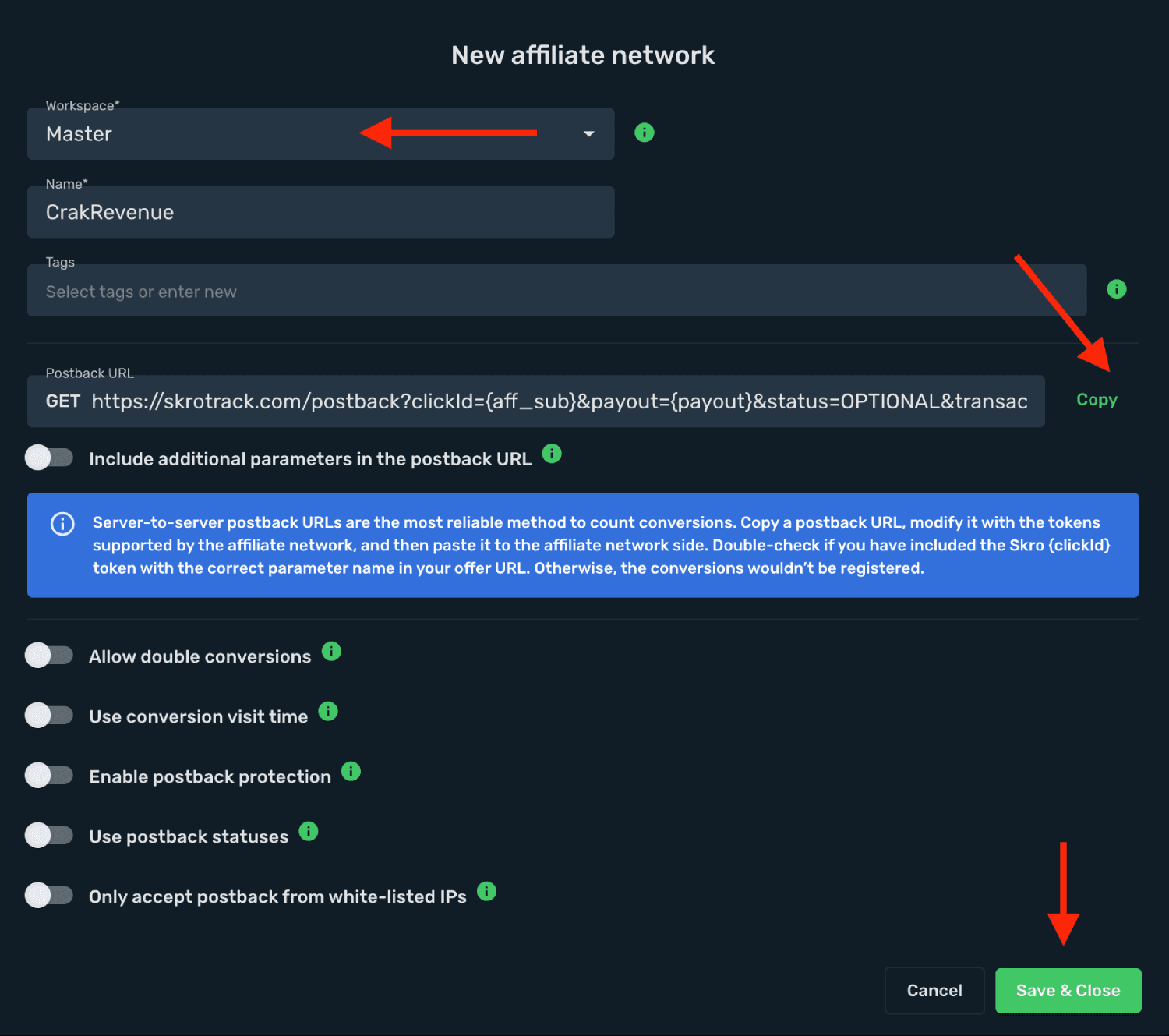
The CrakRevenue affiliate network is now saved in Skro. Use the copied postback URL in CrakRevenue in the next step.
Step 2. Setting up a postback URL
-
Log in to CrakRevenue account.
-
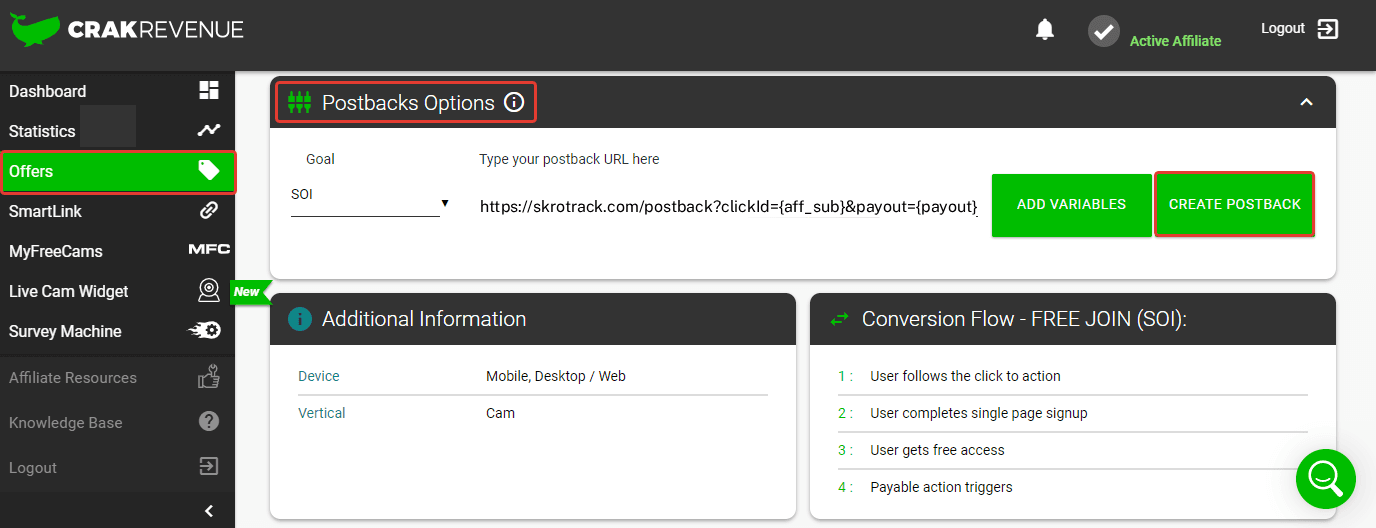
Find Offers section in the CrakRevenue panel.
-
Access Postback Options settings.
-
Paste Postback URL in the corresponding field.
-
Press Create Postback.
Global Postback
https://skrotrack.com/postback?clickId={aff_sub}&payout={payout}
Step 3. Get an offer from CrakRevenue
-
Find Offers section in the CrakRevenue panel.
-
Copy Offer URL.
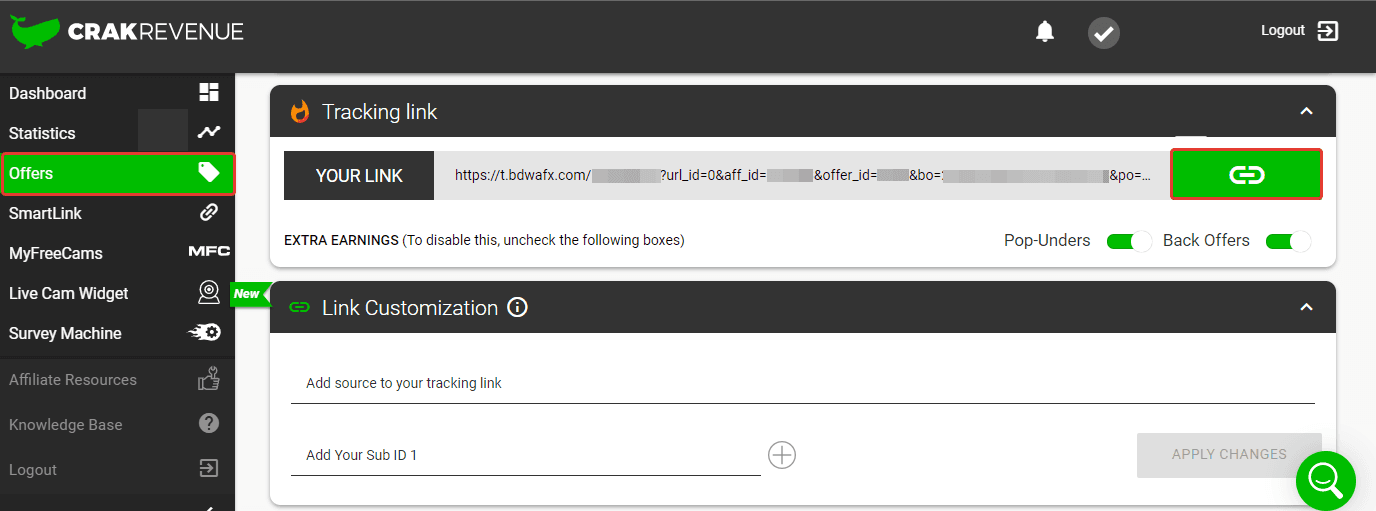
Step 4. Add offer to Skro
-
Go back to Skro and navigate to the Offers and click Create.
-
Choose your workspace.
-
Give a name to your offer.
-
Grab the offer link from CrakRevenue and add it to Offer URL field and change the macros to this
&aff_sub={clickId}
{clickId} - The Skro click ID macro for conversion tracking.
Example Offer URL:
https://example.com/offer/acc=3232&offer_id=2132&aff_id=2323&aff_sub={clickId}
- Choose CrakRevenue from the Affiliate Network select box.
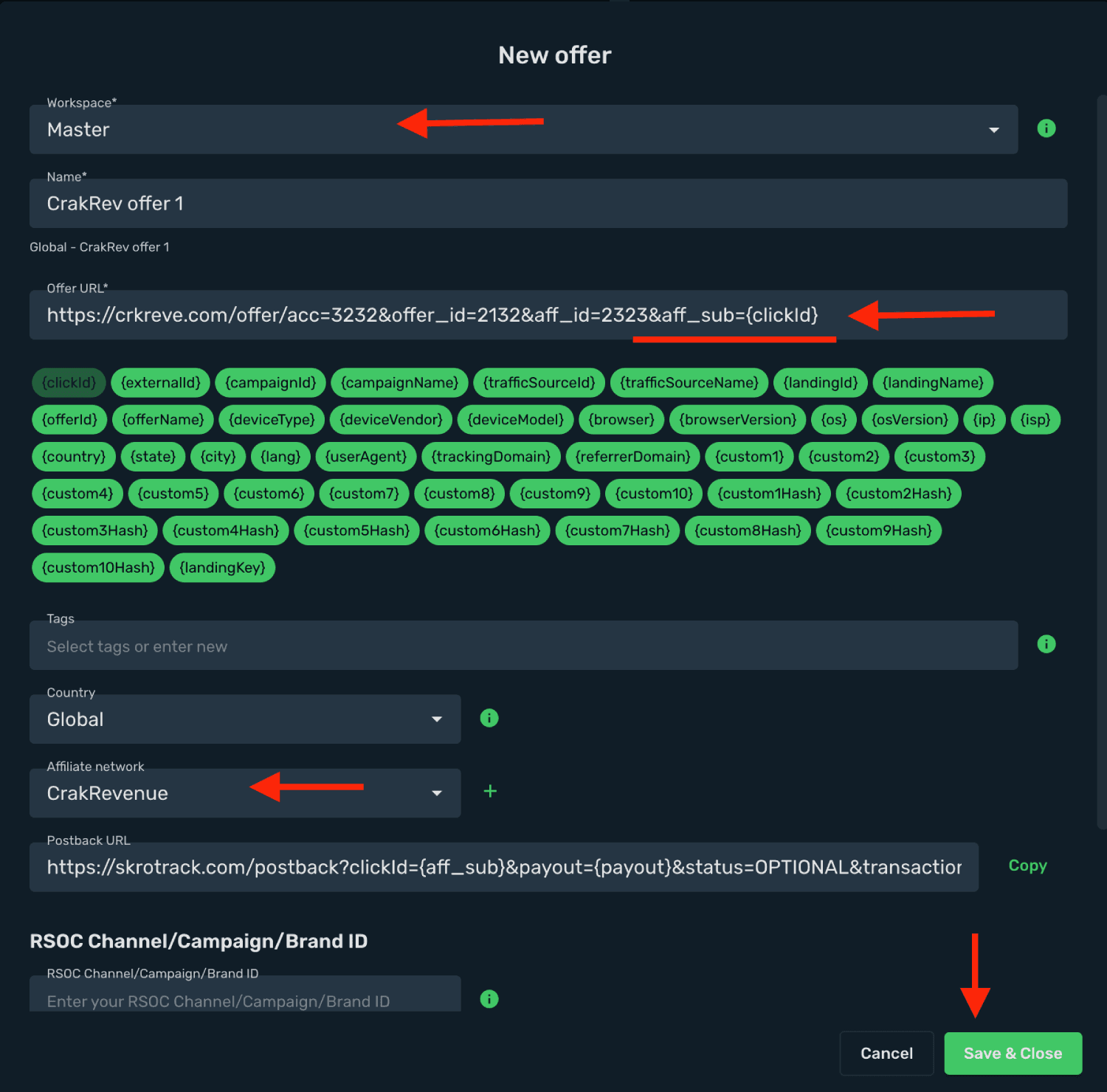
- Click Save & Close.
Step 5. Create a campaign on Skro
- Start with the following guide:
Get started with Facebook integration
Verify the setup
Follow a campaign link and complete a test conversion using your provider’s test workflow. Confirm that the original click ID reaches the provider and is returned to Skro, then check the event and revenue in your campaign report.
Troubleshooting
If data is missing, check the selected workspace, integration, campaign, and reporting date range. Compare parameter names and macro values with the examples in this guide before repeating the test.
Related guides
Need help with this guide? Contact Skro support.