

Adsterra integration
Set up Adsterra tracking in Skro, configure traffic source parameters, and connect your advertising campaigns.
Step 1. Create an Adsterra traffic source and configure the postback URL
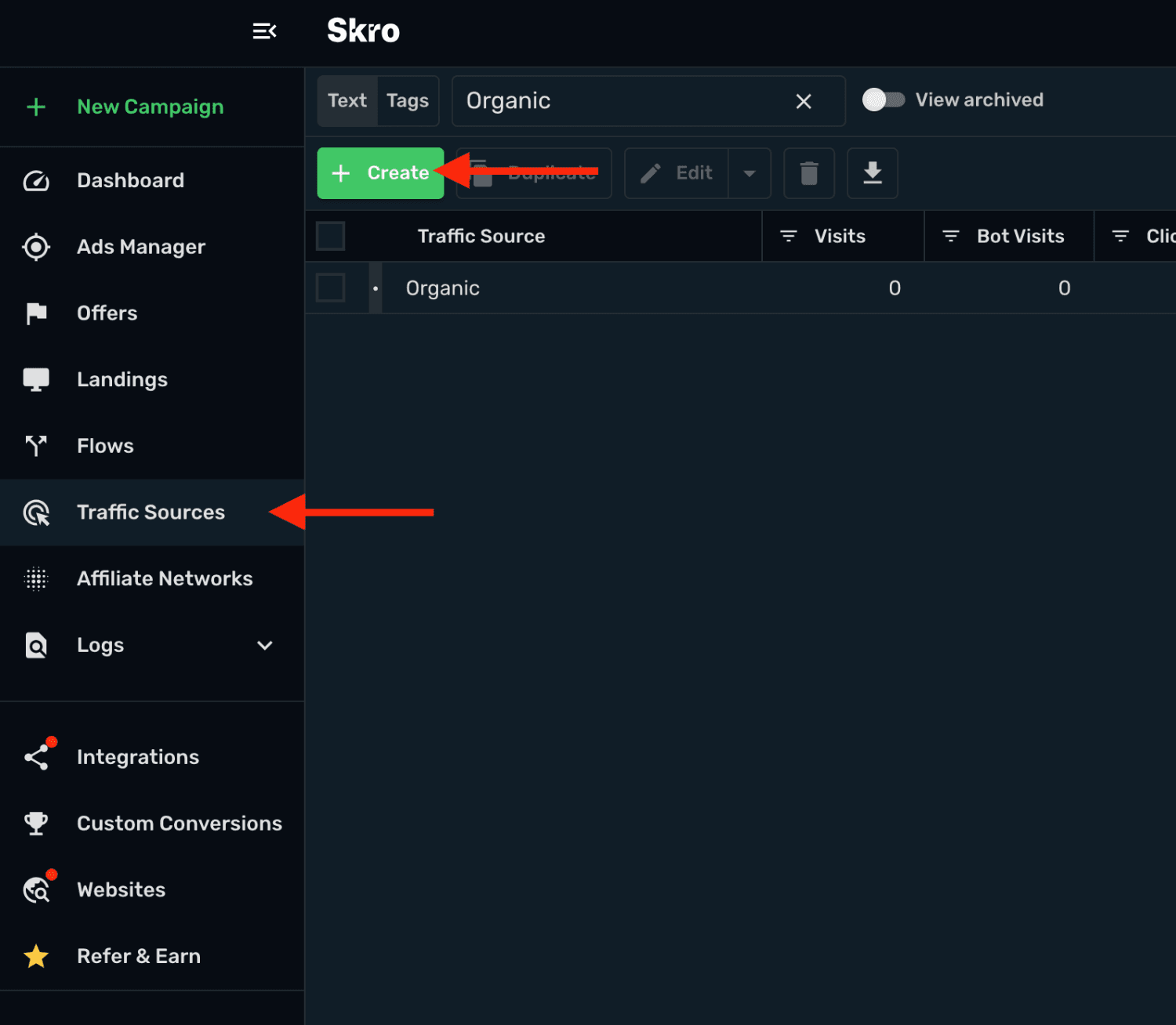
- Go to Traffic Sources and click + Create.
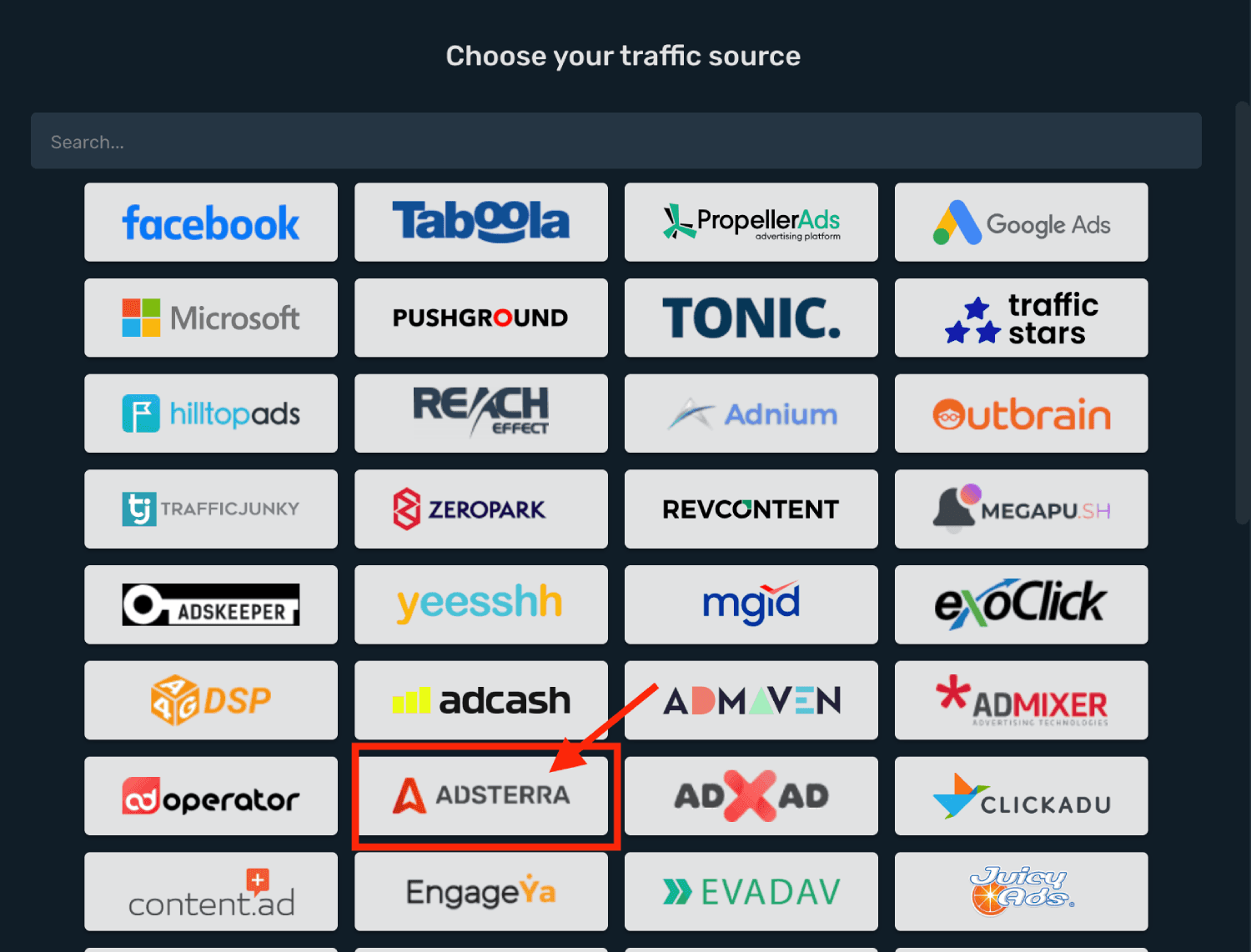
- Search for adsterra and click the Adsterra template.
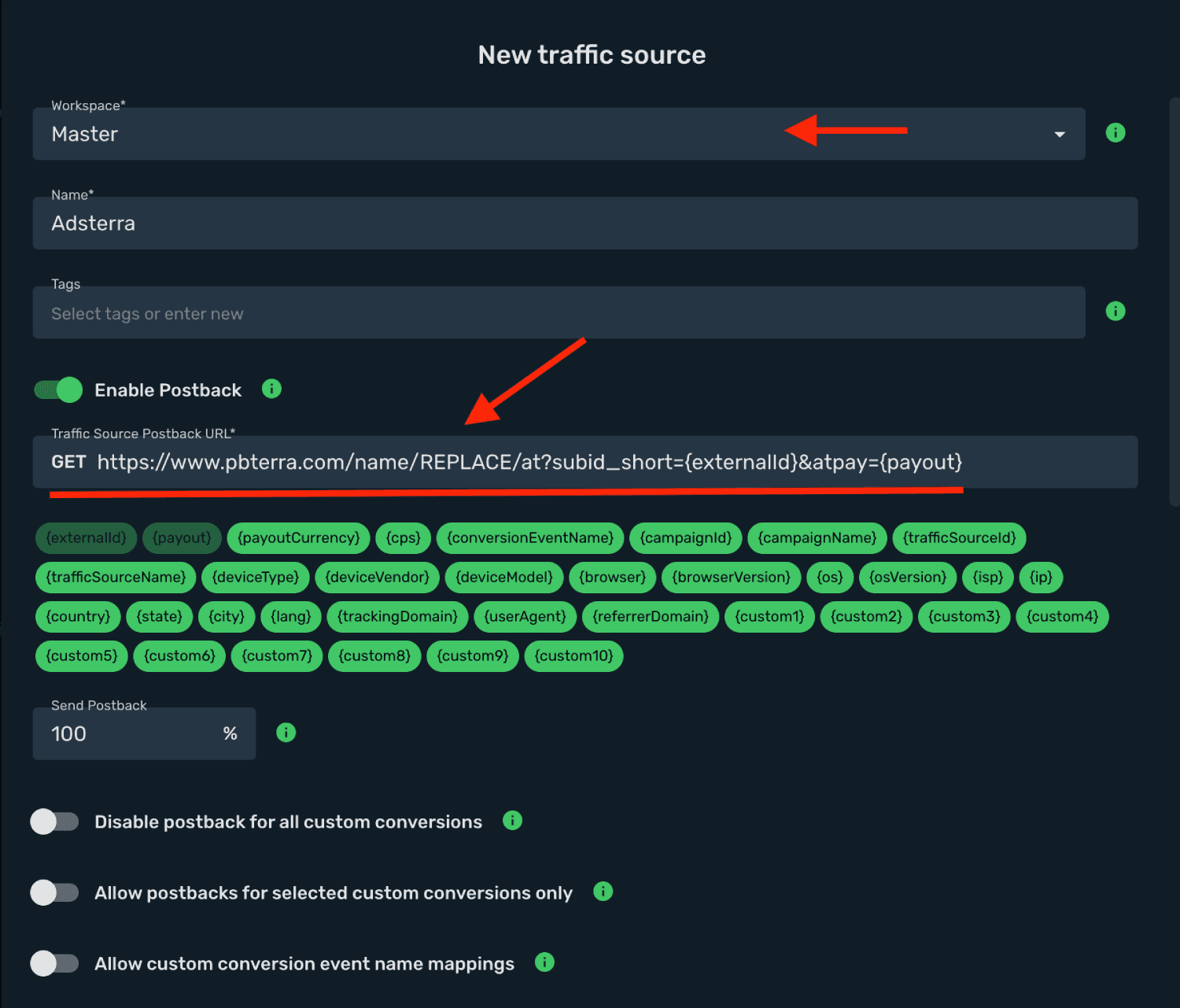
- Select the target Workspace and you need to modify your Traffic Source Postback URL.
-
Log in to your Adsterra account.
-
Go to the Conversion Tracking section.
-
Click Custom.
-
Select postback type as Postback for variable payouts.
-
Copy the generated Postback URL.
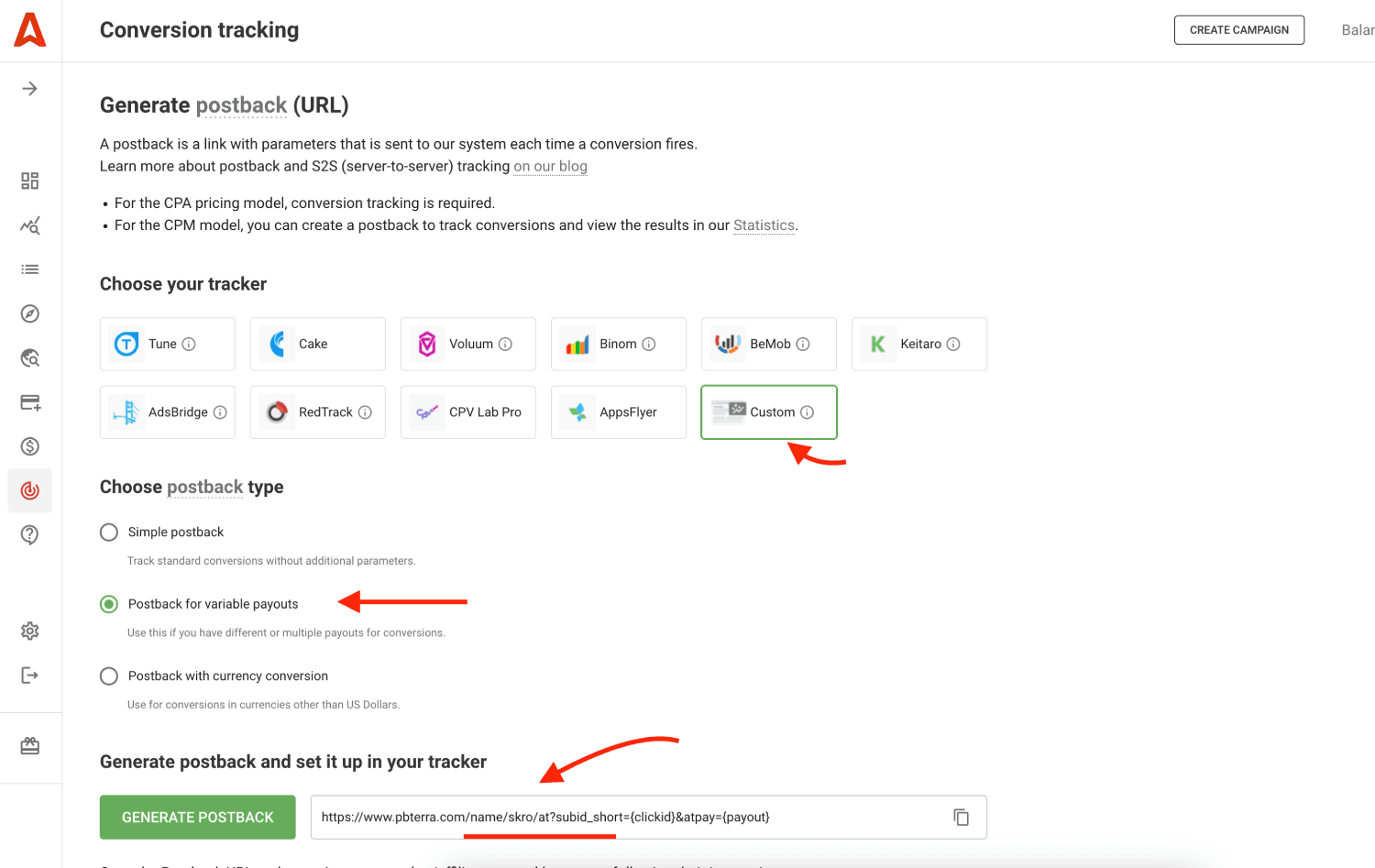
- Final postback URL must look similar to this:
https://www.pbterra.com/name/skro/at?subid_short={externalId}&atpay={payout}
/name/skro/at - Adsterra Advertiser ID unique value.
subid_short={externalId} - Adsterra Click ID parameter with Skro macro.
atpay={payout} - Adsterra Payout parameter with Skro macro.
- All tracking parameters are already prefilled for you.
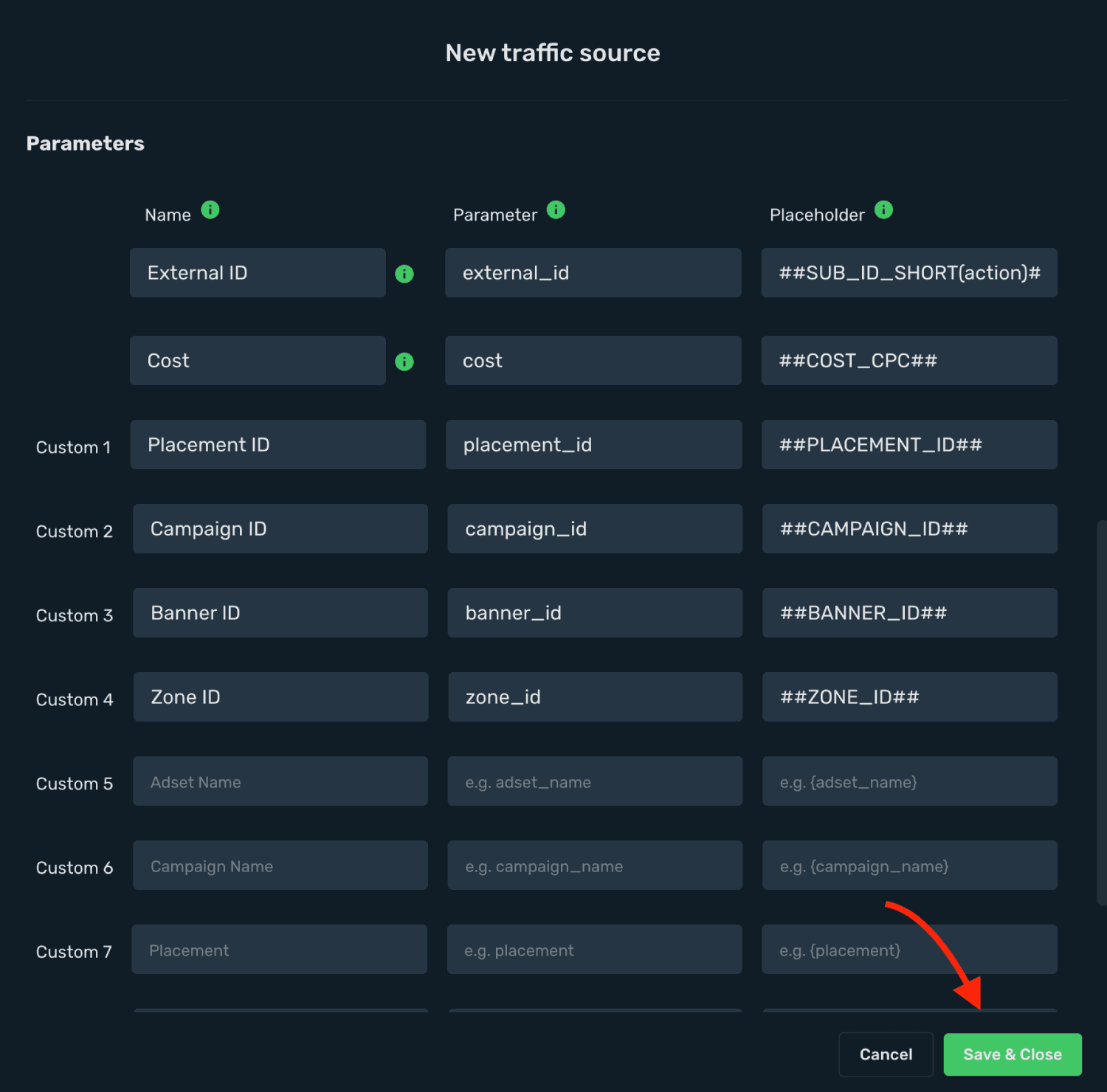
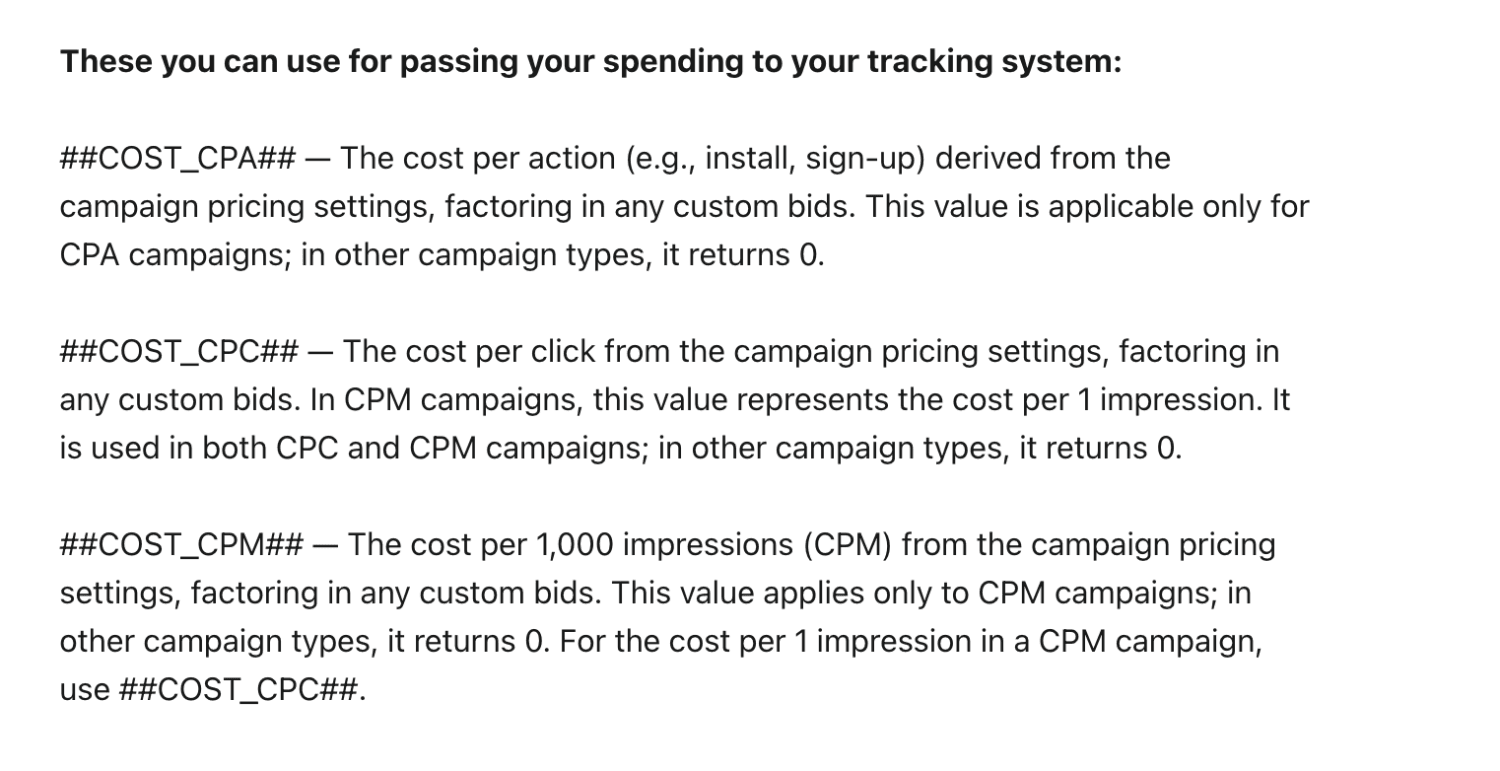
- Here is list of different Cost macros. It depends on your campaigns setup.
- Click Save & Close.
Integration setup is complete, and you are now ready to create your first campaign.
Step 2. Create a campaign in Skro
-
Go to Ads Manager and click the Create.
-
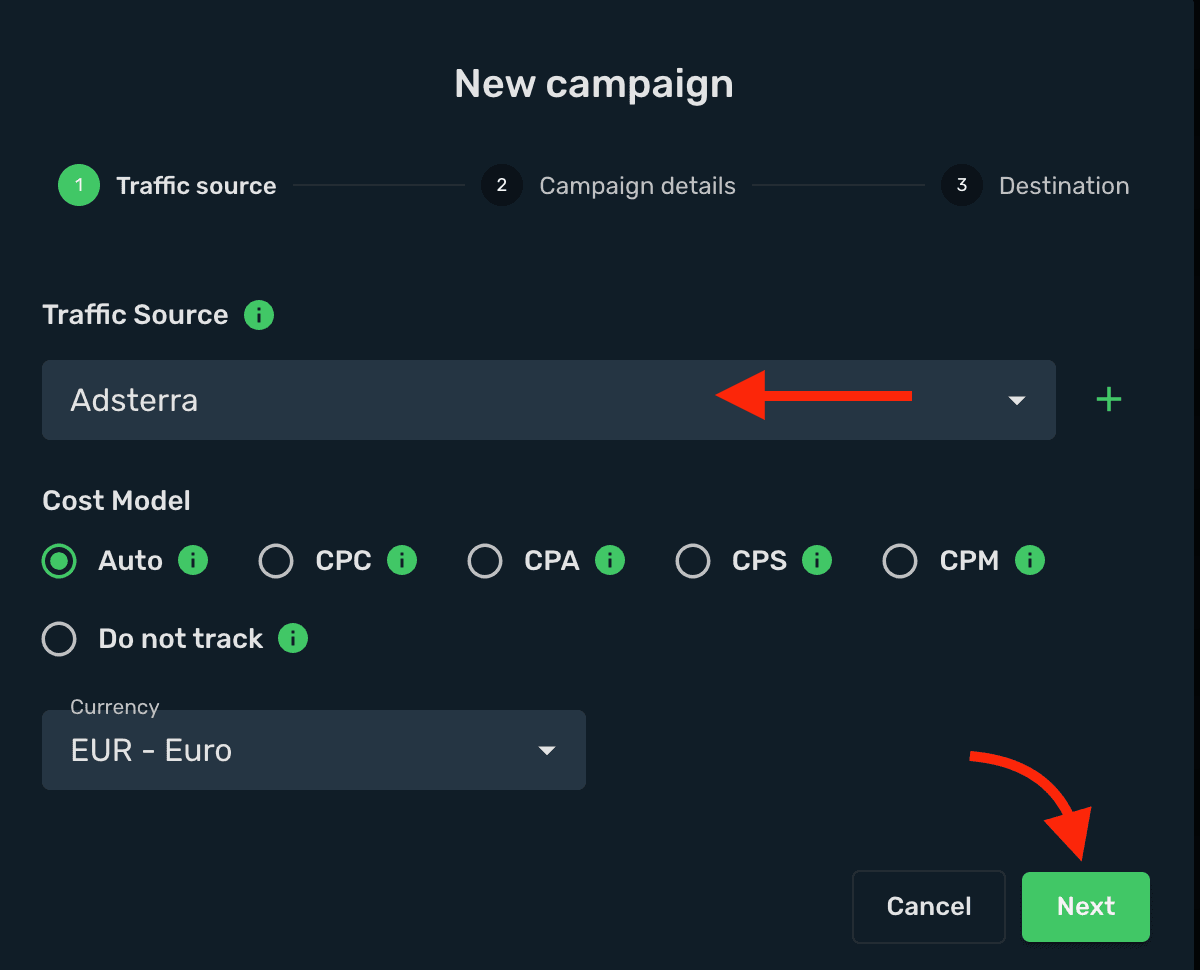
Select your Traffic source and click Next.
-
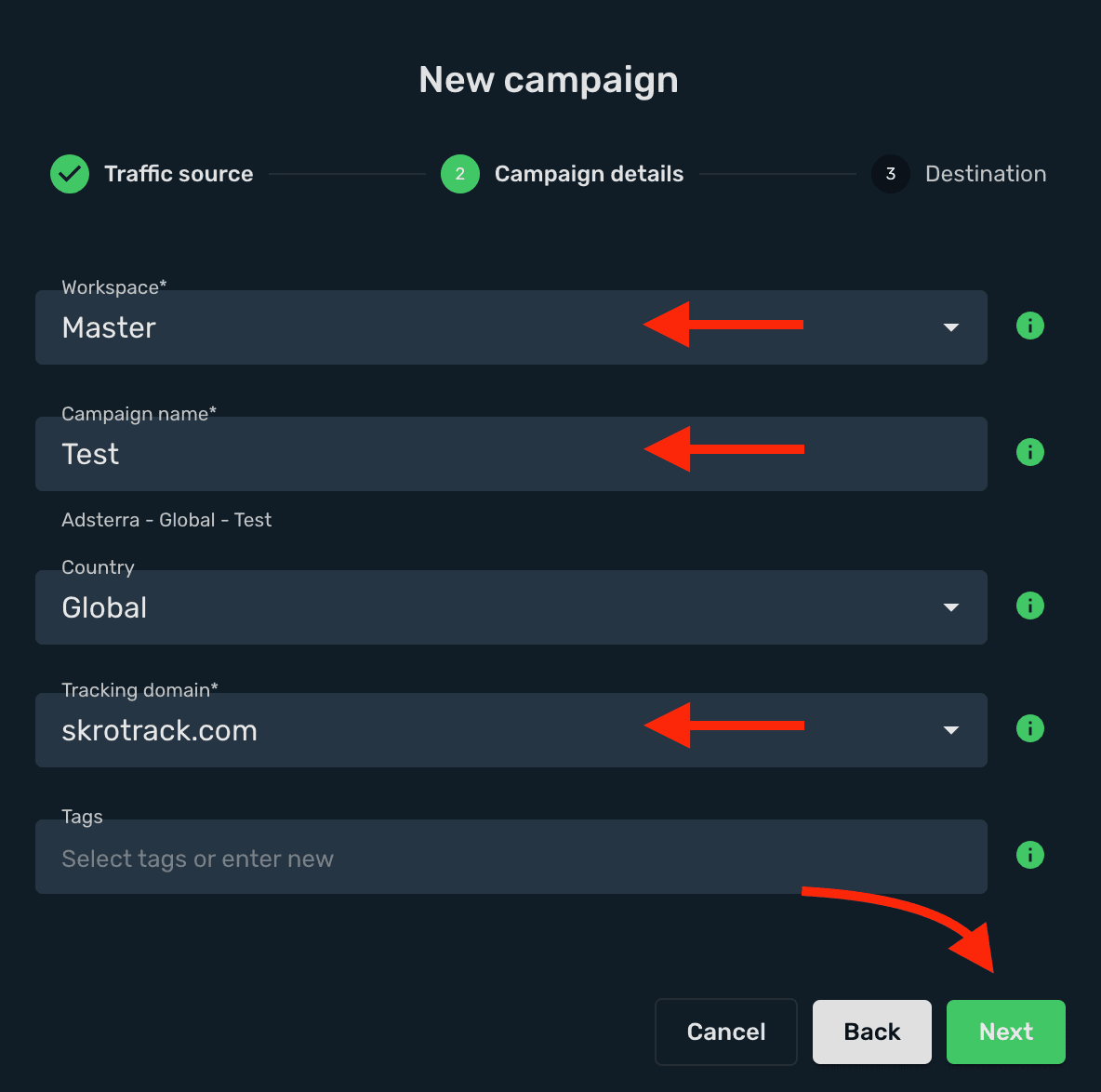
Select your target Workspace for your campaign.
-
Give a name to your campaign and click Next.
-
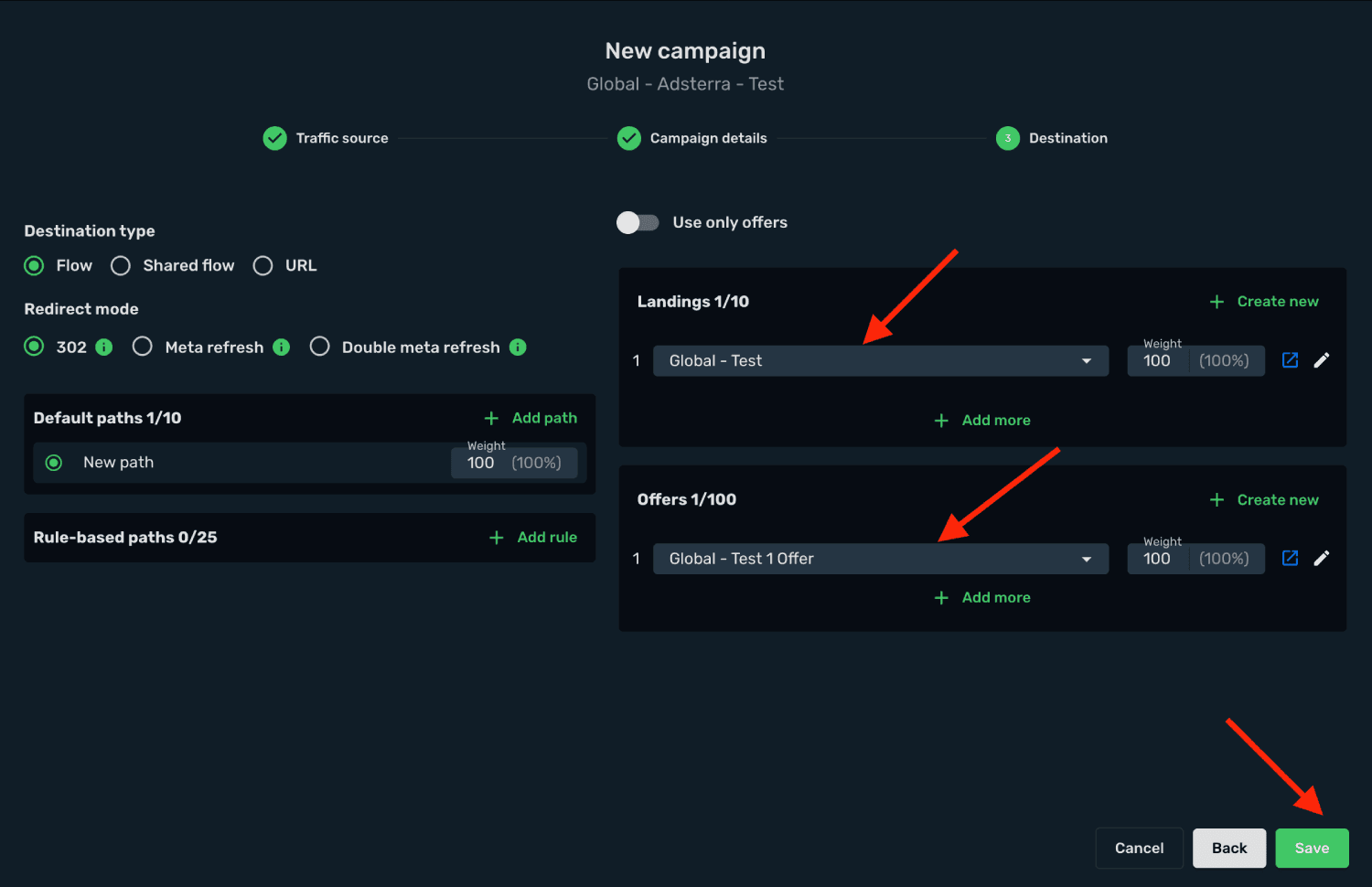
Select or create all your landings and offers.
-
Click Save.
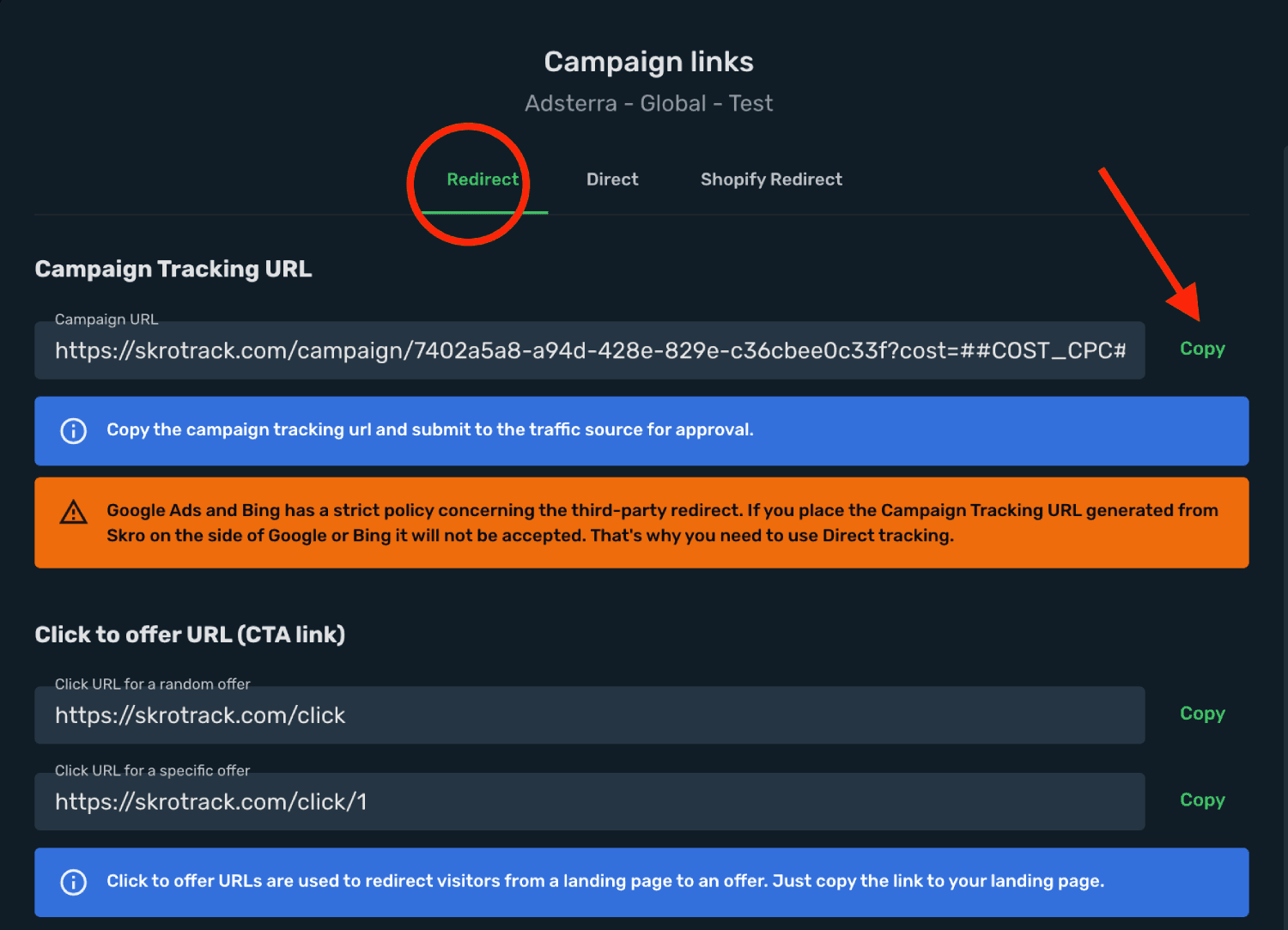
- Copy the Campaign Tracking URL to clipboard.
Step 3. Create a campaign in Adsterra
-
Log in to your Adsterra account.
-
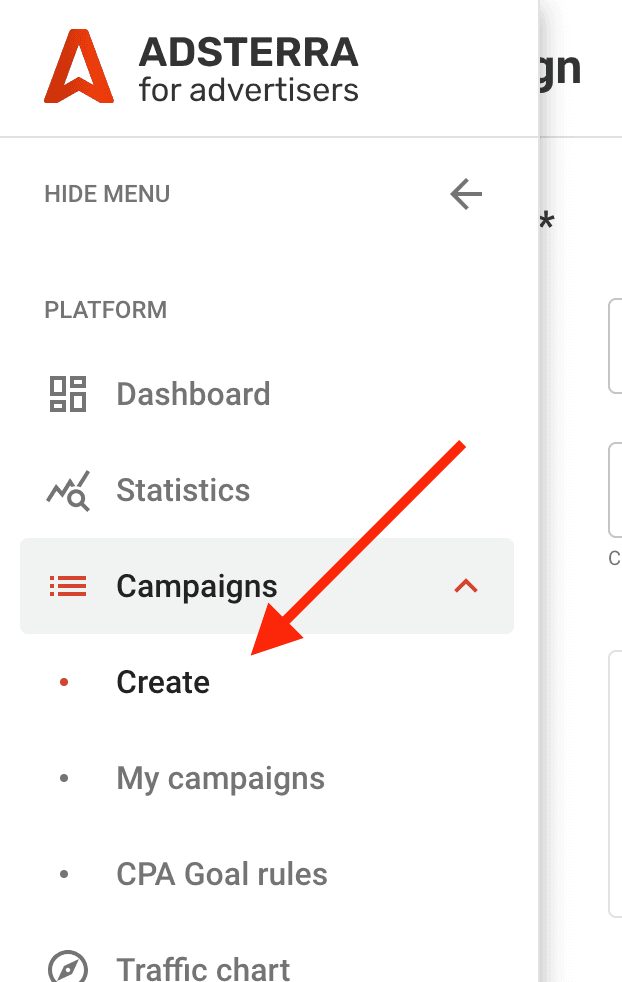
Go to the Campaigns → Create.
-
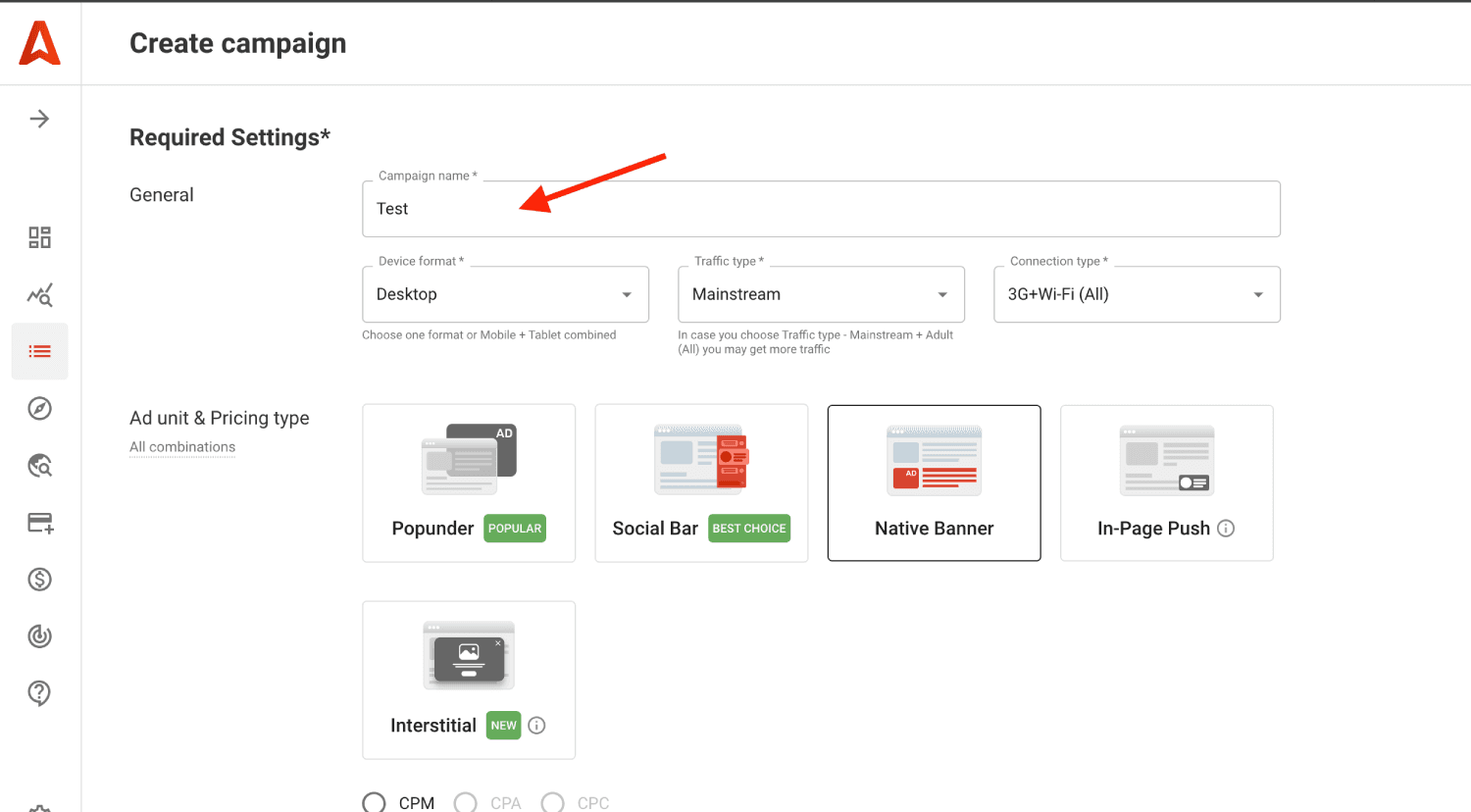
Give a Name to your campaign.
-
Select your Ad format.
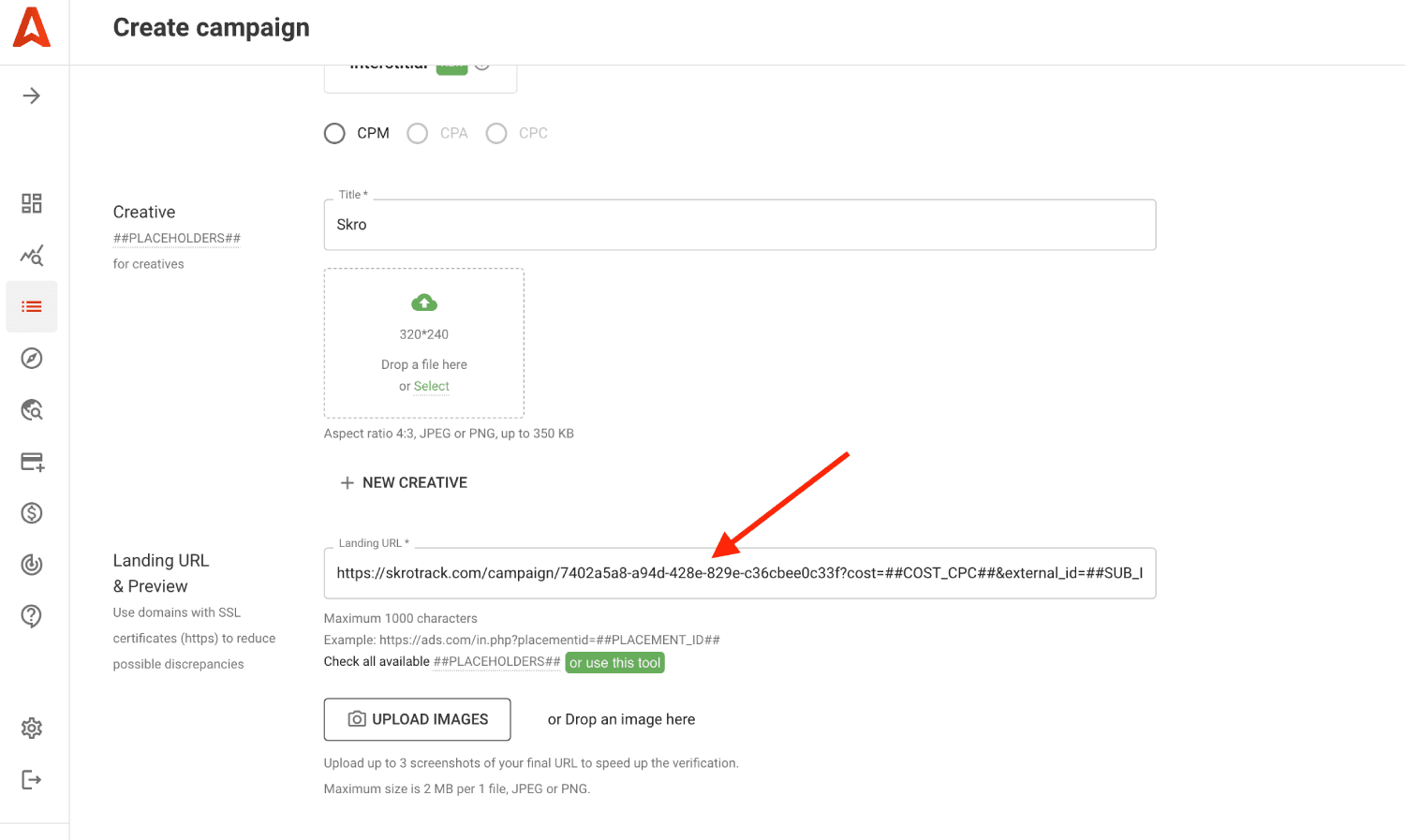
- Paste the Skro campaign tracking link into the Landing URL field, including all tracking parameters.
-
Complete the remaining campaign settings, then click Proceed to review.
-
After your campaign is approved on the side of Adsterra, you can start driving traffic to your campaign and track all the data with Skro.
Verify the setup
Open the generated campaign URL and check that the visit appears in Skro. Confirm that traffic source macros resolve to actual values. If you send conversions back to the source, verify a test conversion in both systems.
Troubleshooting
If data is missing, check the selected workspace, integration, campaign, and reporting date range. Compare parameter names and macro values with the examples in this guide before repeating the test.
Related guides
Need help with this guide? Contact Skro support.