

SmartNews integration
Set up SmartNews tracking in Skro, configure traffic source parameters, and connect your advertising campaigns.
SmartNews is a Japan‑based news aggregation app founded in 2012 by Ken Suzuki and Kaisei Hamamoto. It delivers personalized, curated news from over 3,000 trusted publishers, using a blend of algorithmic analysis and editorial oversight to surface high-quality stories.Designed for mobile-first consumption, SmartNews pushes breaking news, local alerts, and editor-selected features for a smooth reading experience, with over 400,000 articles delivered daily. The platform is largely ad-supported but also offers premium options like the SmartNews+ subscription service for in-depth content from leading media partners.
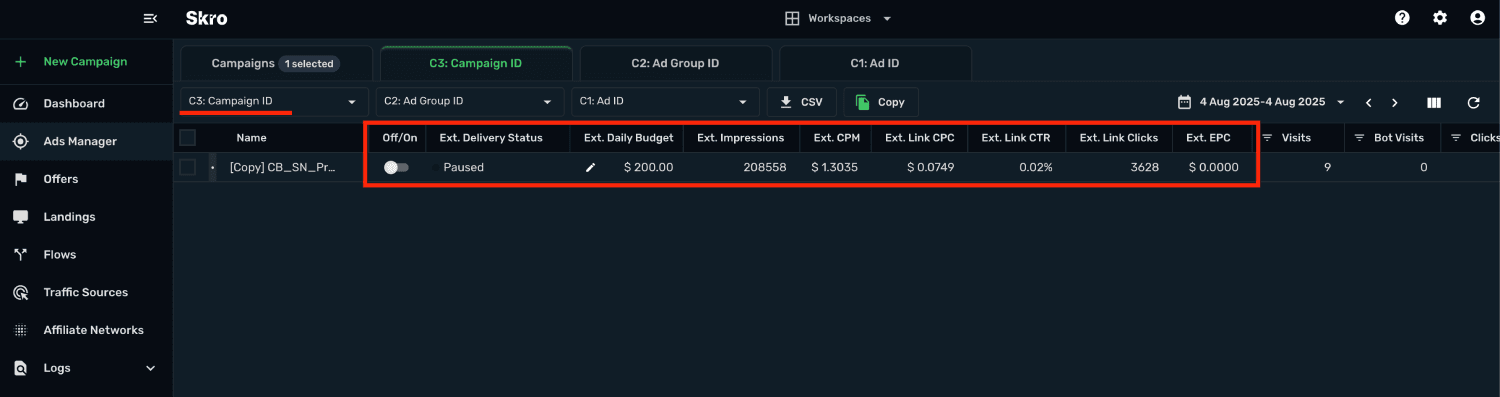
SmartNews integration gives you the ability to manage and optimize all your ad campaigns through the Skro interface.
- Sync cost on ad level every 30 min.
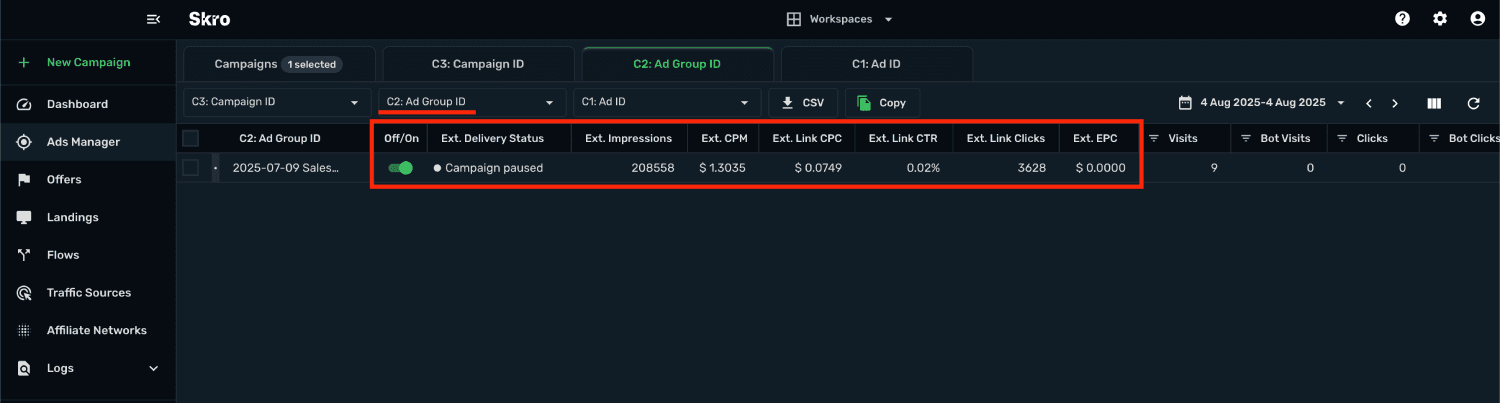
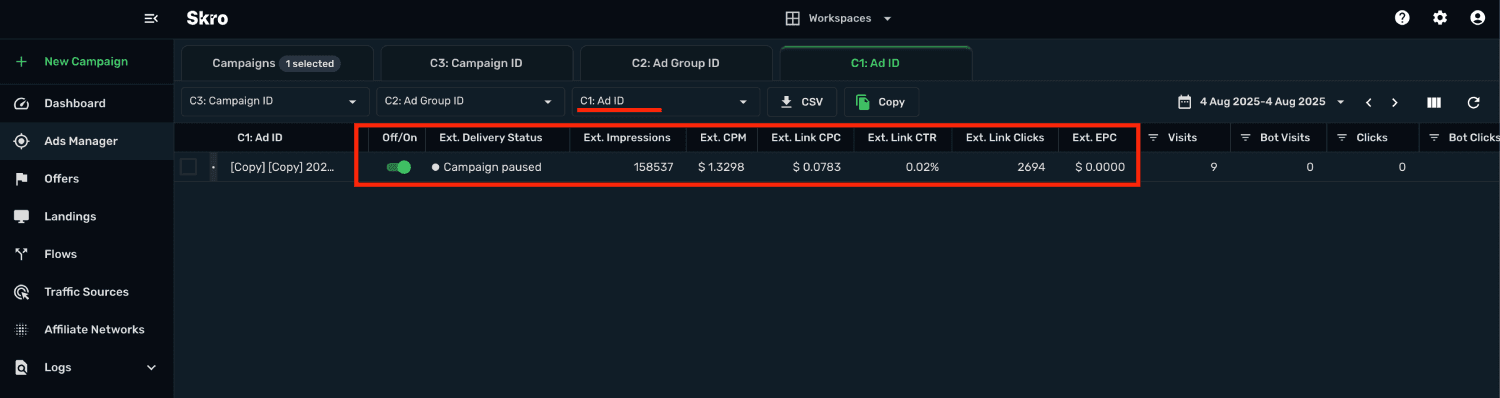
- Check delivery status of campaigns, ad groups and ads.
- Pause or resume campaigns, ad groups and ads.
- Change daily budget for campaigns directly from Skro.
- Check the status of your campaigns, ad groups and ads.
- Import dynamic columns like CPM, Link CPC, Link CTR, Impressions, Link EPC and Link Clicks.
In this guide, you will learn how to set up your campaigns in SmartNews and Skro so SmartNews can pass information to Skro and back with a selected tracking method. This guide does not cover all aspects and options available when creating a campaign on these two platforms. Basic knowledge regarding setting up campaigns in SmartNews and Skro is required.
Manage SmartNews campaigns through the Skro UI
Manage SmartNews ad groups through the Skro UI
Manage SmartNews ads through the Skro UI
Step 1. Get SmartNews Business ID
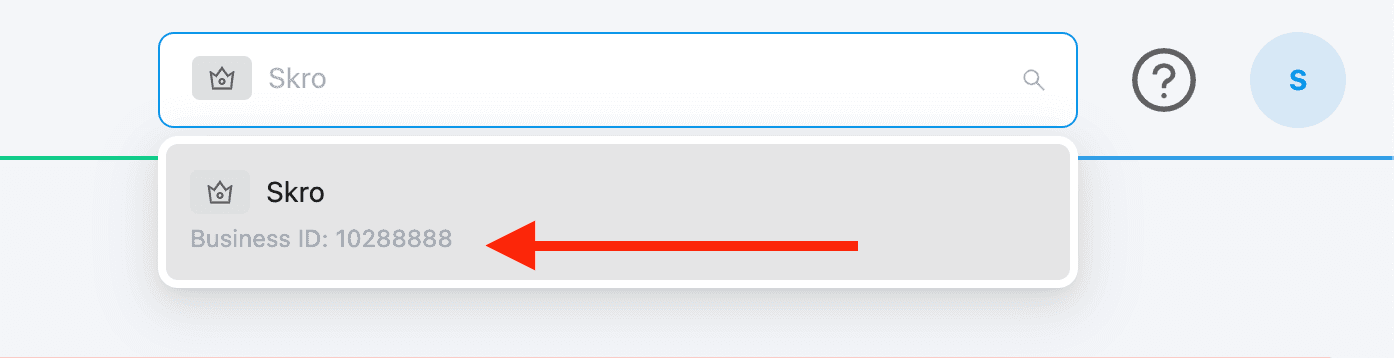
SmartNews Business ID. You can get that by following the steps below:
- Go to SmartNews → Business Manager
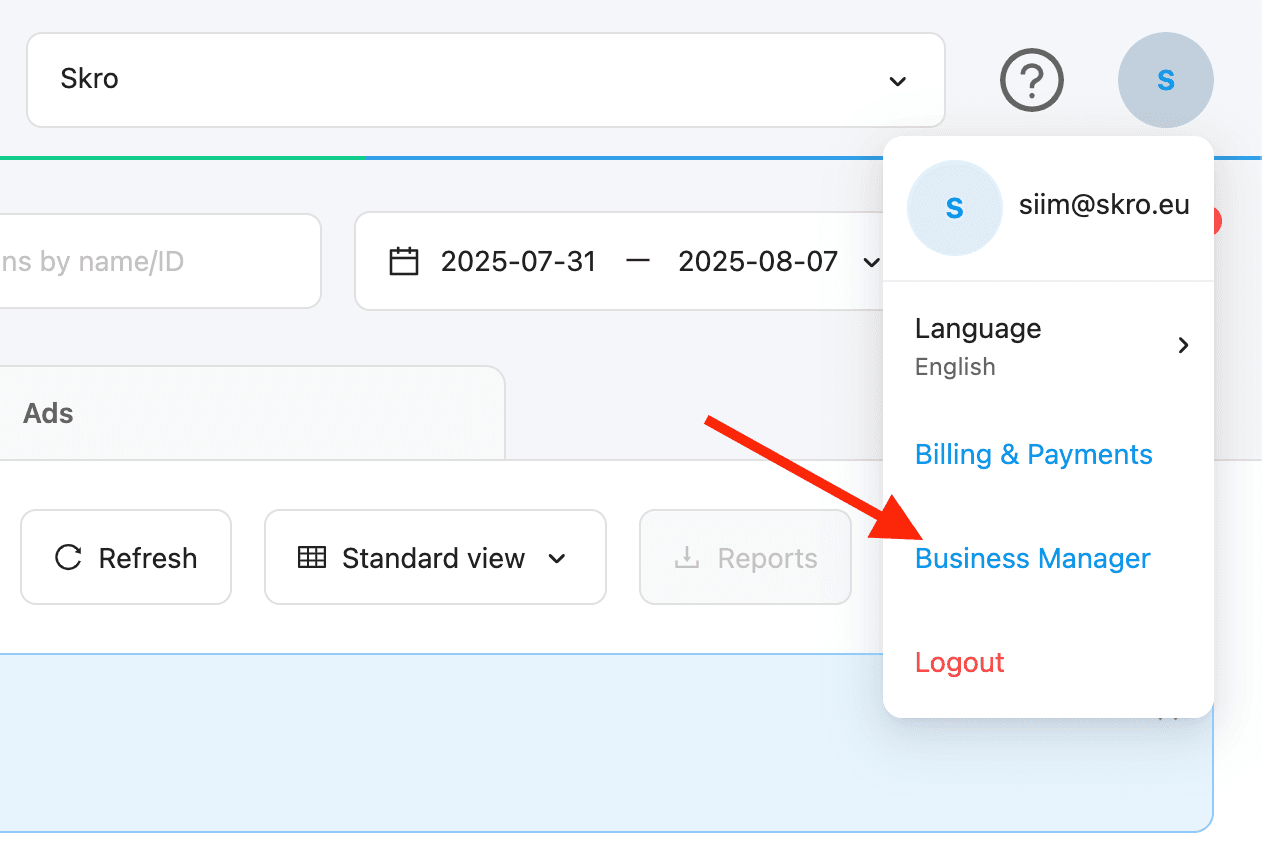
- Click Business name and copy the Business ID.
- Once you have everything ready, read the further part of this guide.
Step 2. Add integration
-
Log in to your Skro account.
-
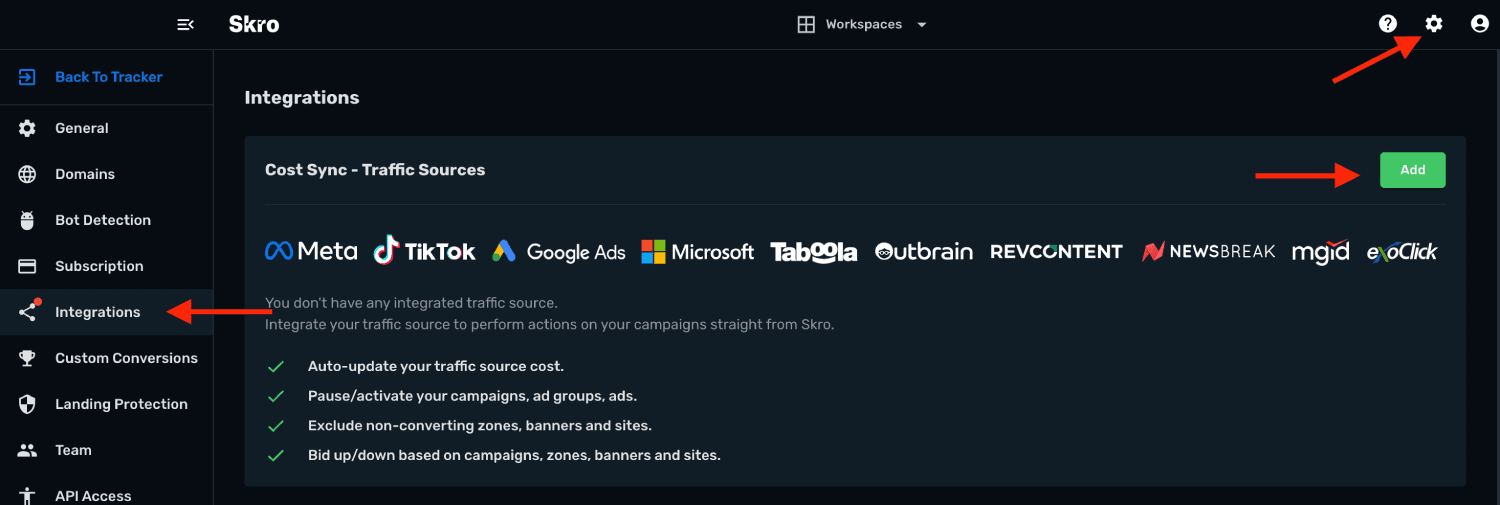
Navigate to Settings → Integrations.
-
In the Traffic Sources section click Add.
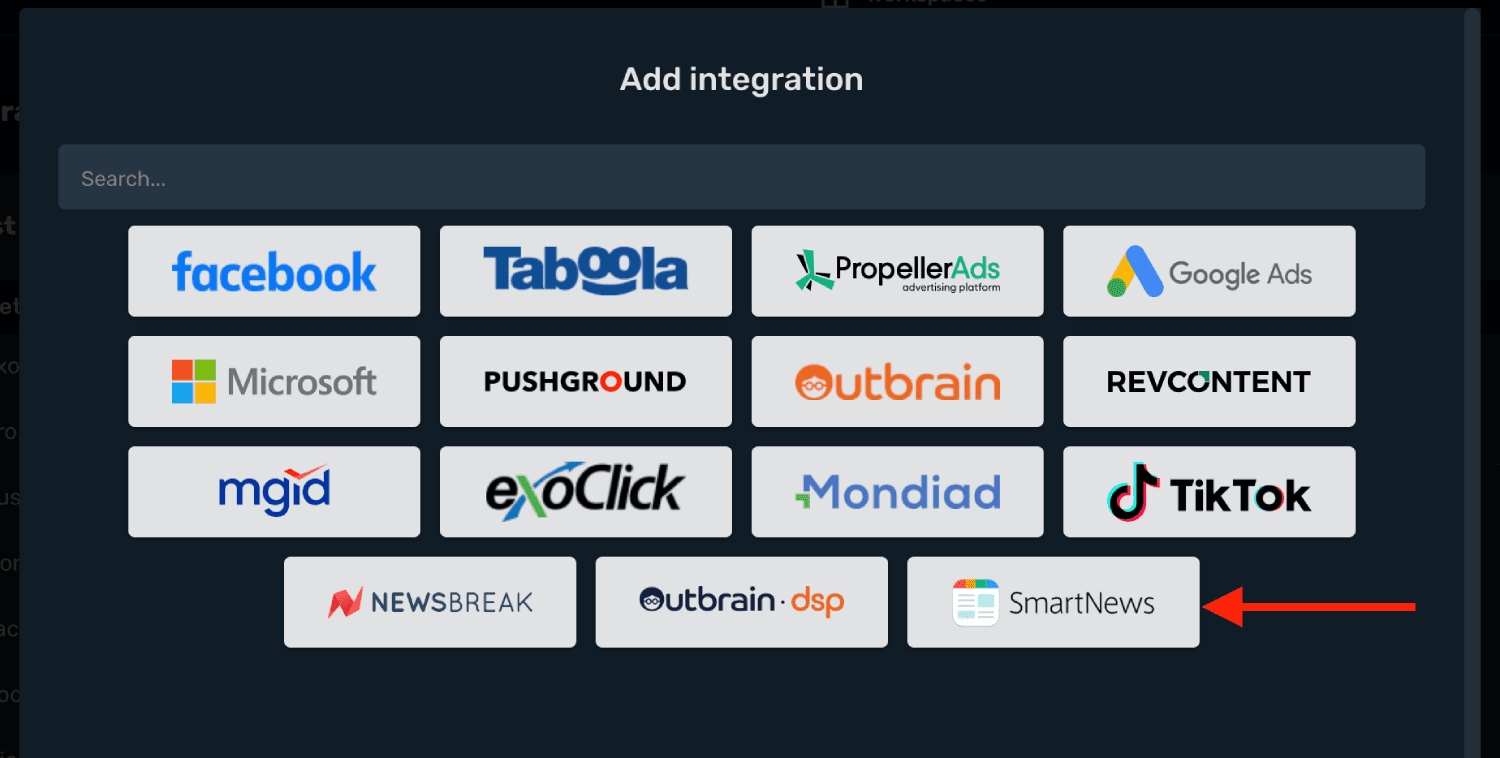
- Click SmartNews logo and integration form will pop up.
- Copy our Developer App ID.
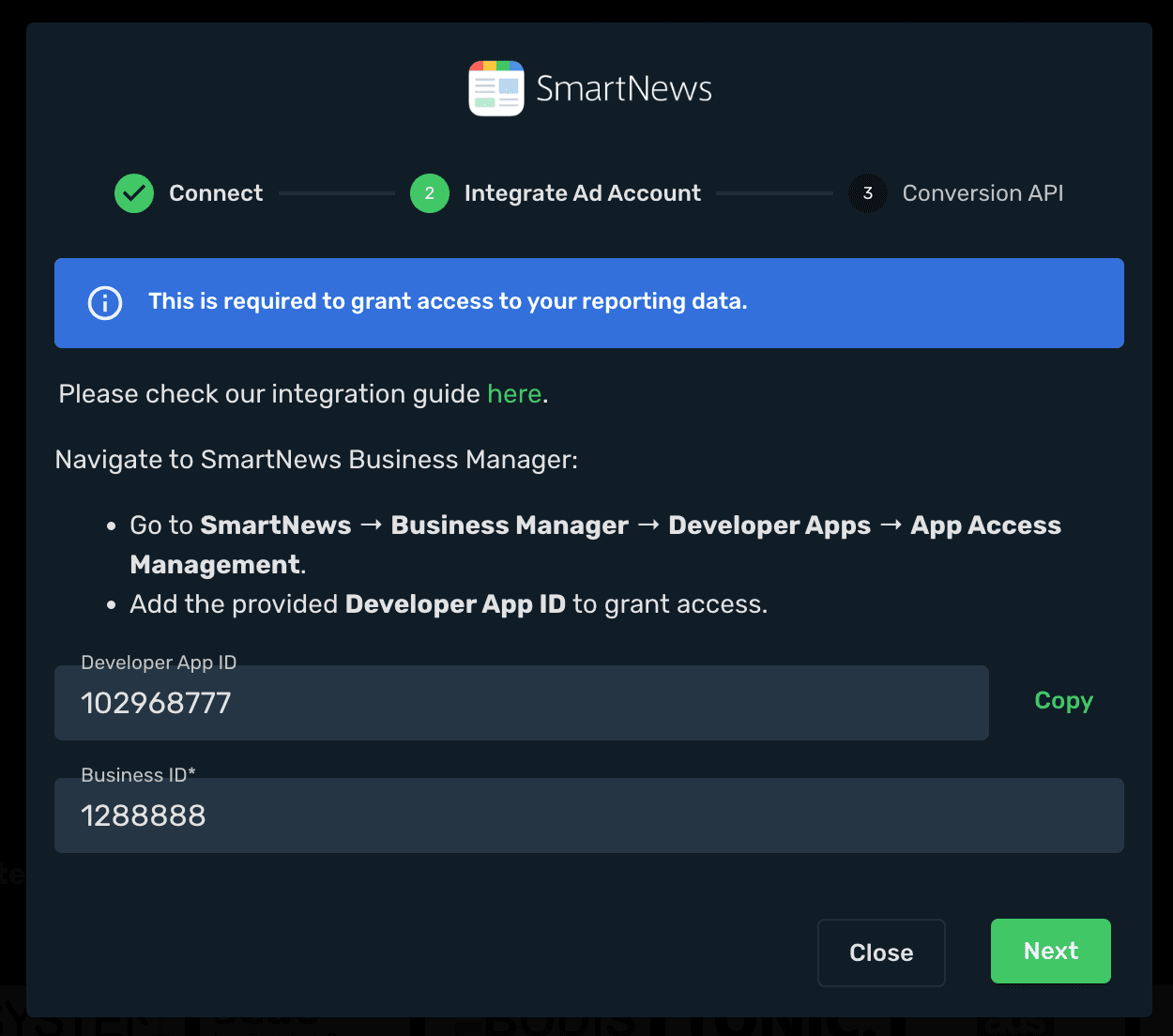
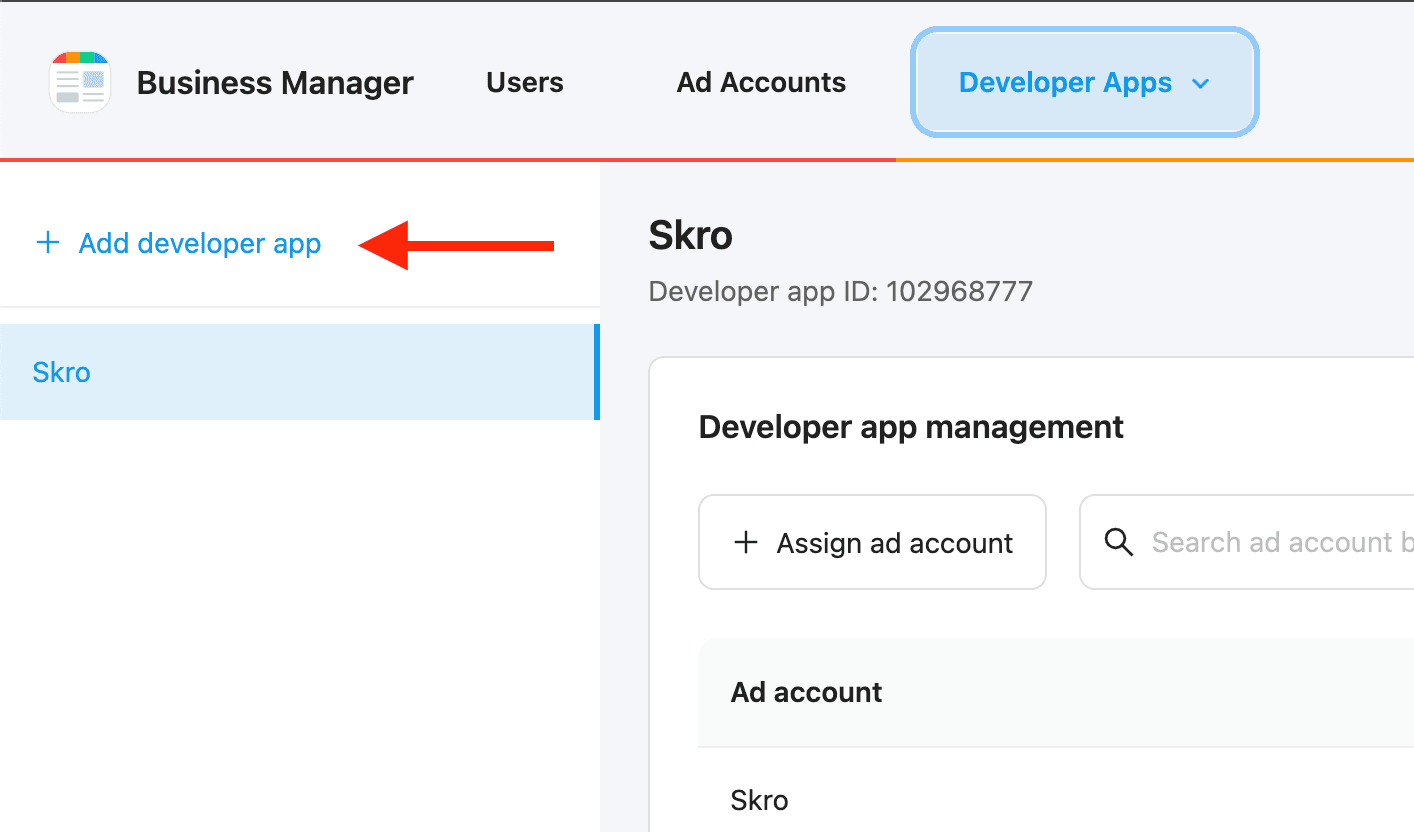
- Go to SmartNews → Business Manager → Developer Apps → App Access Management and click + Add developer app.
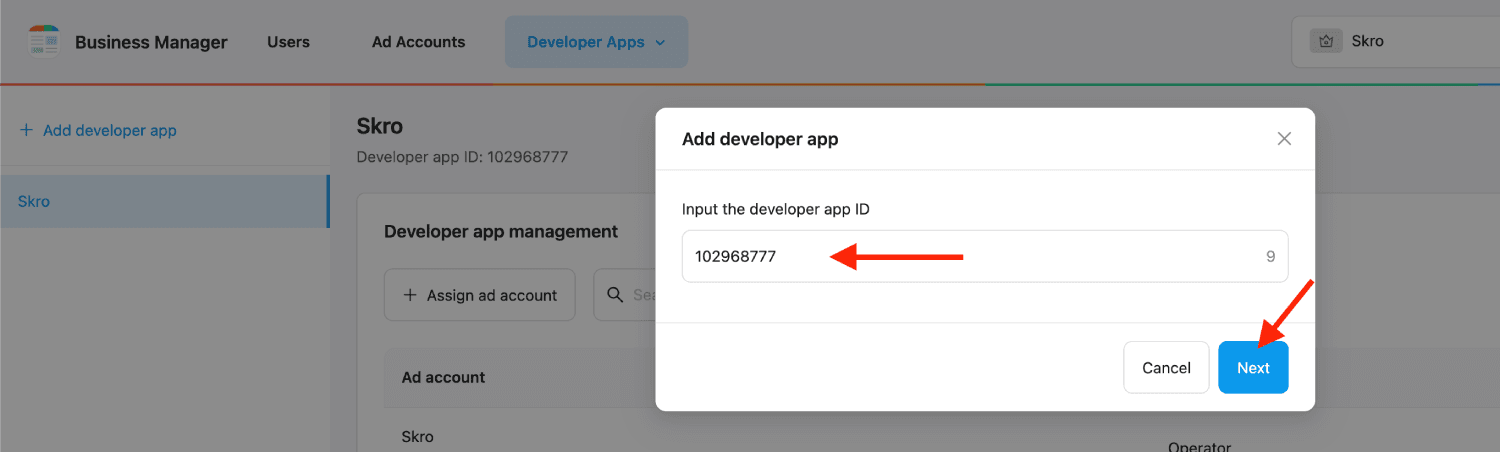
- Add the provided Developer App ID and click Next.
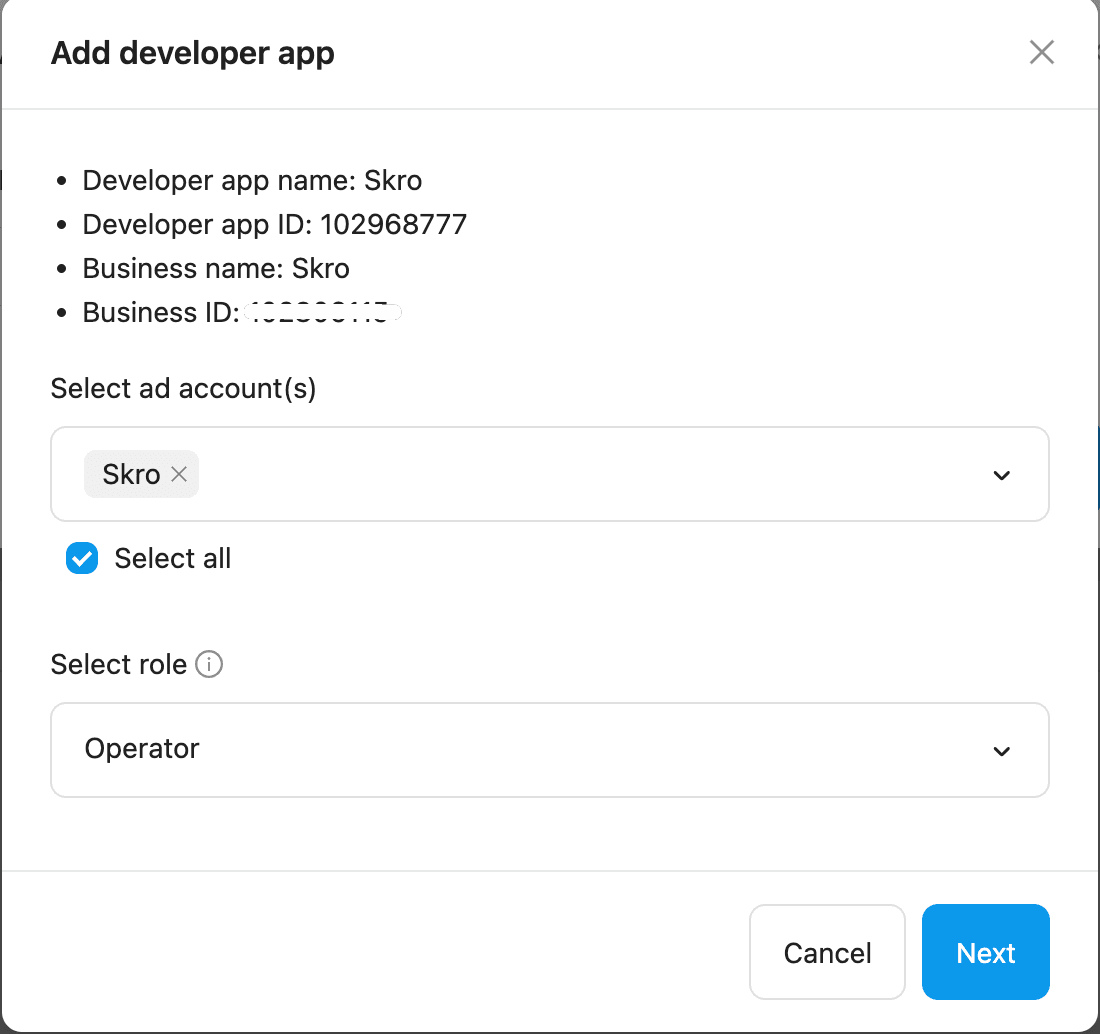
- Grant access to your business.
- Go back to Skro and enter your SmartNews Business ID and click Next.
-
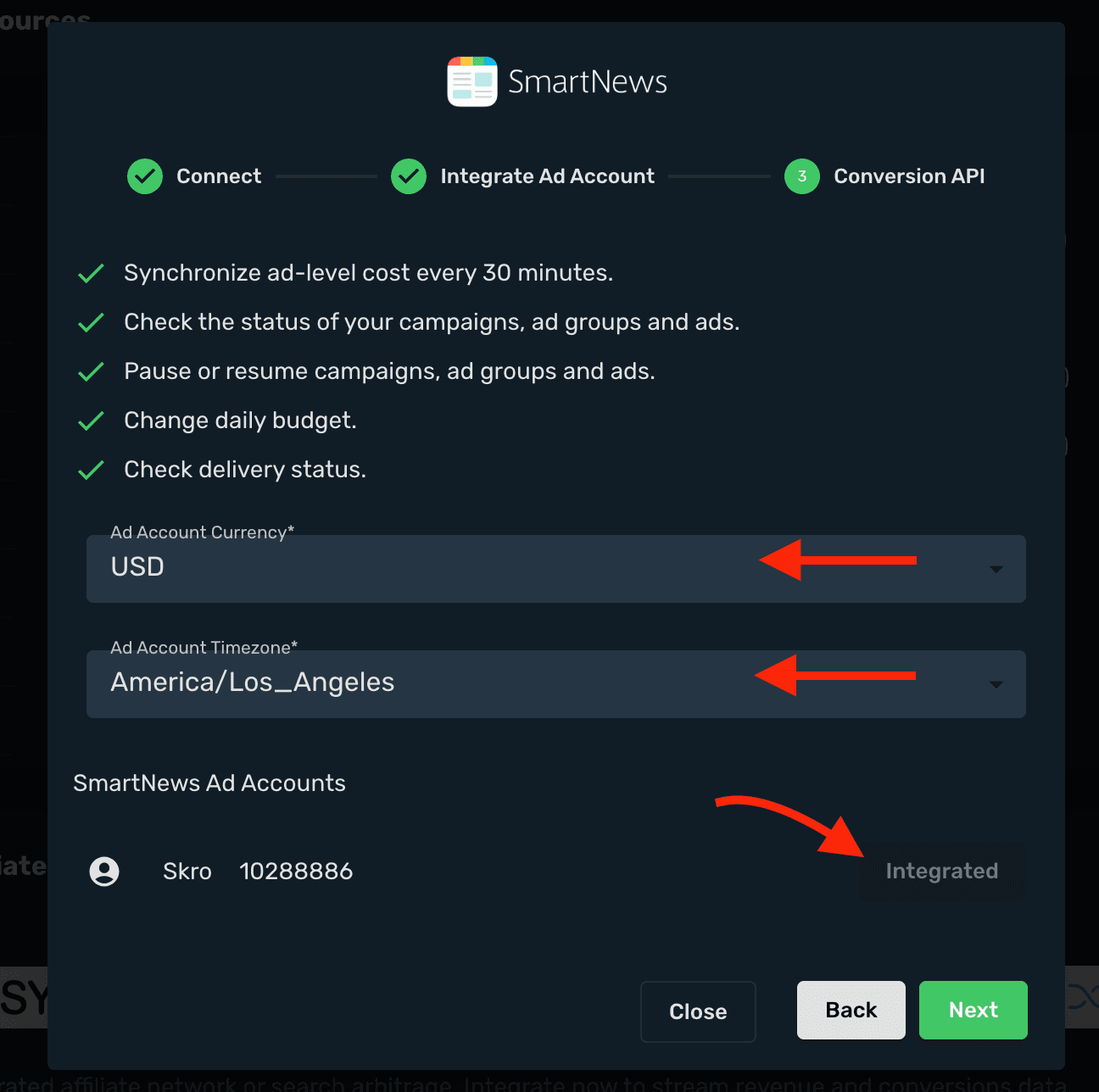
Integrate your SmartNews Ad Account. Choose your ad account and click Integrate.
-
Choose your ad account Currency and Timezone. These are needed for correct cost sync.
-
Click Next.
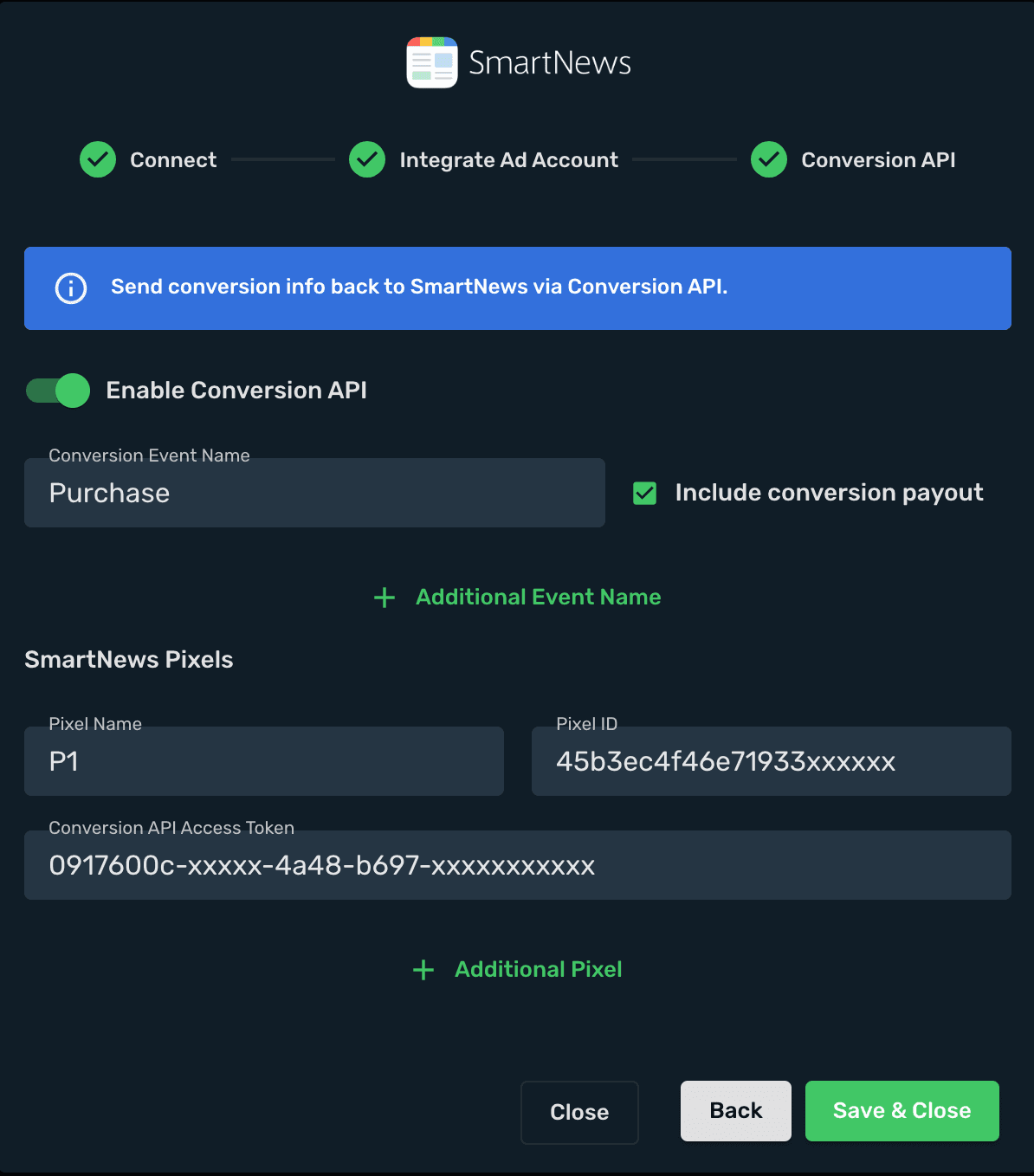
- If you want to send conversions info back to SmartNews, then you will need to enable Conversion API.
Set up Conversion Events Names:
- Conversion Event Name - must be the same as you use in SmartNews. When creating a Skro campaign you will need to specify which conversion goal to send to.
- Include Conversion Payout - If checked, we will send conversion revenue to SmartNews.
Set up SmartNews Pixel
- Pixel Name - Give a name to your Pixel.
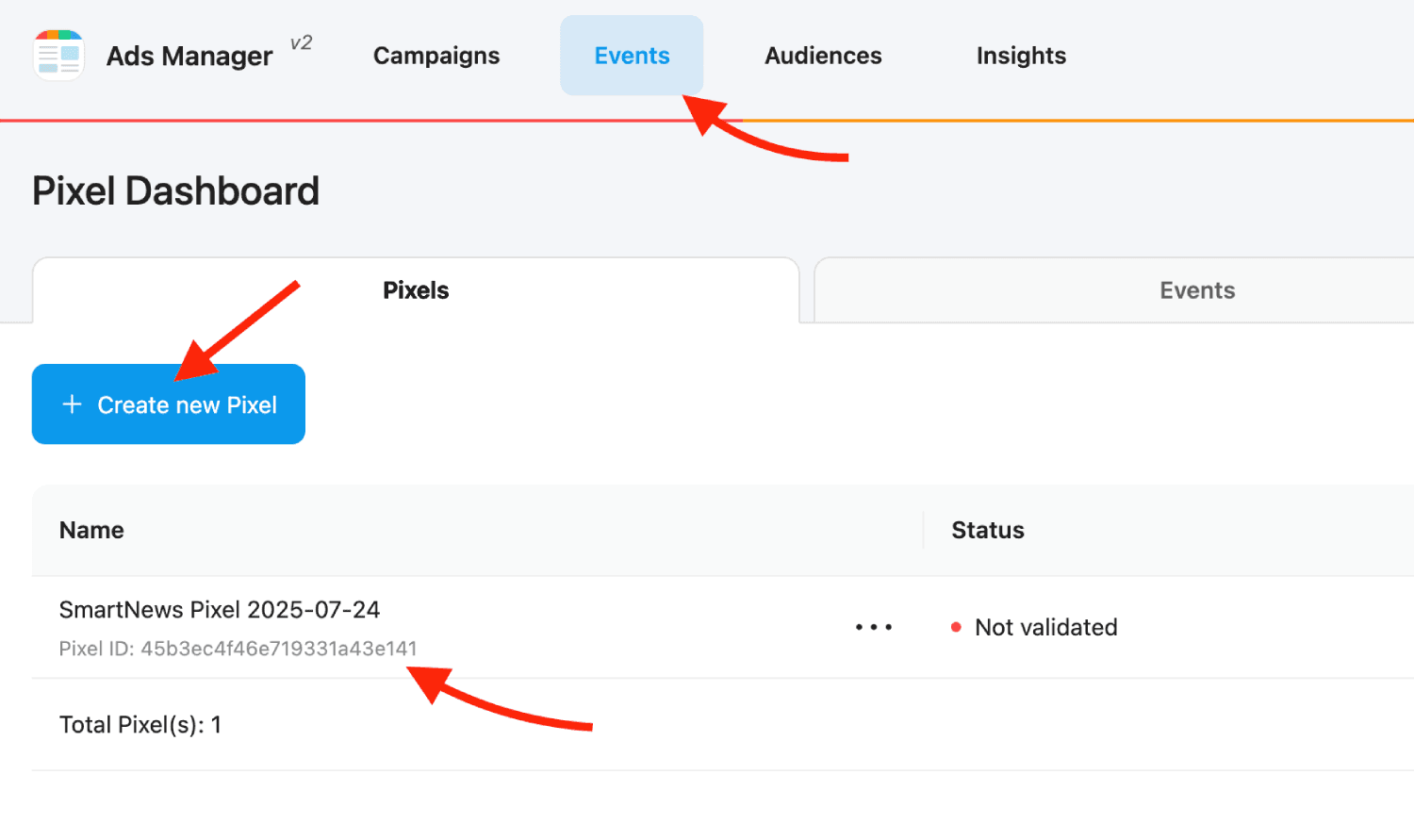
- Pixel ID - Go back to SmartNews → Ads Manager → Events and create new pixel if you do not have any and copy the Pixel ID.
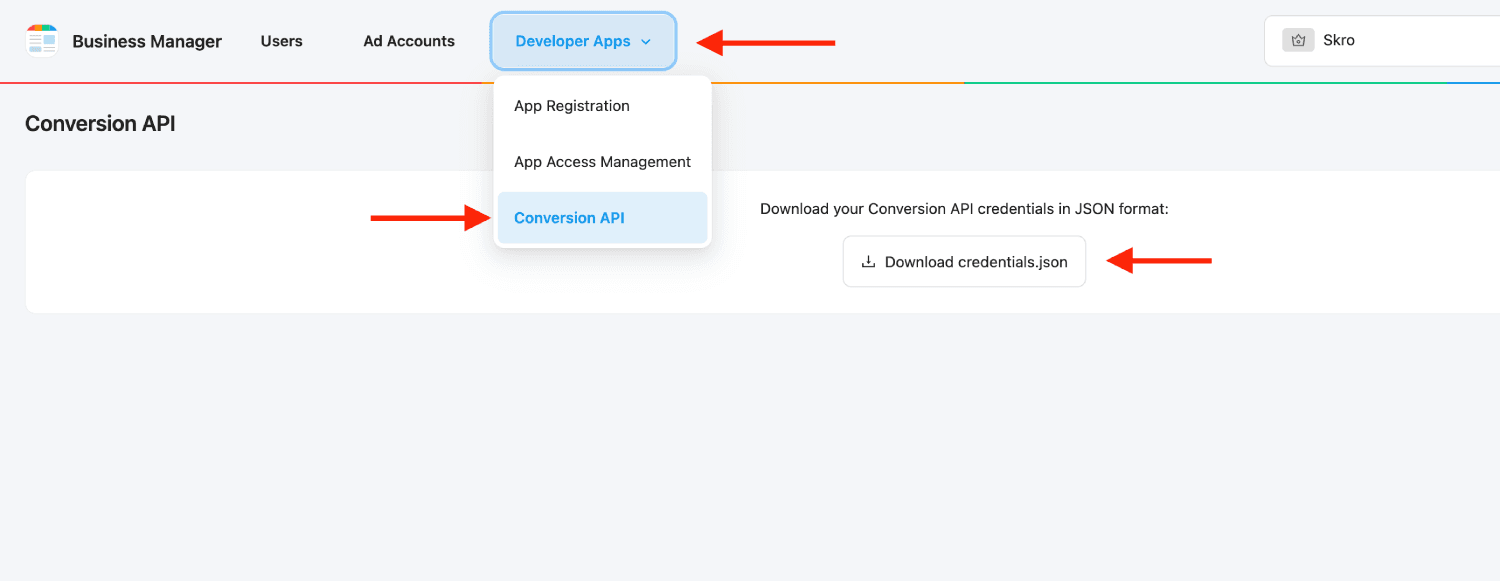
- Conversion API Access Token - You will get your token if you go to SmartNews → Business Manager → Developer Apps → Conversion API and download the JSON file and open it to get access token.
- Go back to Skro and paste your Pixel ID and Access Token and click Click & Save.
-
Your SmartNews ad account is successfully integrated.
-
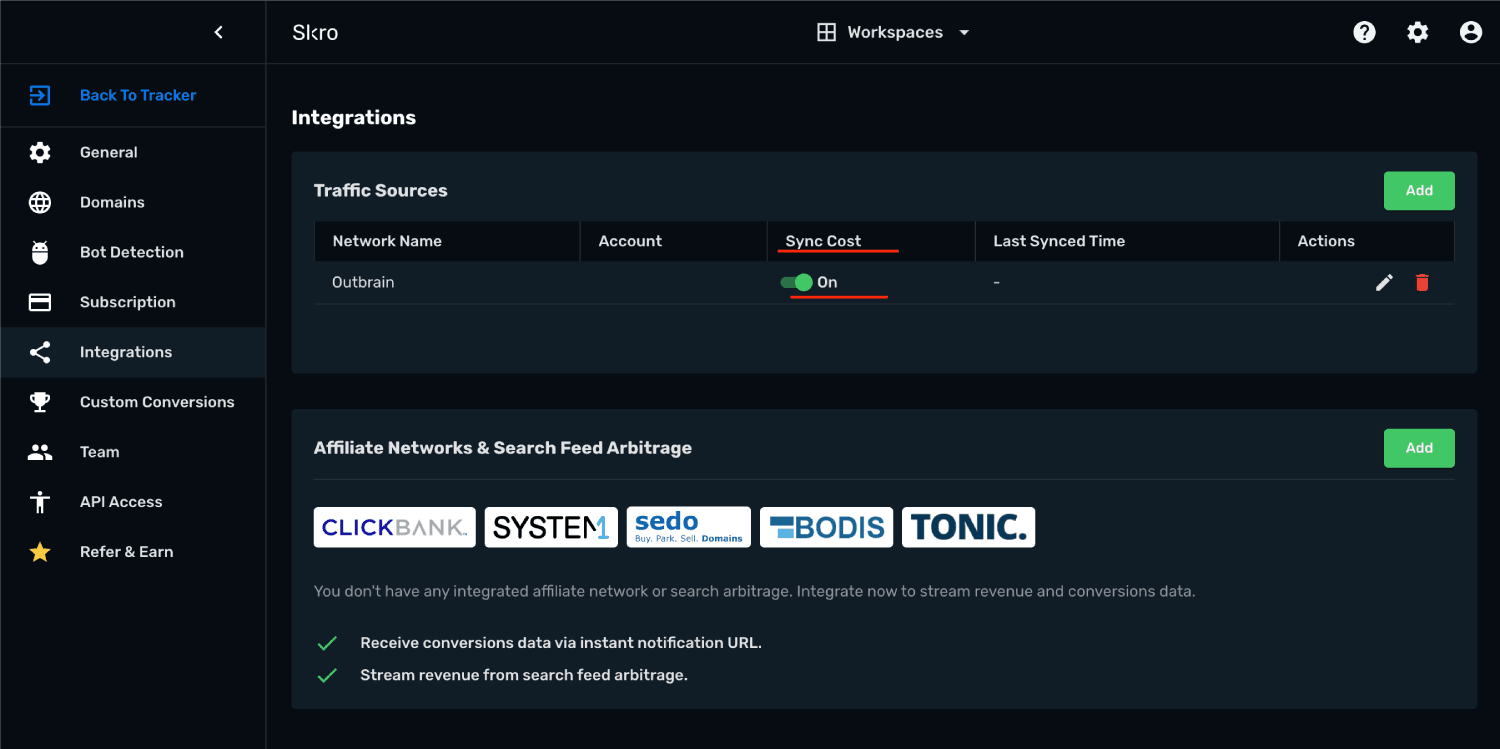
You can switch on/off cost sync with given switch.
Step 3. Associate integration with traffic source
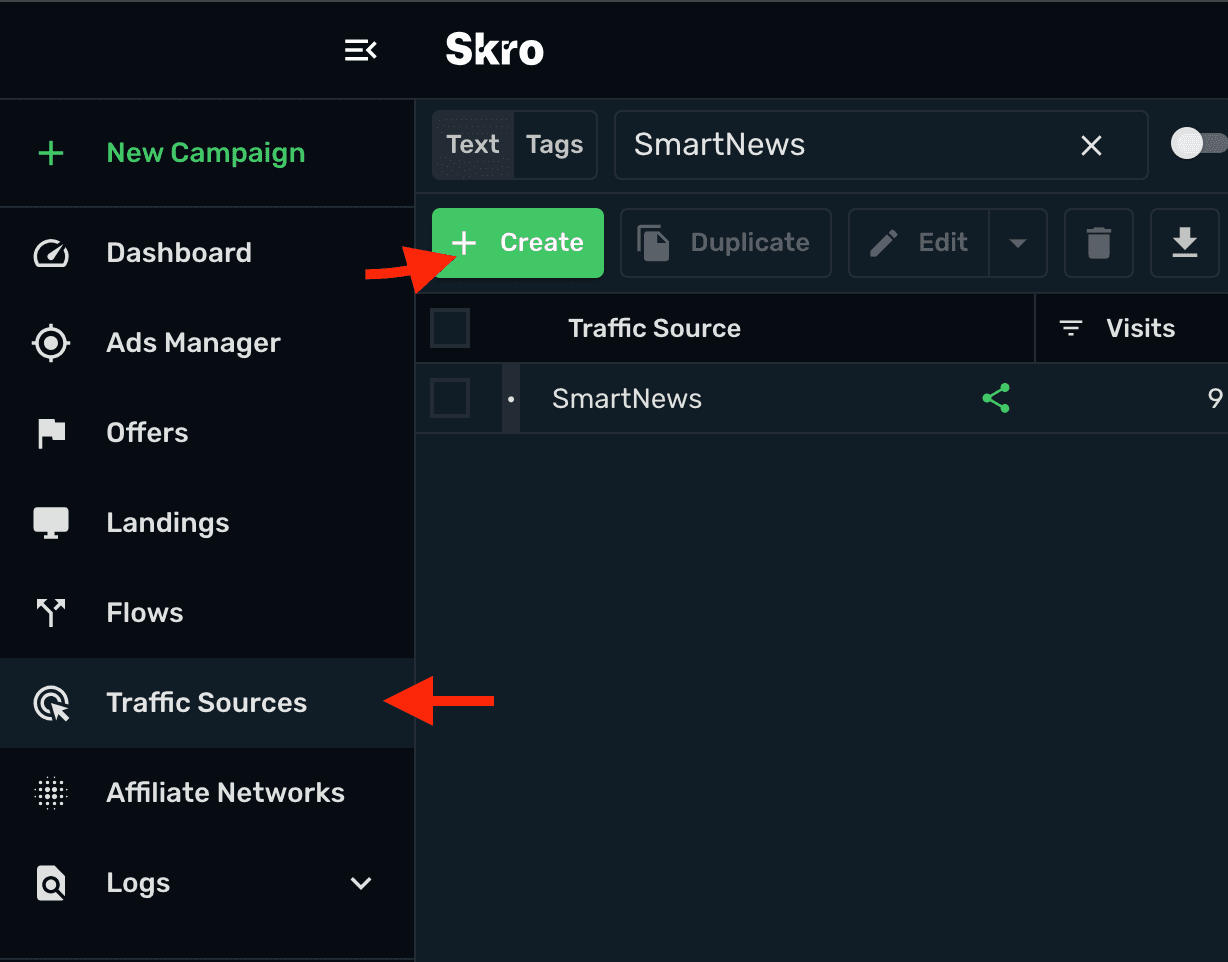
- Go to Traffic Sources and click Create.
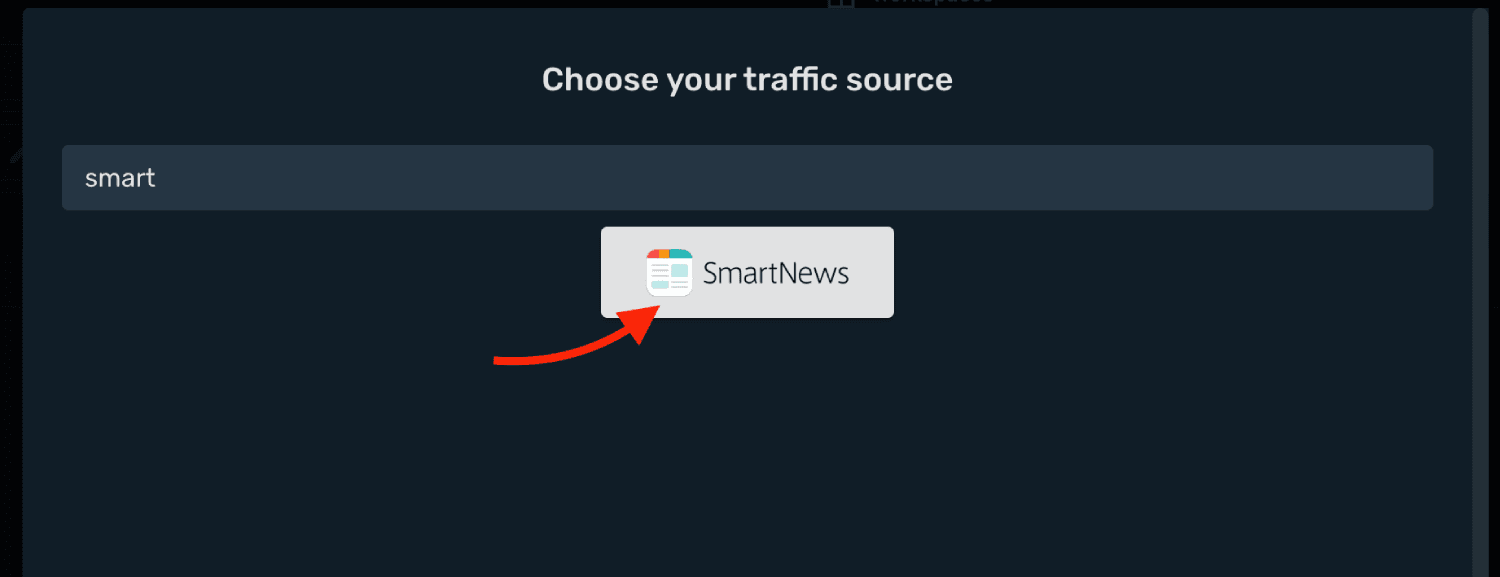
- Click SmartNews logo.
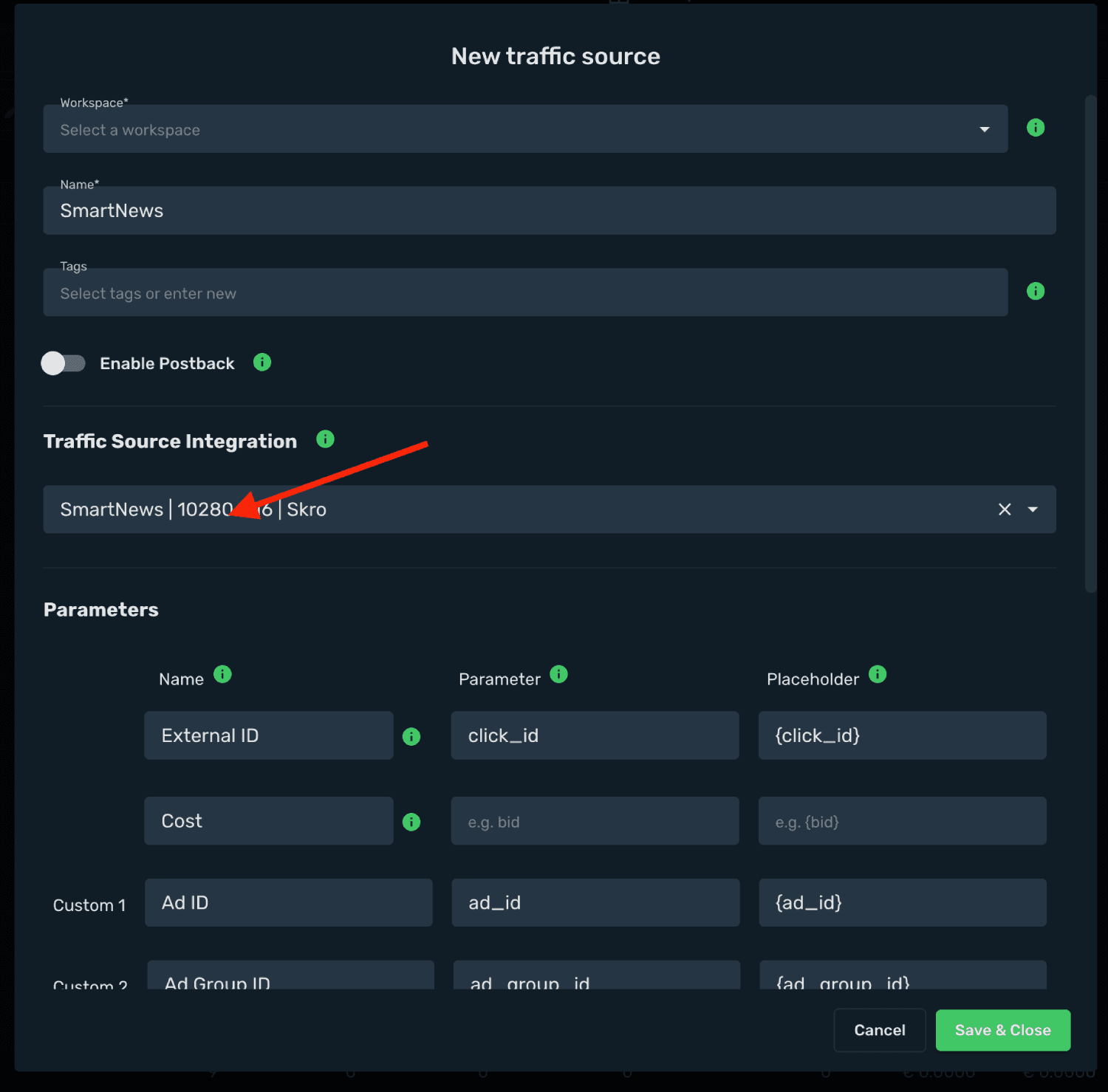
- Select your SmartNews integration from the dropdown menu.
-
All parameters are already prefilled for you.
-
Click Save & Close.
-
The integration is ready. Continue by creating a campaign for SmartNews.
Step 4. Create a Campaign in Skro
-
If your set up needs pre-lander then go to Landings view and click Create to add your landing page.
-
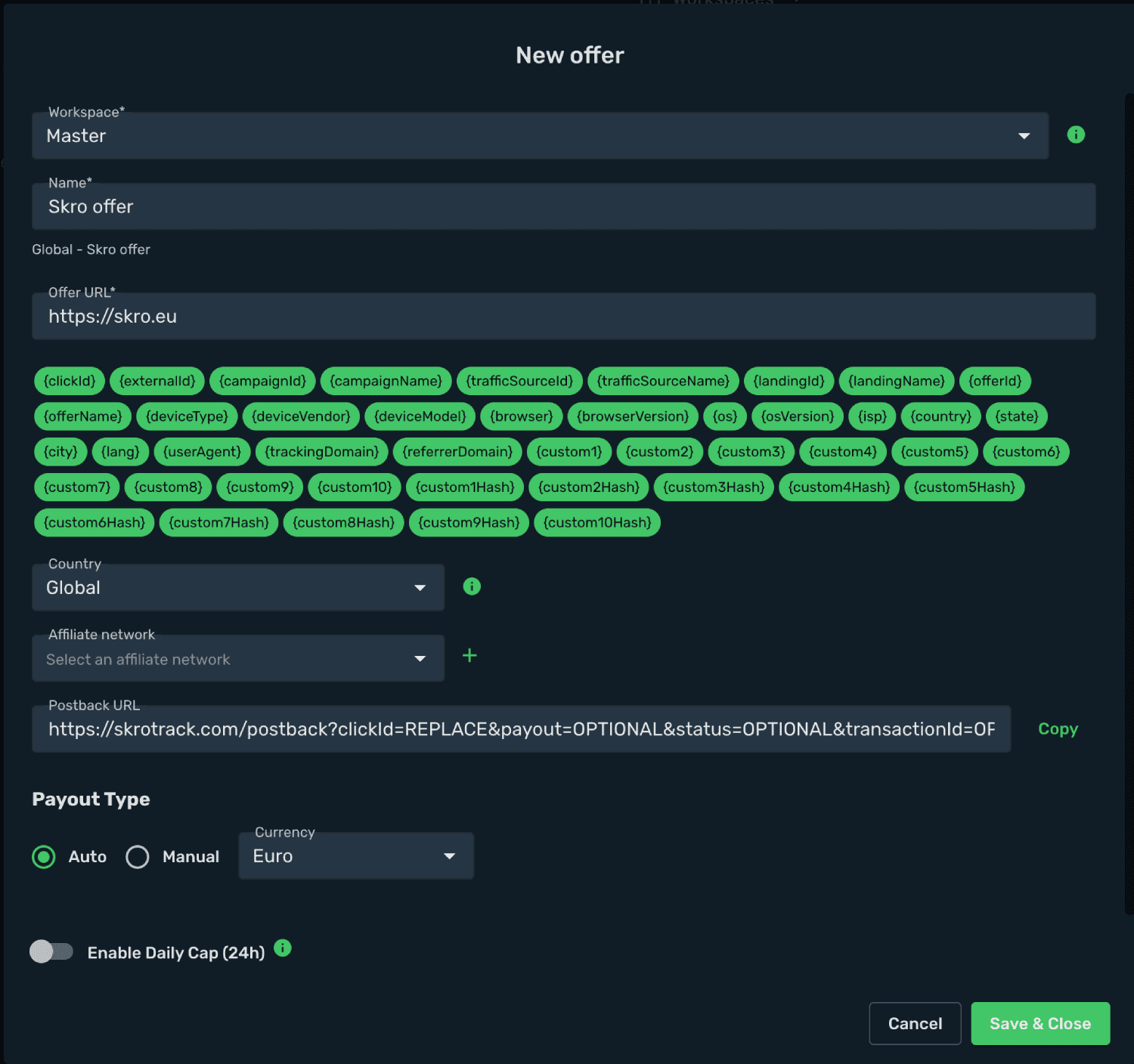
To add your offer link go to Offers view and click Create and add your offer.
-
Select workspace.
-
Add name.
-
Add your offer URL and add macros.
-
Click Save & Close.
-
Navigate to the Campaigns view and click Create.
-
Select your integrated Traffic Source as SmartNews.
-
Select your Conversion Event Name. That is needed to send conversion info back to SmartNews.
-
Select your Conversion Pixel. That is needed to send conversion info back to SmartNews.
-
Cost Model should be Auto.
-
Select your cost currency.
-
Click Next
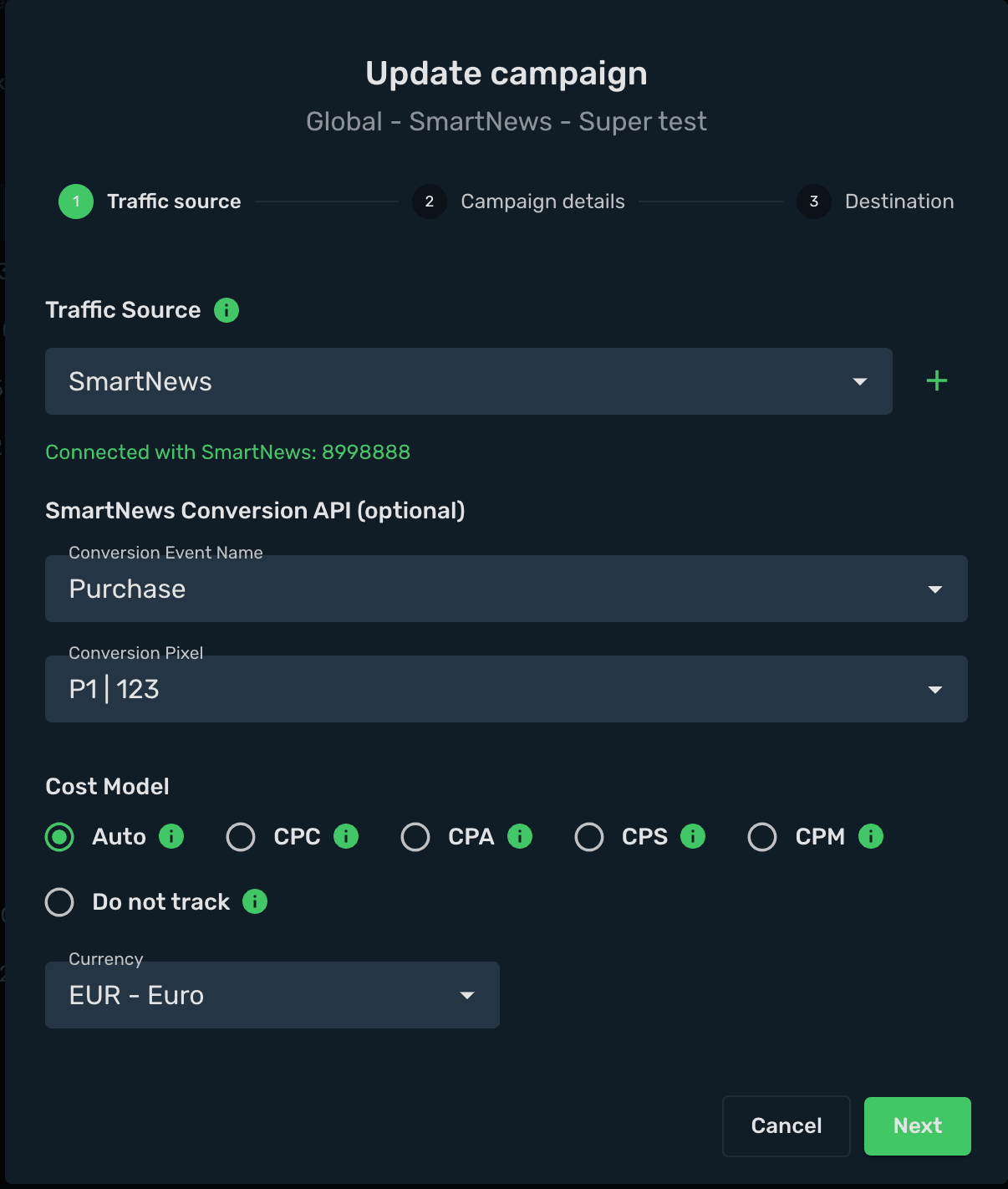
-
Select workspace.
-
Add descriptive name to your campaign.
-
Click Next
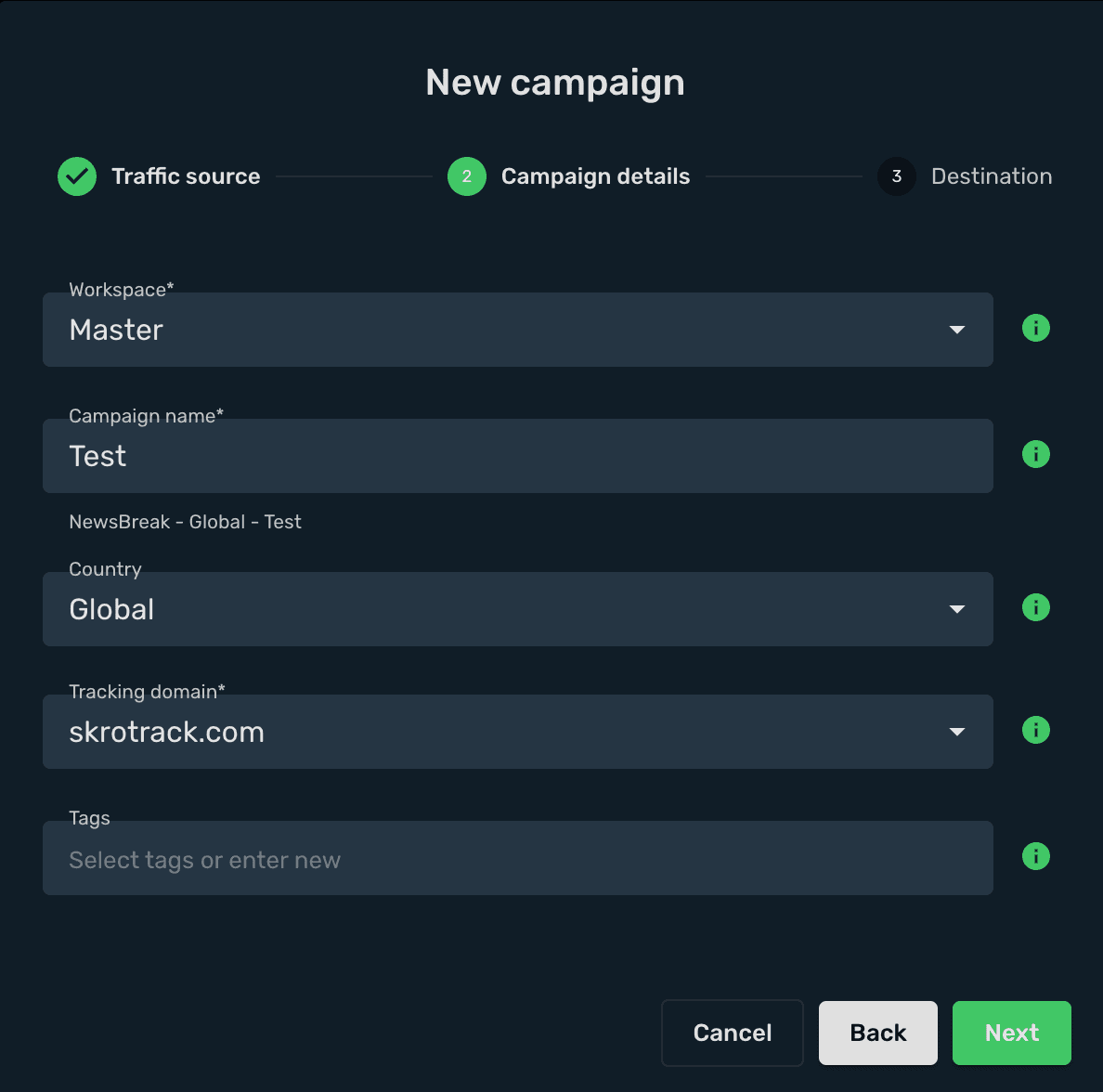
-
Choose your Destination Type. In this example we use flow.
-
Choose your redirect mode. In this example we use redirect 302.
-
Select your landings. In this example we use only offers.
-
Select your offers.
-
Click Save.
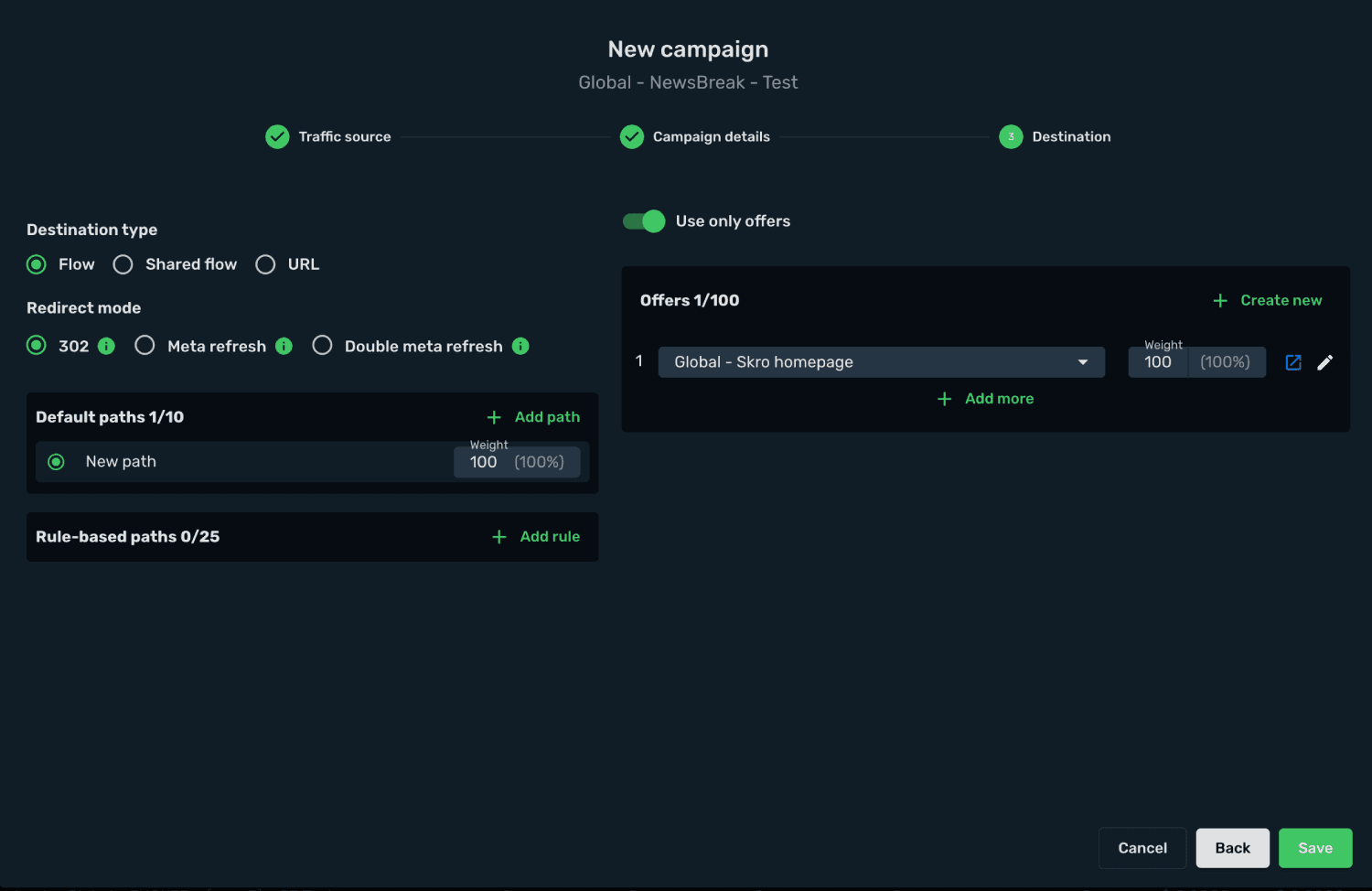
-
Choose Redirect tracking method.
-
Copy your Campaign Tracking URL to clipboard.
In given example we have that kind of URL:
https://skrotrack.com/campaign/0c13bc46-4080-4d67-be92-8a6ec2ea75f5?click_id={click_id}&ad_id={ad_id}&ad_group_id={ad_group_id}&campaign_id={campaign_id}&ad_account_id={ad_account_id}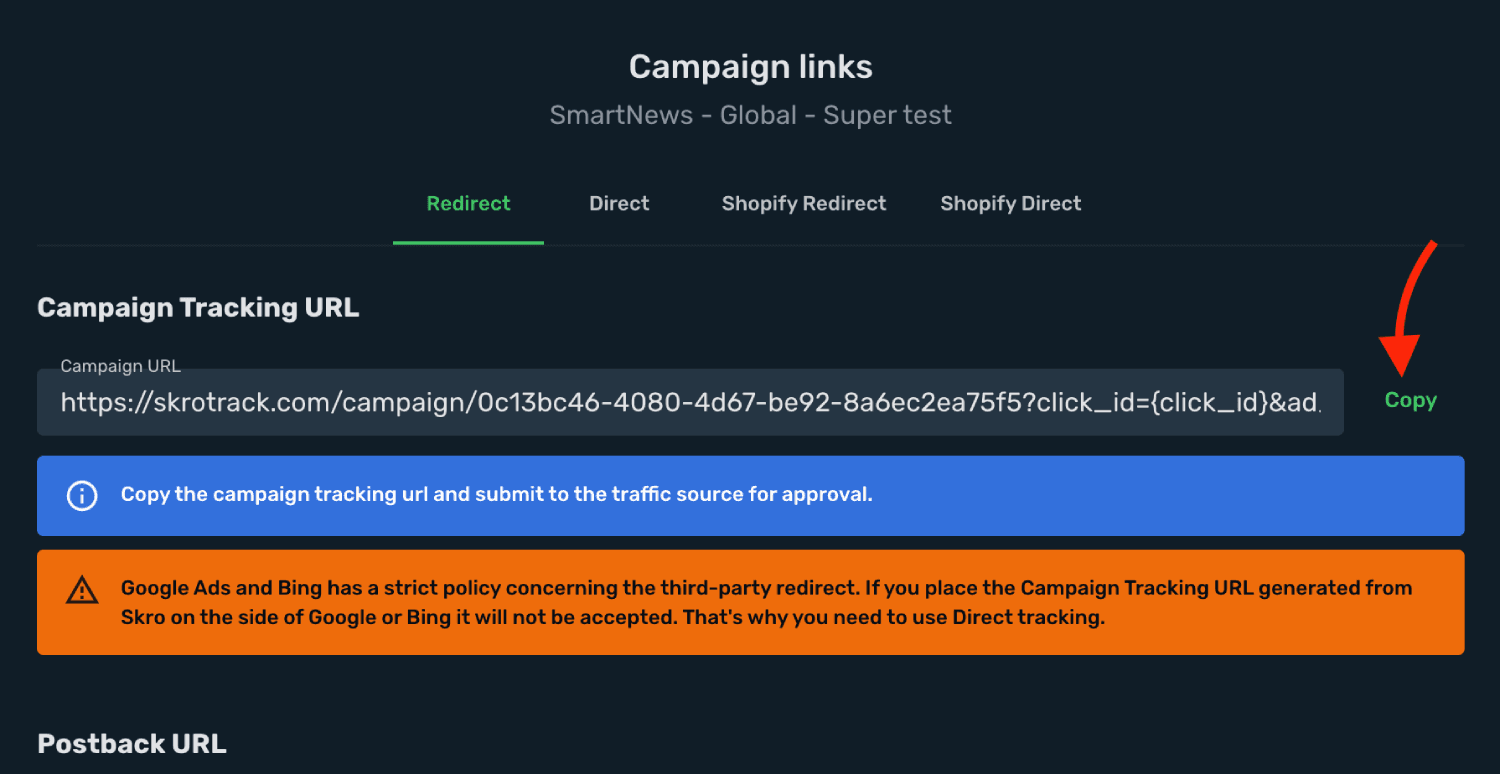
Step 5. Create a Campaign in SmartNews
Now you have your Campaign Tracking URL with tracking parameters added. In the next step you will submit it as your ad URL in SmartNews campaign setup. In order to do that, perform the following steps:
-
Sign in to your SmartNews account.
-
Go to Ads Manager campaigns view.
-
Click + Create Campaign and set up your campaign.
-
Add your campaign name and click Save and Next.
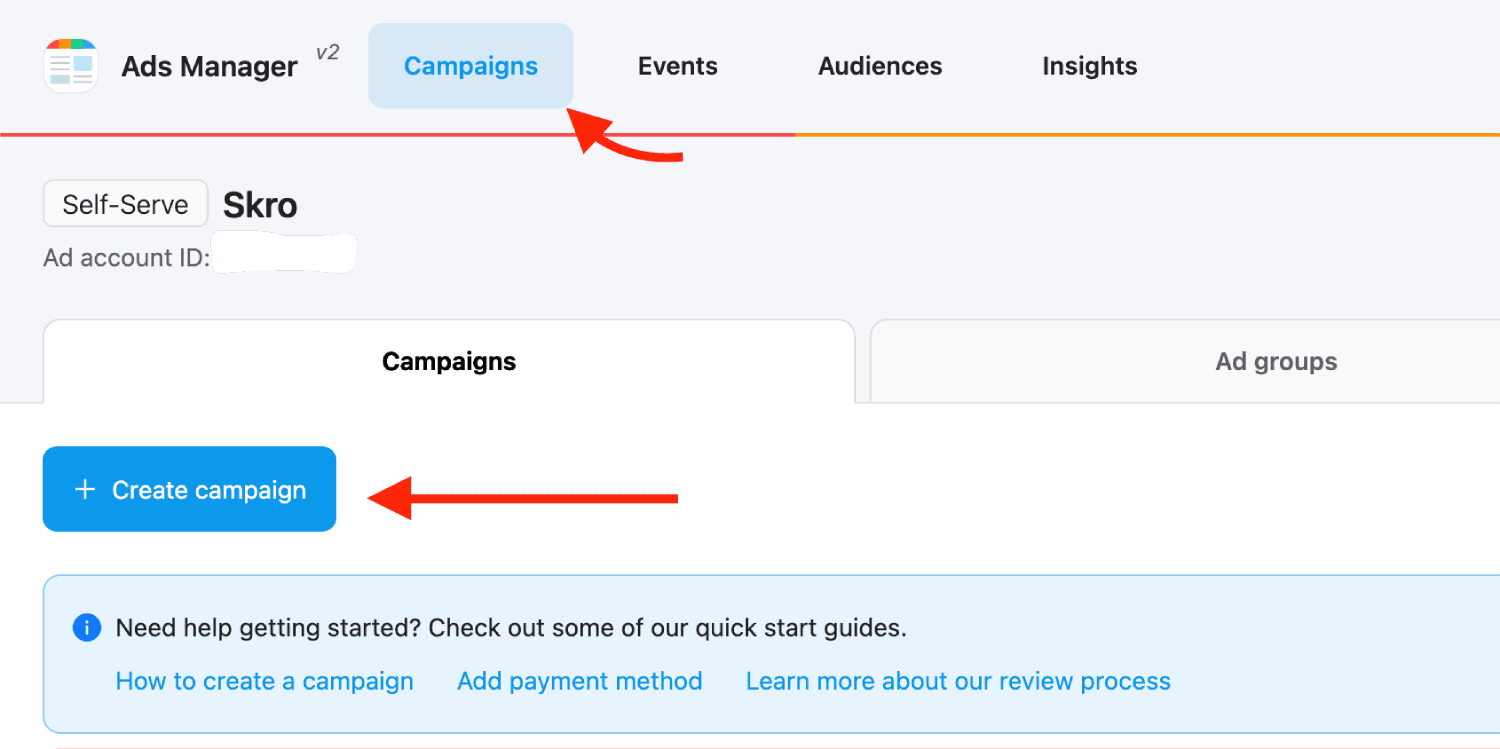
-
Set up your Ad Group.
-
Set up your Ad.
-
Add Skro tracking link with params into Destination URL field.
https://skrotrack.com/campaign/0c13bc46-4080-4d67-be92-8a6ec2ea75f5?click_id={click_id}&ad_id={ad_id}&ad_group_id={ad_group_id}&campaign_id={campaign_id}&ad_account_id={ad_account_id}- Click Submit when ever you are ready.
Congratulations, you have successfully set up tracking of SmartNews traffic with Skro. Each time a visitor clicks on your ad, will be directed to your offer page with Skro's tracking parameters being passed.
Verify the setup
Open the generated campaign URL and check that the visit appears in Skro. Confirm that traffic source macros resolve to actual values. If you send conversions back to the source, verify a test conversion in both systems.
Troubleshooting
If data is missing, check the selected workspace, integration, campaign, and reporting date range. Compare parameter names and macro values with the examples in this guide before repeating the test.
Related guides
Need help with this guide? Contact Skro support.